Importing Active Existing Subscriptions into PayKickstart
Written By Angela L
Last updated About 2 months ago
If you have Active existing subscriptions with the following gateways that you would like to import into PayKickstart to manage from your account, you can do this via our Import wizard.
PLEASE NOTE:
After importing and deactivating the subscriptions in the previous payment gateway PayKickstart will now hold and maintain the related customer subscription.
PayKickstart will utilize the same payment gateway you used to import the subscriptions when processing future transactions for customers. Switching the payment gateway for these imported subscriptions is not possible.
Important: You must first have the PayKickstart product created before mapping the Payment Gateway plan.
Important: The price and next billing date that will be used will be whatever the customer agreed upon in your Payment Gateway as per their terms; this won’t be the product price you set in PayKickstart (if the prices are different).
Step 1: Connect your Payment Gateway with PayKickstart
Step 1: Connect your Payment Gateway with PayKickstart
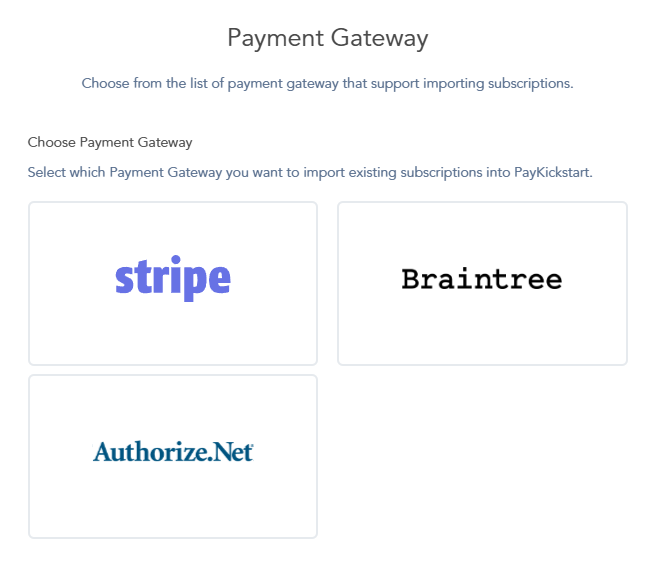
Importing Subscriptions is currently possible for the following Payment Gateway options:
Applying for Connect by PayKickstart
NOTE:
The instructions below apply to all 3rd party payment gateways that support the importing option (AuthorizeNet, Braintree, Stripe). If you wish to import your subscriptions and use Connect by PayKickstart - please contact our support team.
Step 2: Map your subscriptions to related products within PayKickstart
Step 2: Map your subscriptions to related products within PayKickstart
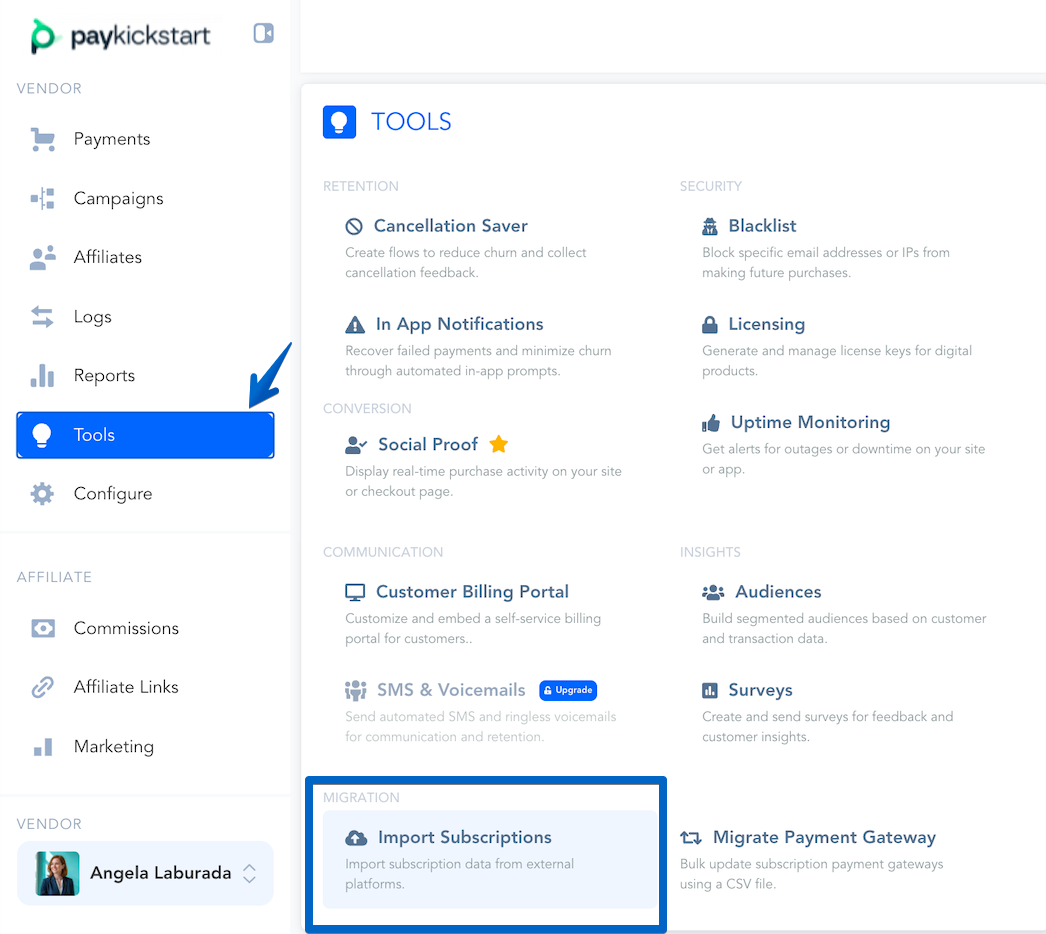
Access Tools → Import Subscriptions.
Then, select the Payment Gateway and the account where the subscriptions you want to import are located.
Important: You must first have the PayKickstart product created before mapping the Payment Gateway plan.
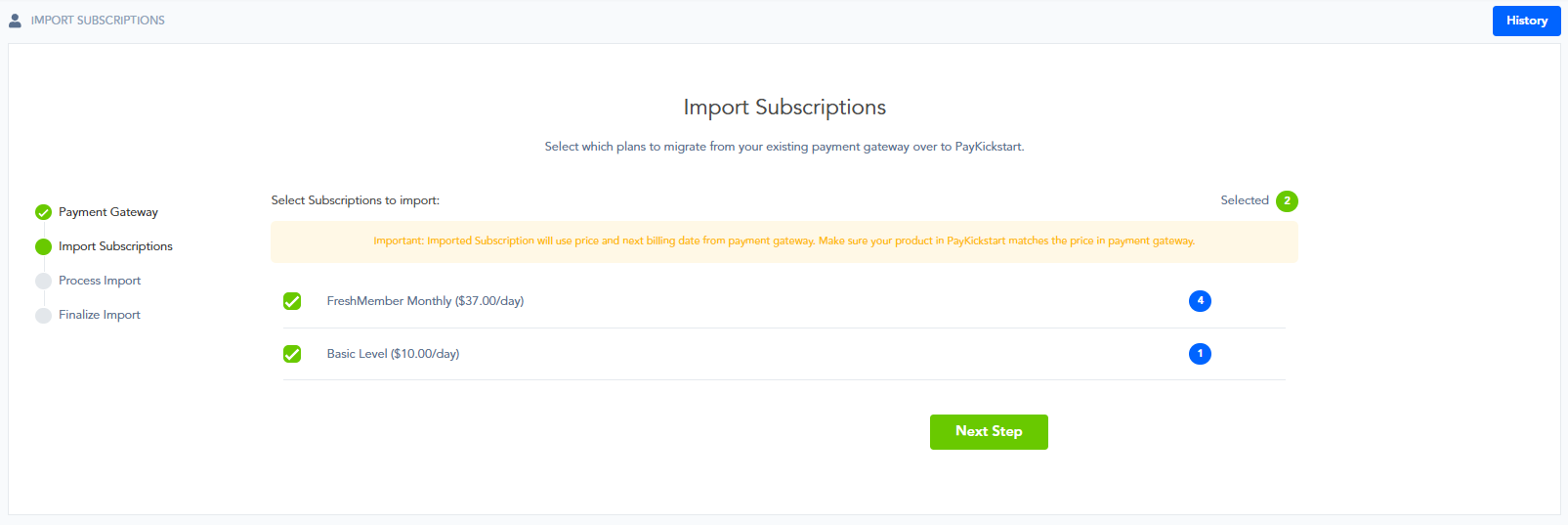
Important: The price and next billing date that will be used will be whatever the customer agreed upon in your Payment Gateway, not the price you set in PayKickstart (if the prices are different).
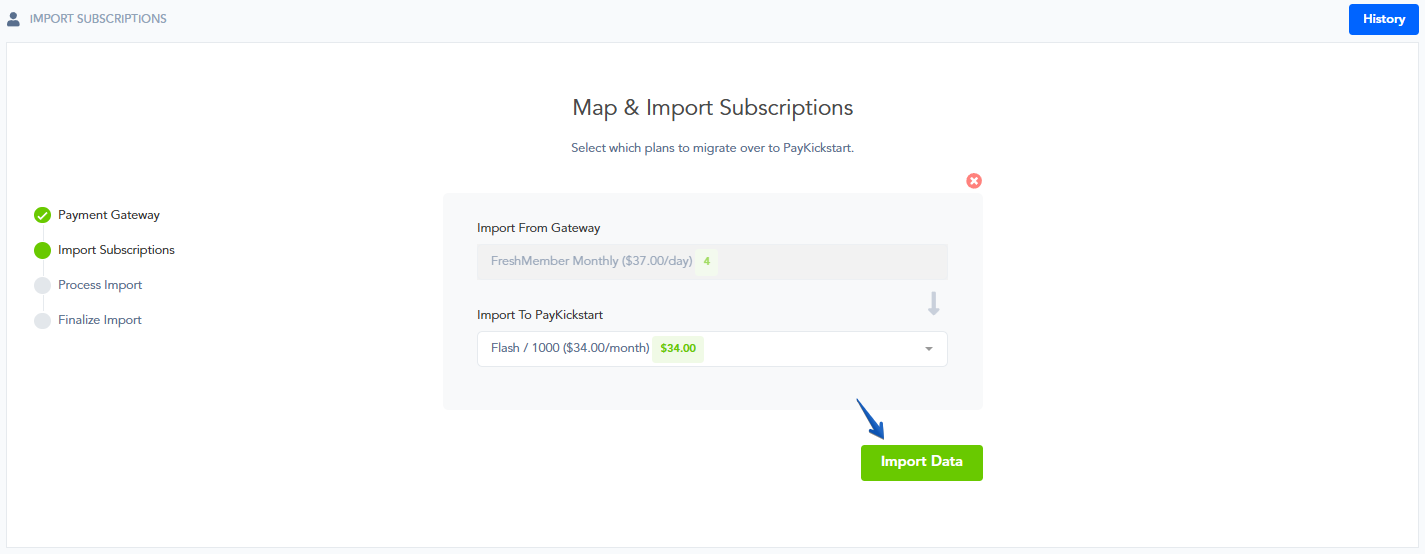
Select the plan or plans in the Payment Gateway that you are looking to import. Then map the Payment Gateway plan with the PayKickstart product.
Step 3: Click Import Data
Step 3: Click Import Data
The import may take a few minutes to complete.
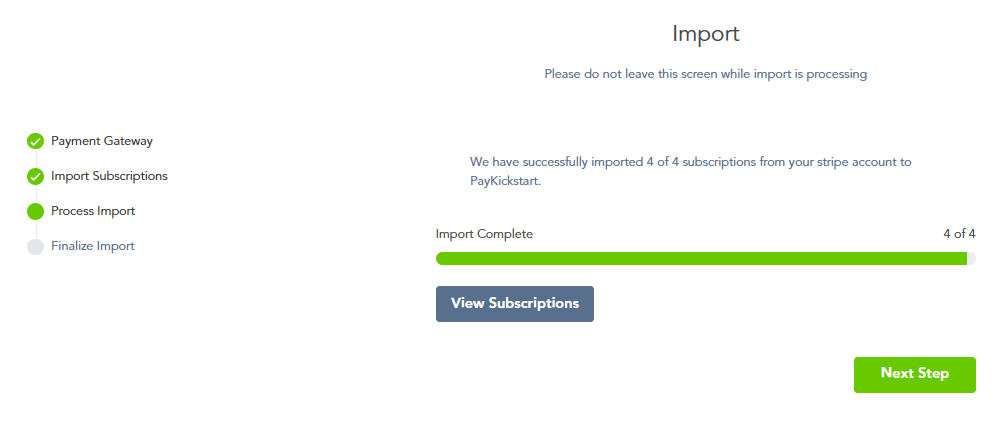
After the import has finished, choose the option to Deactivate Gateway Subscriptions.
This will cancel the subscriptions in the payment gateway and allow PayKickstart to manage the subscription moving forward.
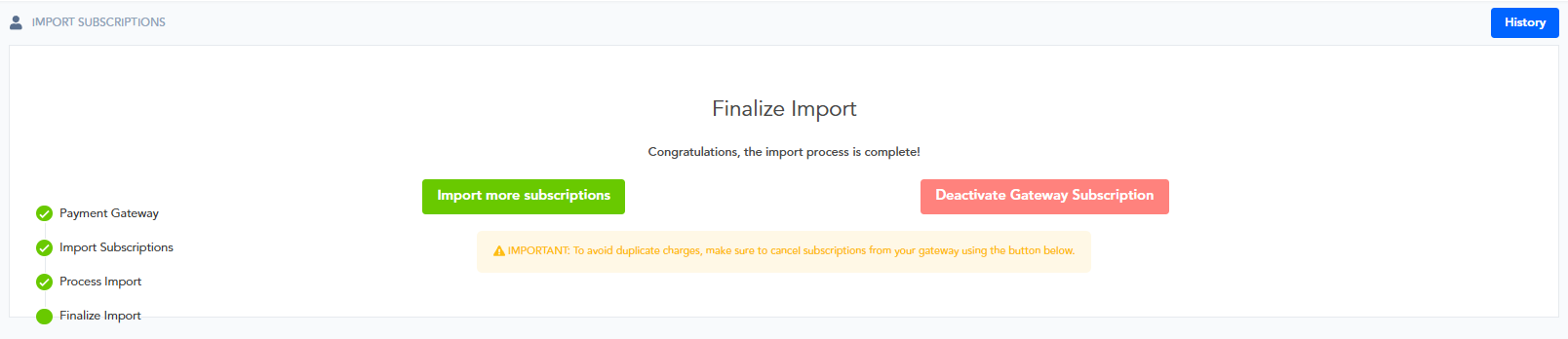
IMPORTANT:
The previous subscriptions in the payment gateway will need to be deactivated to ensure the customer is not double-billed by both PayKickstart and the previous subscription on the payment gateway.
After importing and deactivating the subscriptions in the previous payment gateway, PayKickstart will now hold and maintain the related customer subscription.
[OPTIONAL] Manual Import via CSV
[OPTIONAL] Manual Import via CSV
⚠️Warning - This method may carry significant risk.
If you are migrating subscriptions from a custom setup or a configuration not directly covered by our automated API imports, you can now use the Manual Import option.
This option allows you to upload subscription data using a standardized CSV file.
Please Note: We recommend testing the import of a smaller batch of subscription first.
With a smaller sample of subscriptions, you can ensure payment processing is continuing uninterruptedly first, rather than risking payment failures that would require heavy manual management at once.
⚠️ Important Risk Disclosure
Manually migrating subscriptions carries inherent risk. Because you are handling sensitive financial and customer data, extreme care must be taken prior to finalizing the import.
Data Accuracy: PayKickstart is not liable for mismatched data, including but not limited to customer details, products, gateways, payment dates, or subscription status.
Permanent Actions: Once a subscription is imported and a charge is successfully processed, the customer will be tokenized with PayKickstart. To avoid double-charging the customers, you should cancel the subscriptions in your payment gateway once they are imported into PayKickstart.
Review Process: We strongly recommend a thorough review of the data during the "Process Import" stage before clicking "Finalize."
How to Use Manual Import
Step 1: Select Manual Import
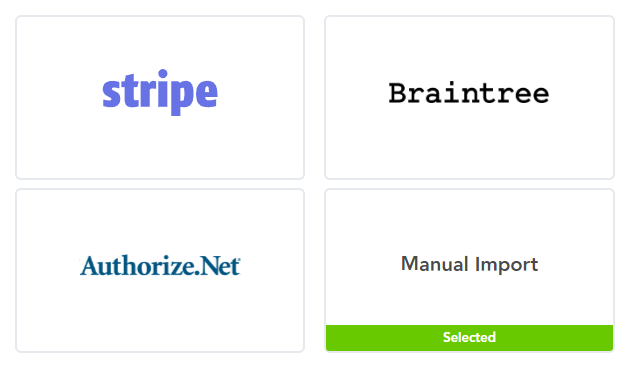
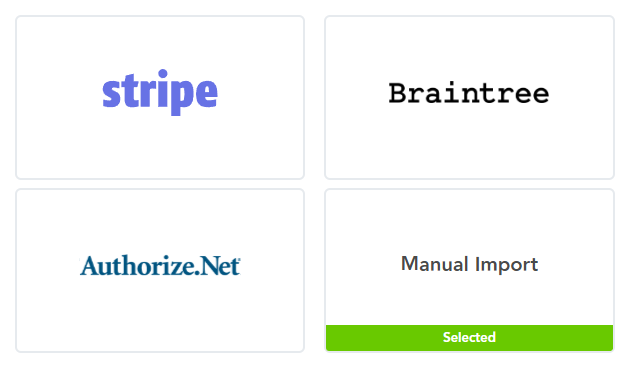
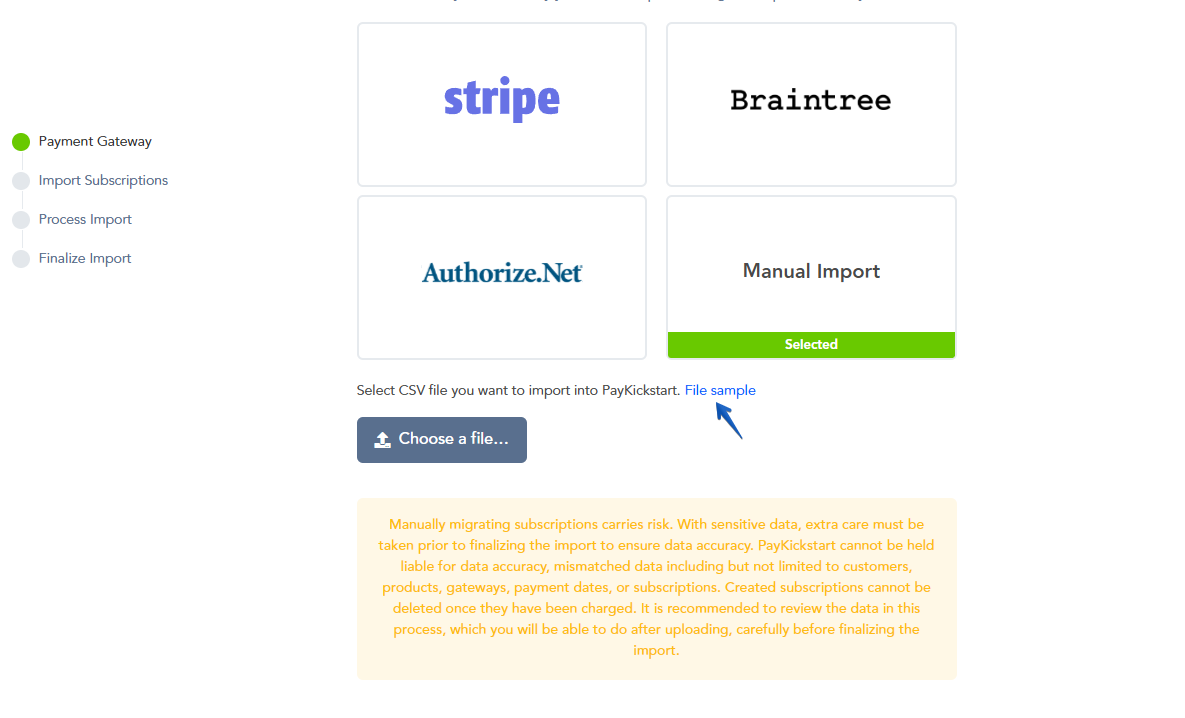
From the list of available gateways, select the Manual Import tile.
Step 2: Download the Sample File
Click the "File Sample" link next to the upload button. It is vital to use this template to ensure your data mapping aligns with PayKickstart’s requirements.
Step 3: Prepare your CSV file
Fill out the following 8 required fields for each subscription:
Email: The customer's primary email address.
First Name / Last Name: Customer contact details.
Customer Token: The unique identifier for the customer provided by your payment gateway.
Product ID: The specific PayKickstart Product ID this subscription belongs to.
Payment Method Token: The unique identifier for the specific payment method (e.g., card token) from your gateway.
Payment Method: Must be a PayKickstart-supported gateway (e.g., Stripe, Braintree, AuthorizeNet).
Next Date Charge: The date the next billing cycle should occur.
Please Note:
We do not support 3rd-party gateway tokens that are not officially integrated with PayKickstart.
In the sample file, the CSV delimiter should be → ;
The Product ID needs to be related to a PayKickstart product you created.
This ID can be found in the Product selection menu, in your Campaign section at: https://app.paykickstart.com/vendor/campaigns
The Payment Method must represent the method type, for example for credit cards, prepaid payments or wire transfers you should use the following values: "cc", "pp", or "wt"
Step 4: Upload and Verify
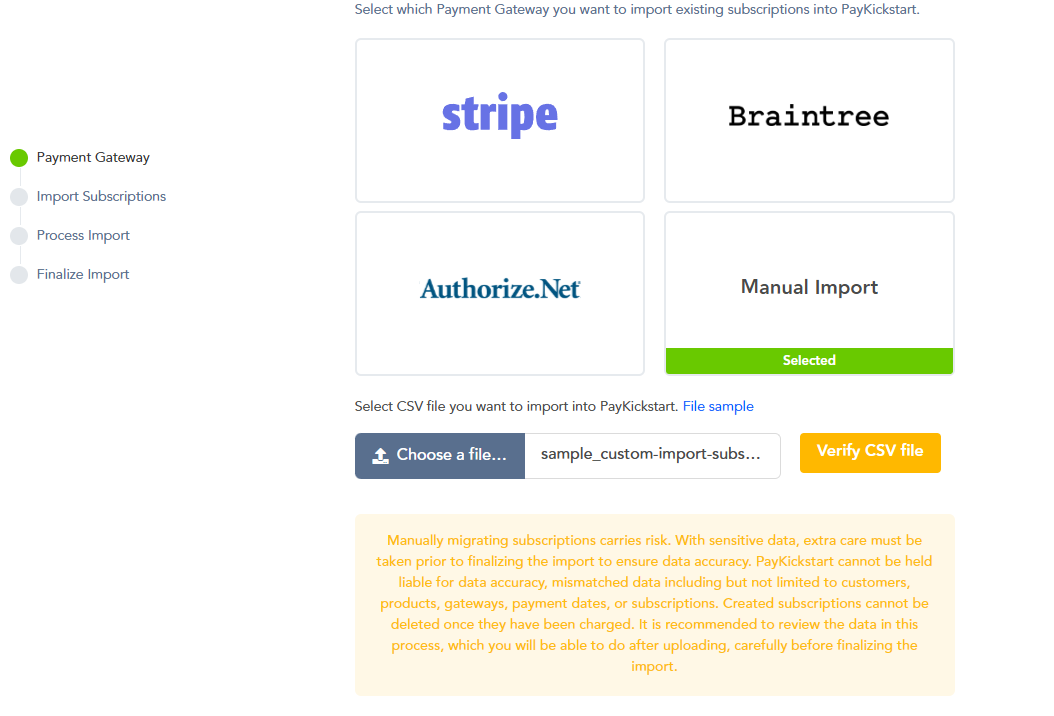
Click Choose a file to select your completed CSV, then click Verify CSV file.
Our system will check for formatting errors. Once verified, you will proceed to the product mapping and final review stages.
Once your file is verified, continue to the next step - see:
Step 2: Map your subscriptions to related products within PayKickstart above
NOTE FOR STRIPE
In order to import the subscriptions from Stripe, the active subscription must have the following settings:
#1. Subscription Plan billing_scheme is per_unit: https://stripe.com/docs/api/plans/object#plan_object-billing_scheme
#2. Subscription Plan usage_type is licensed: https://stripe.com/docs/api/plans/object#plan_object-usage_type
We would recommend checking these components with the subscriptions or contacting Stripe to see if they can assist with checking/editing these components if you are having trouble importing active subscriptions from Stripe.
Downloading your Data Migration File
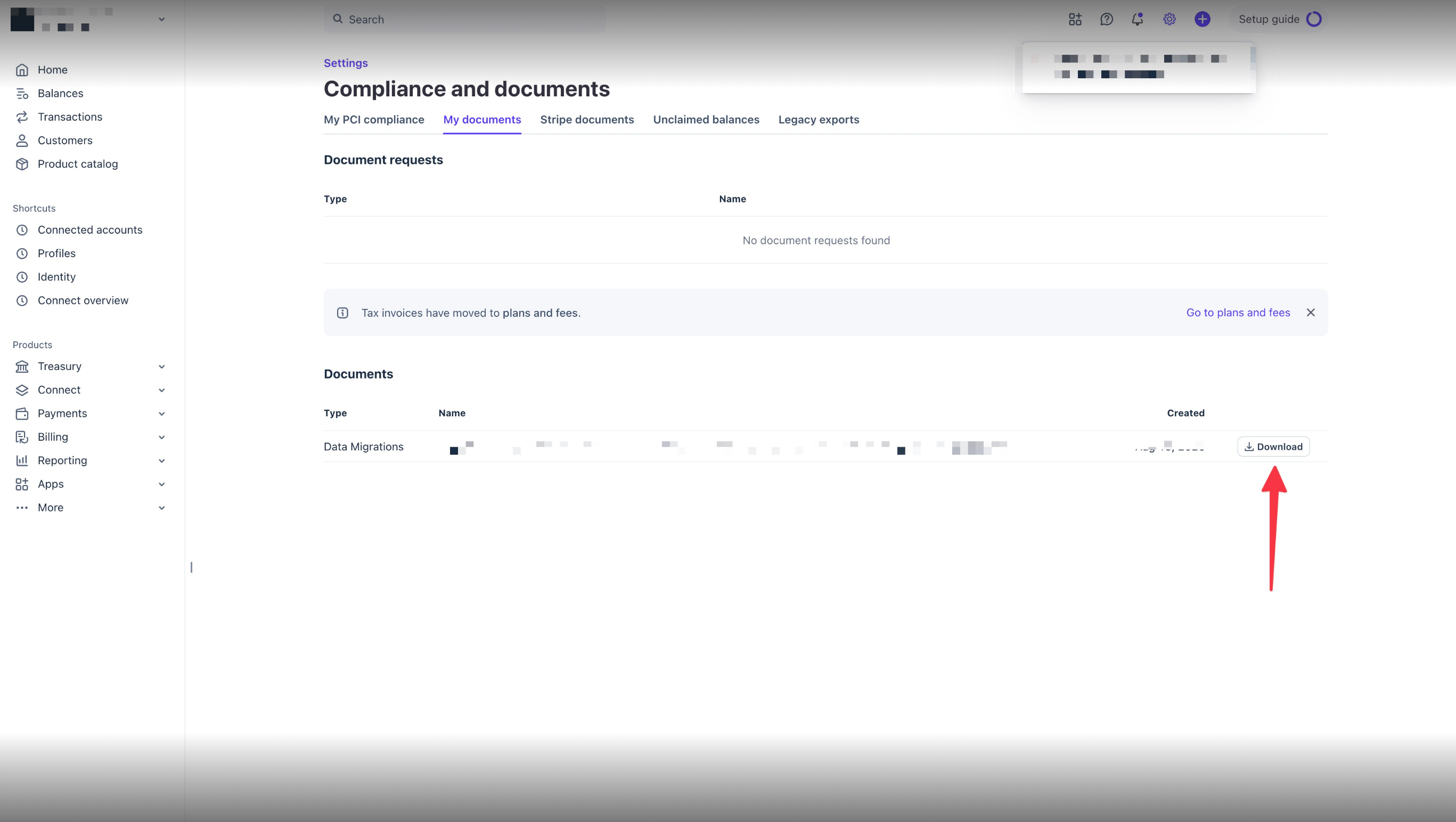
Log in to your Stripe Dashboard.
Navigate to Settings > Compliance and documents > My documents.
Under the Documents section, locate the Data Migrations file.
Click Download to save the CSV file locally.
ACH Mandates Permission (If Applicable)
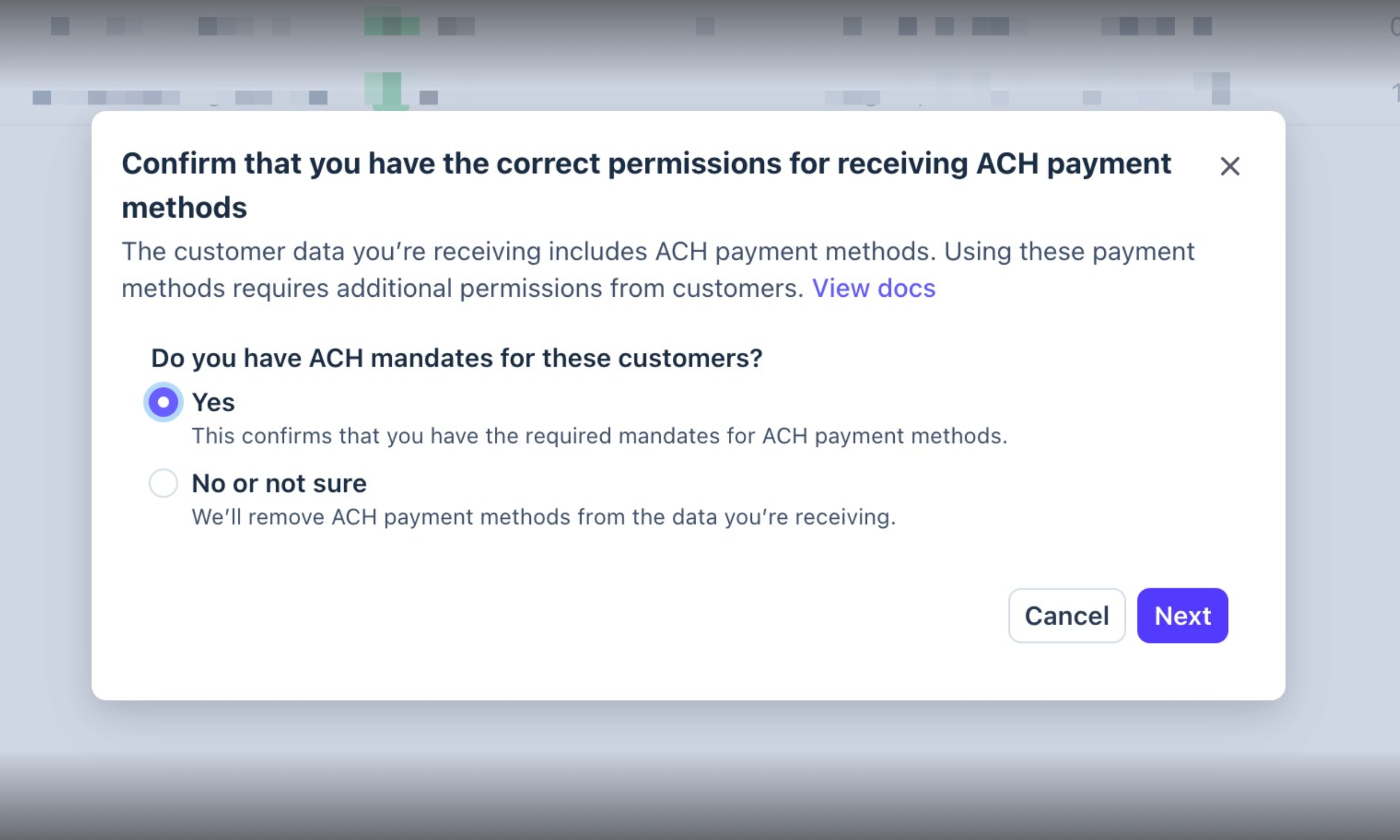
If any of your migrating customers utilize ACH as their payment method, Stripe will prompt a permission check regarding ACH mandates during the data transfer process.
When prompted with "Do you have ACH mandates for these customers?", select Yes.
PayKickstart automatically handles ACH mandates on your behalf, ensuring compliant processing for these payment methods upon import.
Click Next to proceed.
Once the import is completed, use the History section to view all your previous imports and subscriptions that have been transferred over.
Once ready choose to Deactivate All subscriptions to avoid double-billing the customers from both PayKickstart’s request and your payment gateway’s payment request.
Clicking on Deactivate All will deactivate the active subscription in the current gateway account where you imported the subscriptions. This step is needed to prevent double-charging your customers from both PayKickstart, and the payment gateway.
We do recommend double-checking and ensuring all of your imported subscriptions have been successfully cancelled in your payment gateway account.
Was this helpful?
Still need help? Ask the team