Integrating SendX - AutoResponder Integration
Written By Angela L
Last updated 9 months ago

This guide will walk you through connecting your SendX account to PayKickstart as your autoresponder service for sending important marketing emails and updates to customers.
This integration automatically adds new customers to your SendX lists and tags them based on the products they purchase, streamlining your email marketing automation.
Step 1: Access the Configure → Integrations section
Step 1: Access the Configure → Integrations section
In your PayKickstart account, go to Configure → Integrations.
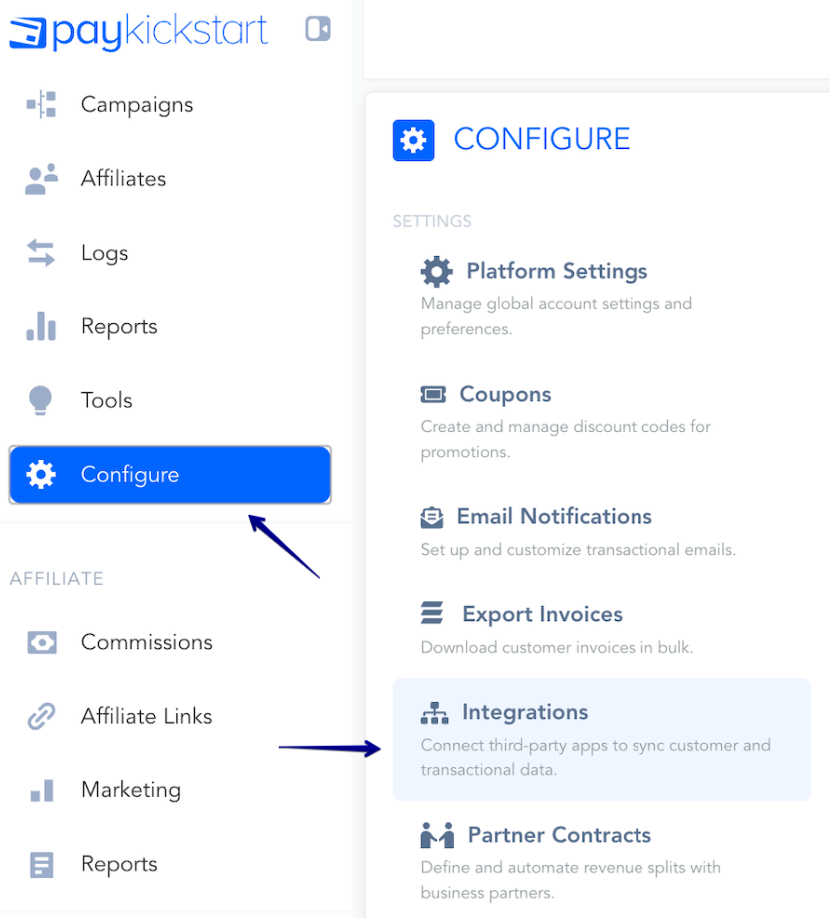
First, you’ll need to integrate on your main integration page.
Inside the Integrations menu, make sure to click on the Available tab.
Then find the Autoresponders category in the filter, and scroll down to locate SendX.
You can also search for SendX directly within the Search field:
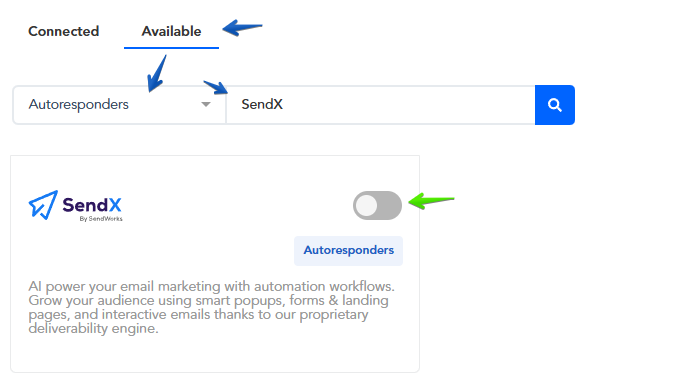
Enable SendX by clicking the toggle switch.
Step 2: Adding the API Key and Authorizing the SendX integration
Step 2: Adding the API Key and Authorizing the SendX integration
A pop-up window will appear asking for your SendX account details.
Account Name: Enter a name for internal reference.
This is only for display purposes inside PayKickstart (e.g., "My SendX Integration").
API Key: Paste your Team API Key from SendX.
How to find your SendX Team API Key:
Log in to your SendX account.
Navigate to Settings in the top menu.
Go to the API & Webhooks tab →
Copy the value from the Team API Key field.
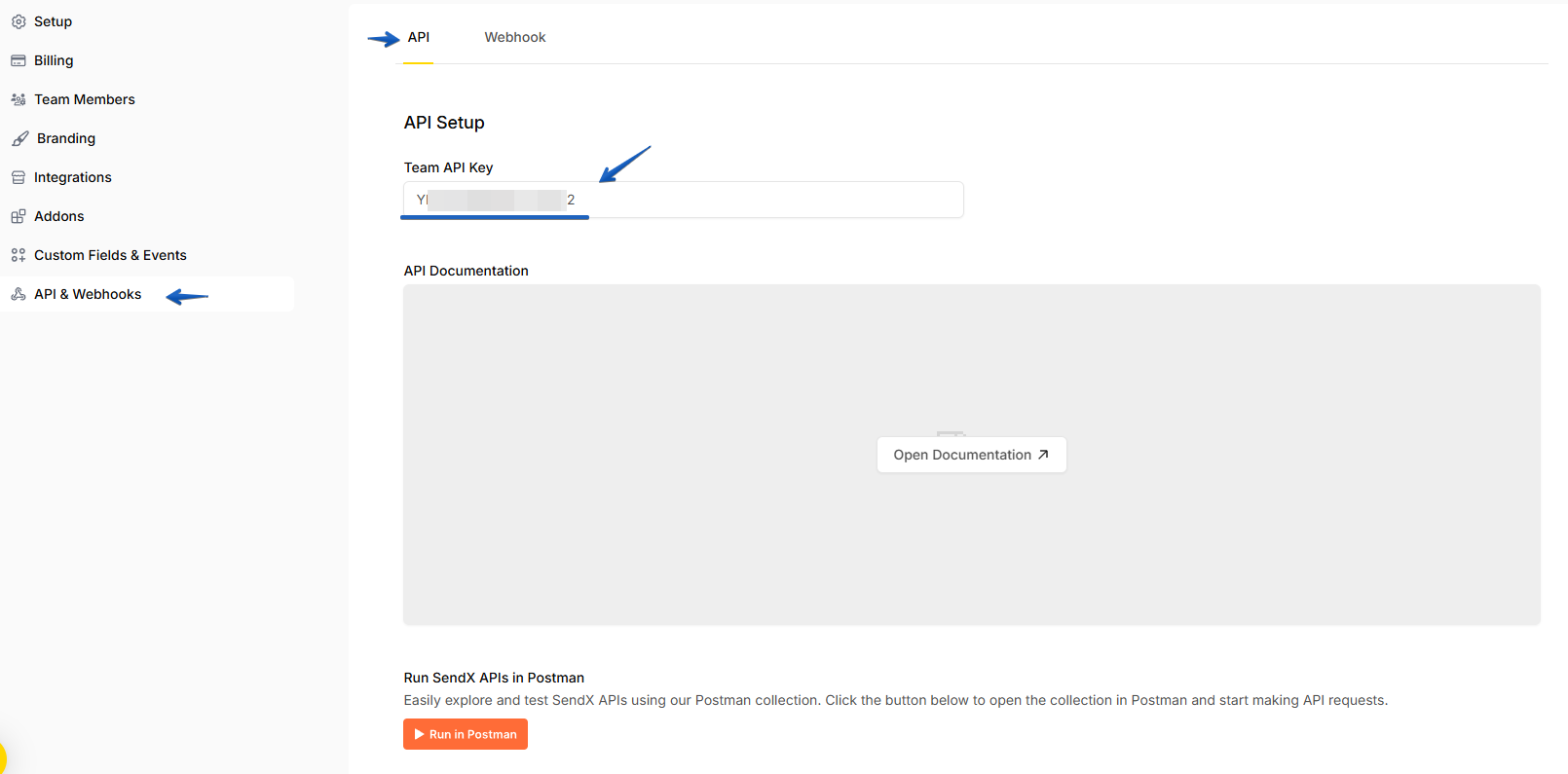
Then, go ahead and enter the value into PayKickstart’s API Key field for your SendX integration:
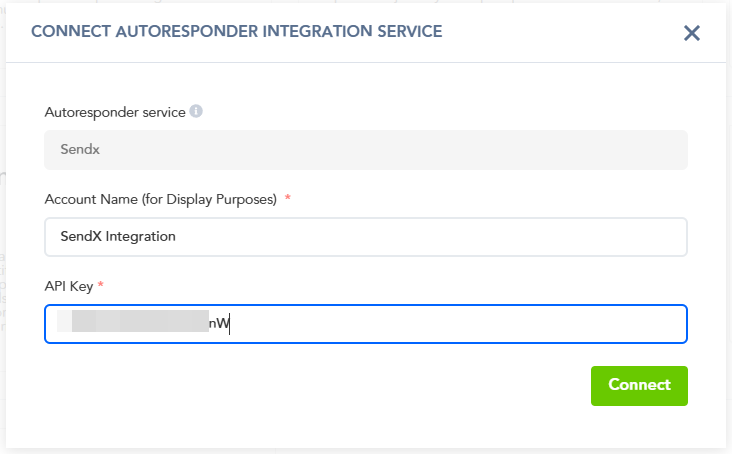
Click the Connect button.
A success message will appear in the bottom-right corner confirming that the connection was successful if your credentials are entered correctly.
Your SendX account is now connected to your PayKickstart platform.
The next step is to create an automation Trigger to set up adding customers to your lists and tagging them for specific events, for each product you wish to use the integration with.
Step 3: Creating an Automation Trigger for your Product(s)
Step 3: Creating an Automation Trigger for your Product(s)
After connecting your account, you must set up a Trigger to tell PayKickstart when to send customer information to SendX.
In the PayKickstart dashboard, go to Configure and select Triggers →
https://app.paykickstart.com/vendor/configure/triggers
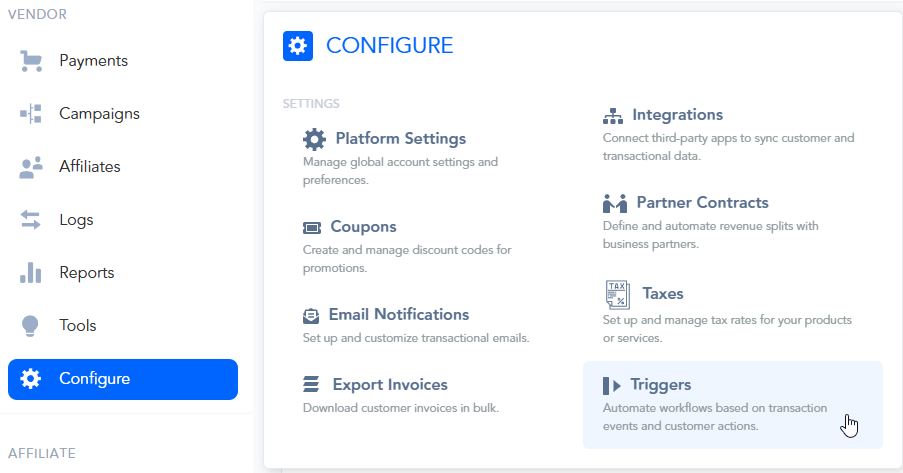
Click the + New Trigger button to create a new rule.

Configure the Trigger settings as follows:
Status:
First, toggle the switch at the top to make the trigger ACTIVE.Trigger Name:
Give your trigger a descriptive name so you can easily identify it later
(e.g., "Product 1 - New Sale to SendX").
Select Event(s):
Choose the event that will fire this trigger.
For adding new customers, New sale is the most common choice.
Please note:
Available event options will show clearly only after saving your first trigger.
We recommend choosing the New Sale event when setting up the integration for the first time as it would trigger with any new transaction that is created for the product.
For SendX, the currently available and supported events are:
New Sale - triggers when a new transaction is created for the product
New Trial - triggers when a new trial is started for the product
Refund - triggers when a refund is issued to the customer, for the specific product
Subscription Cancellation - triggers when a Subscription is cancelled, for the product
Pending Cancellation - triggers when choosing to cancel the subscription at the end of the billing period, instead of immediately
Cart Abandonment - triggers 15 minutes after the checkout page has been abandoned
Subscription Changed - triggers whenever the subscription’s plan has been changed to a different one
IF Condition (The Rule):
This defines the variable that must be included for the trigger to run.
Important: The IF condition must be set to a Product, for the integration to function.
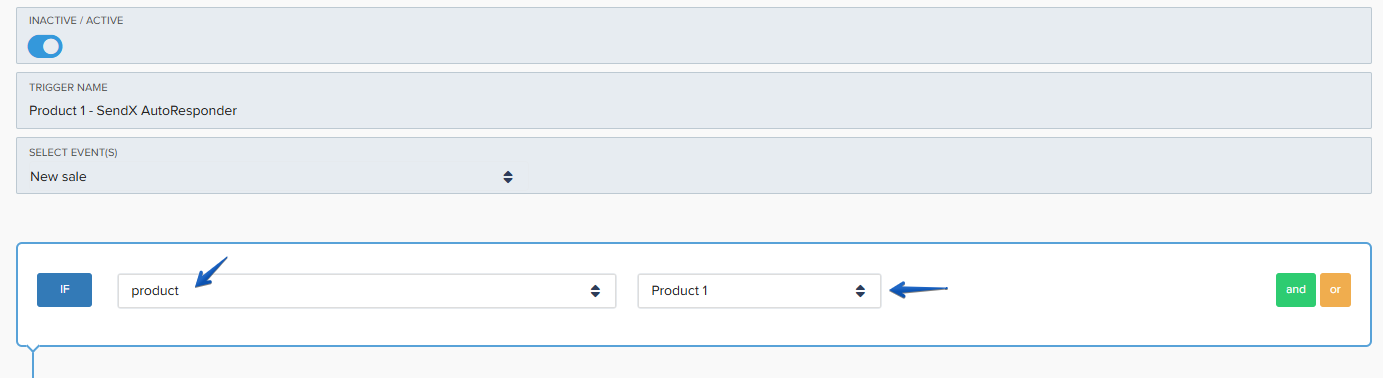
Best Practice Use Case:
We recommend creating a separate trigger for each product.
This makes it easier to manage and troubleshoot specific product integrations if needed, rather than having 1 trigger where all products are selected.
THEN Action (The Result):
This defines what will happen when the IF condition is met.
Please ensure that you have your Lists and Tags created in your SendX account.

Set the THEN action to: add customer to Email Marketing service.
Service: Select sendx from the dropdown.
Account: Choose the SendX account you connected in your Integrations section.
Select List: Choose the specific SendX list where you want to add the customer.
Add Tag: Select a Tag, or multiple Tags you want to apply to the customer in SendX (e.g.,
new customer,subscribed customer, etc.)
Once you have configured the rule, click the Update Trigger button to save your automation.
To verify the integration is working correctly, you can perform a test transaction for the configured product and check that the test customer appears in your SendX list as expected.
To find out more about placing your Campaign into test mode, please see this article → https://support.paykickstart.com/help/articles/6271108-how-to-test-your-funnel-before-going-live-test-mode
Note:
If you ever run into an issue and need to re-try a failed integration event due to any error that occurred, you can always do so in the Logs > Transaction Events section.
You would need to filter for Transactional events and look up the exact transaction ID
Then, you will have the menu option on the right side of the failed event to open the detailed view about that specific event:

In the detailed Events view click on the re-try option:

That's it! You have successfully integrated SendX with PayKickstart.
When a customer now purchases the product you specified in the trigger, they will automatically be added to the selected list and tag in your SendX account.
Was this helpful?
Still need help? Ask the team