Why Do I See Failed Transactions & What Do the Errors Mean?
Written By Stefan S.
Last updated About 1 year ago
Many new PayKickstart vendors are initially concerned when they notice failed transactions on the Transactions page.
However, it’s important to understand that this is entirely normal. Unlike many other shopping cart platforms, PayKickstart provides deeper visibility into transaction activity, offering insights that may not have been available with other systems.
Because our goal is to help you grow your business, we prioritize full transparency for every transaction, successful or not.
On average, around 15% of customer transactions may fail for various reasons. Most commonly, these failures occur due to incorrect billing information (e.g., an invalid expiration date, credit card number, or CVV code). In many cases, the customer corrects the issue and completes the purchase successfully once notified of the error.
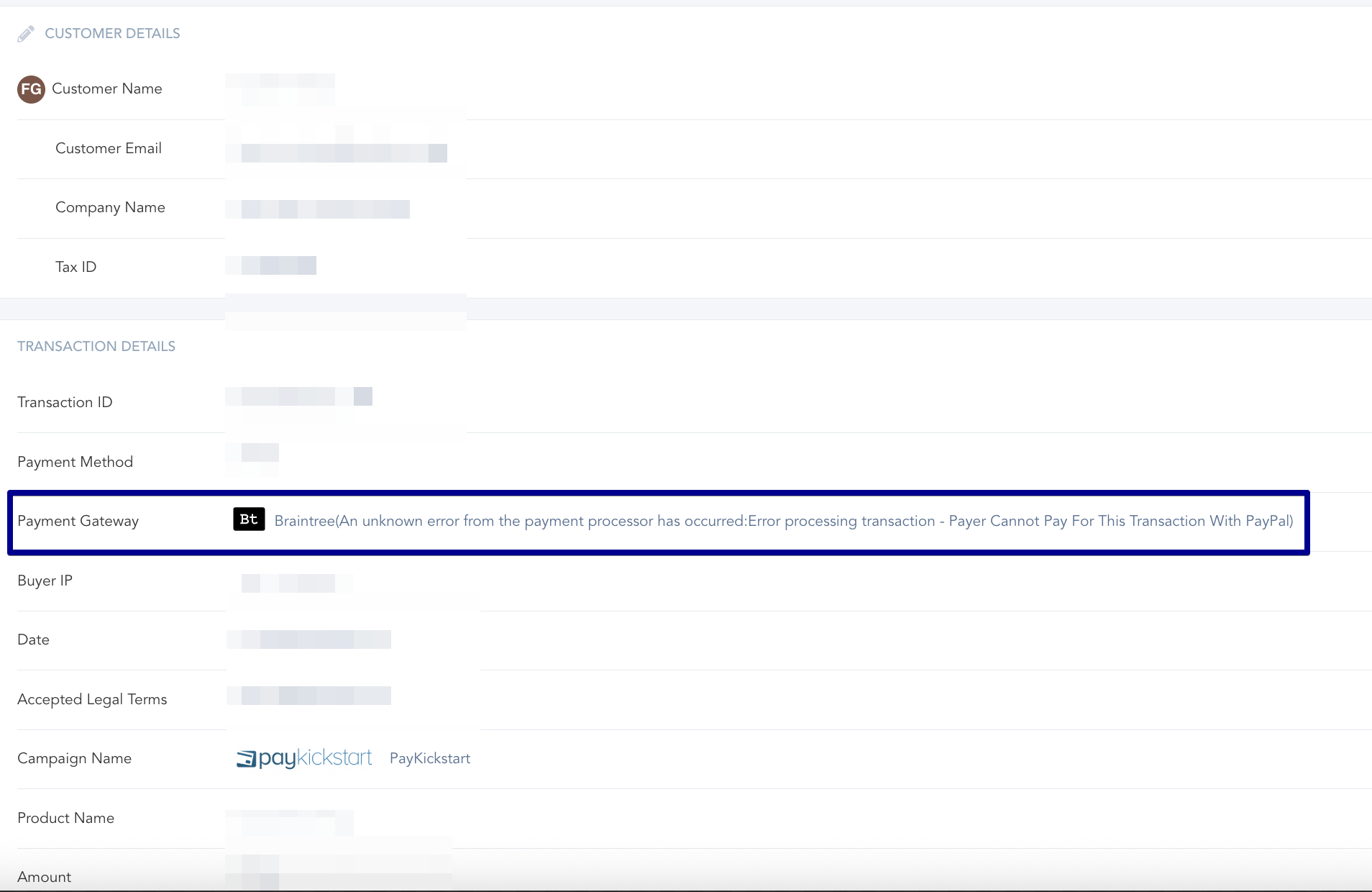
We display both the failed and successful transaction attempts, along with detailed explanations for why each failure occurred. These failure reasons are pulled directly from your Payment Gateway and can be viewed in the Transaction Details section.
Here’s an example of what that information might look like.
Handling Failed Transactions
Note:
When a transaction fails, PayKickstart automatically takes steps to help recover the sale.
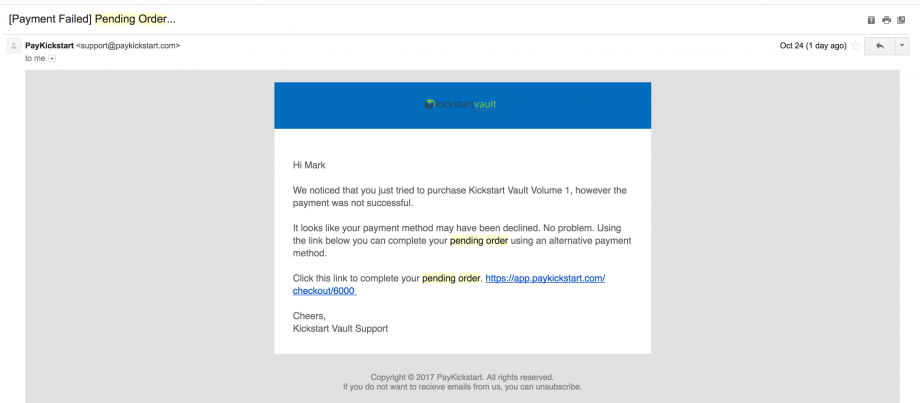
If the customer has not completed a successful purchase within 5–10 minutes of the failed attempt, we will send a Payment Failed: Pending Order reminder email encouraging them to try again.
That email looks something like this:
Handling Failed Rebill Transactions
Whenever a rebill/recurring transaction fails, PayKickstart will again do its best to try and save the sale. Which means an email will be sent out to the customer to Update their Billing Details.
You can set up the frequency schedule for the Subscription Saver by going to your Platform Settings. Locate Subscriptions, and then you can adjust how you want PayKickstart to handle failed rebills.
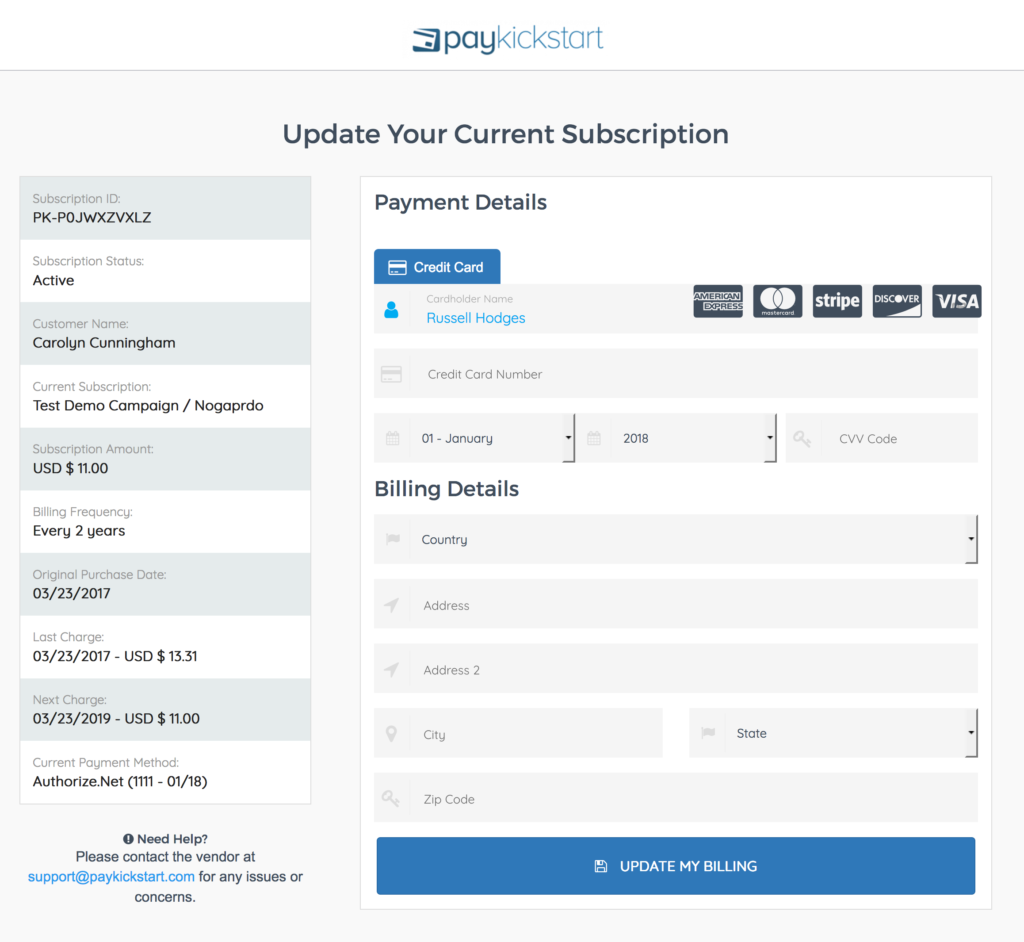
If you choose to send out an email reminder to Update Billing Details, the customer will be sent an email with a link to update. They will click on the link and will be taken to a page that looks like this to update their subscription.
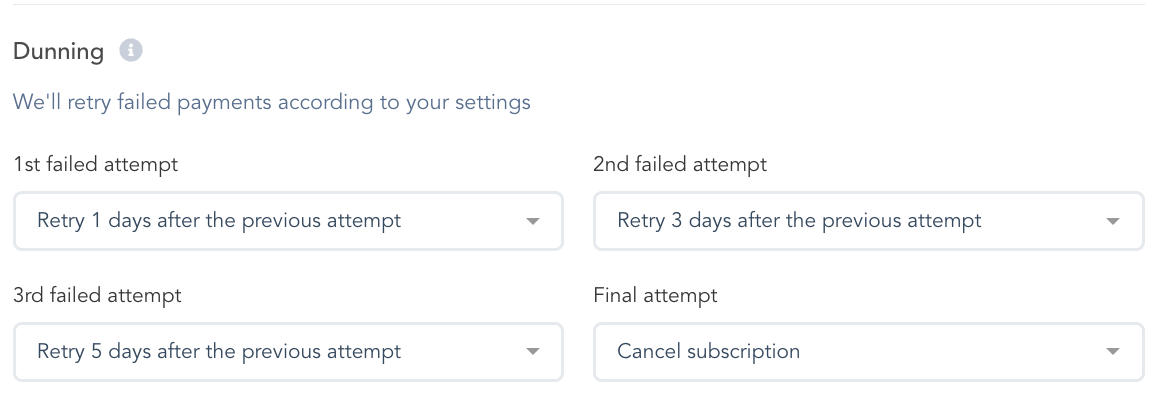
Depending on your Dunning configuration on the Platform Settings page, you may see the same transaction in the Failed Transaction list a few times, as we can try up to 4 times to charge the billing details we have on file.
PayPal Errors
PayPal Errors
If you are using PayPal to process orders, here is a list of errors you may see.
Error: This transaction cannot be processed. Please enter a valid credit card number and type.
This error occurs when the customer enters the wrong credit card #, Expiration Date, or CVV code at checkout.
Error: The preapproval key hasn’t been authorized yet.
This means the customer has not accepted the PayPal preapproval key that allows PayPal to bill the customer. This could happen if a customer goes to the PayPal checkout page (where they log in to their PayPal account), but then they do not complete the purchase from there.
Error: Customer did not complete the purchase inside PayPal.
This means that the customer started the checkout process (got to the PayPal screen) but didn’t complete the checkout process.
Error: The preapproval key has been canceled.
This error is typically for rebills and occurs when the customer has cancelled the preapproval key inside of PayPal, blocking the ability for PayKickstart to charge the customer.
Error: PayPal throws an undefined error while processing the payment.
Unfortunately, PayPal does not provide any further insights into this error.
Error: This payment request must be authorized by the sender.
The customer started the checkout process, yet never completed it as they never approved it inside of PayPal.
Error: Account can not be fetched.
This error is originating from the PayPal system. Please get in touch with PayPal support for further assistance.
Error: This transaction cannot be processed. Please enter a valid credit card number and type.
This error means that the customer is using an invalid card.
Error: Unprocessable_Entity: the requested action could not be performed, semantically incorrect, or failed business validation.
An order is unsuccessful because of a failed business validation, such as when a buyer uses an expired card.
Note:
If PayPal provides a Correlation ID, we include it in the error details to offer additional context about the issue. However, only PayPal can provide specific information regarding each Correlation ID. In most cases, these errors relate to the customer’s PayPal account.
For a precise explanation, we recommend contacting PayPal support directly.
Also, you can check to ensure that there are no outages within PayPal by going to https://www.paypal-status.com/product/production.
Credit Card Errors
Credit Card Errors
If you are using one of our Credit Card gateways to process orders, here is a list of errors you may see.
Error: Your card was declined.
This means the credit card processing company (Mastercard, Visa, AMEX, Discover) declined the payment. Typically, this is due to not being enough credit/funds available OR fraud protection by the credit card company. The customer may need to contact their credit card company to allow the payment to be accepted.
Error: An error occurred while processing your card. Try again in a little bit.
This error is a bit vague, but typically for one of the following reasons; the card is not supported by the payment gateway, there are not enough funds on the card, or it’s an invalid card.
Error: Your card has insufficient funds.
This means that there were not enough funds on the credit/debit card to pay for the product.
More info about PayPal Failed Transaction Error Codes.
More information about Stripe Failed Transaction Error Codes.
More Information about Braintree Failed Transaction Error Codes
More info about Authorize.net Failed Transaction Error Codes.
More info about Easy Pay Direct Failed Transaction Error Codes.
Was this helpful?
Still need help? Ask the team