Funnel Override Settings
Written By Angela L
Last updated 11 months ago
The Funnel Override Settings are optional features that let you customize the default settings for each product in your sales funnel individually. This includes changing elements like the landing page URL or price, without needing to create an entirely new product within your campaign.
To know more about the funnel override settings, follow the steps in this demo:
Or follow our step-by-step guide below:
Step 1: Access your Campaigns page
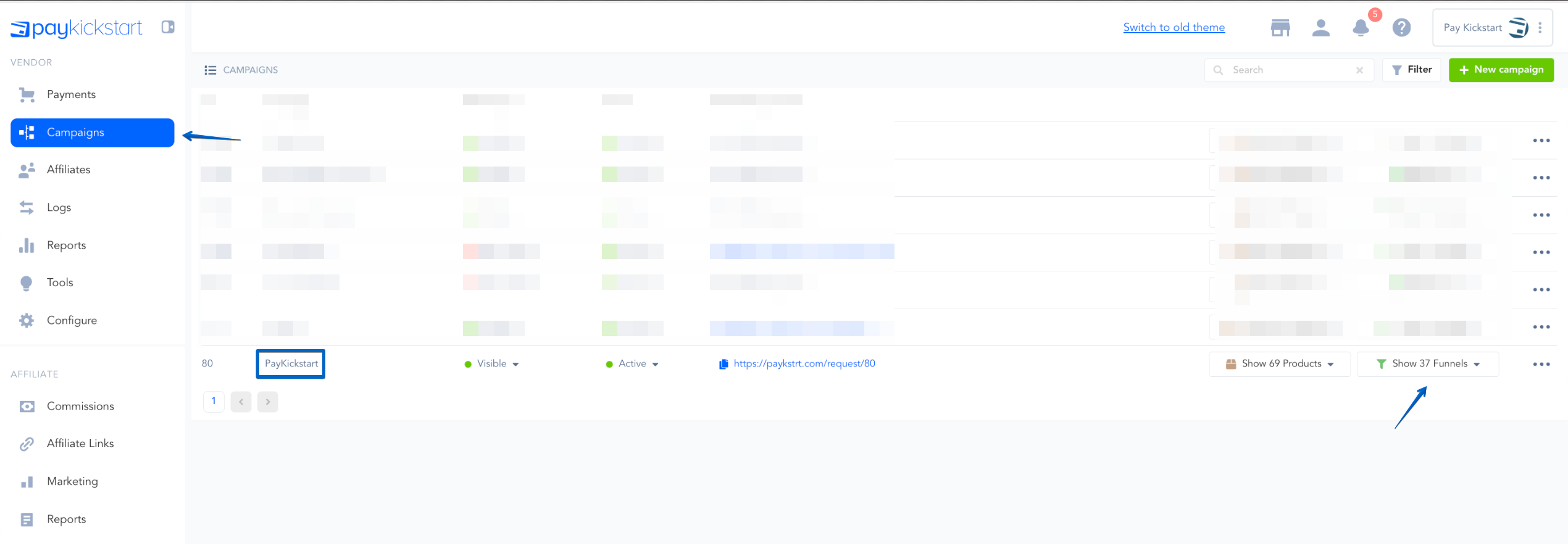
Step 1: Access your Campaigns page
To override individual settings, go to Campaigns and choose the specific funnel you would like to edit.
Step 2: Choose which part of the funnel to configure
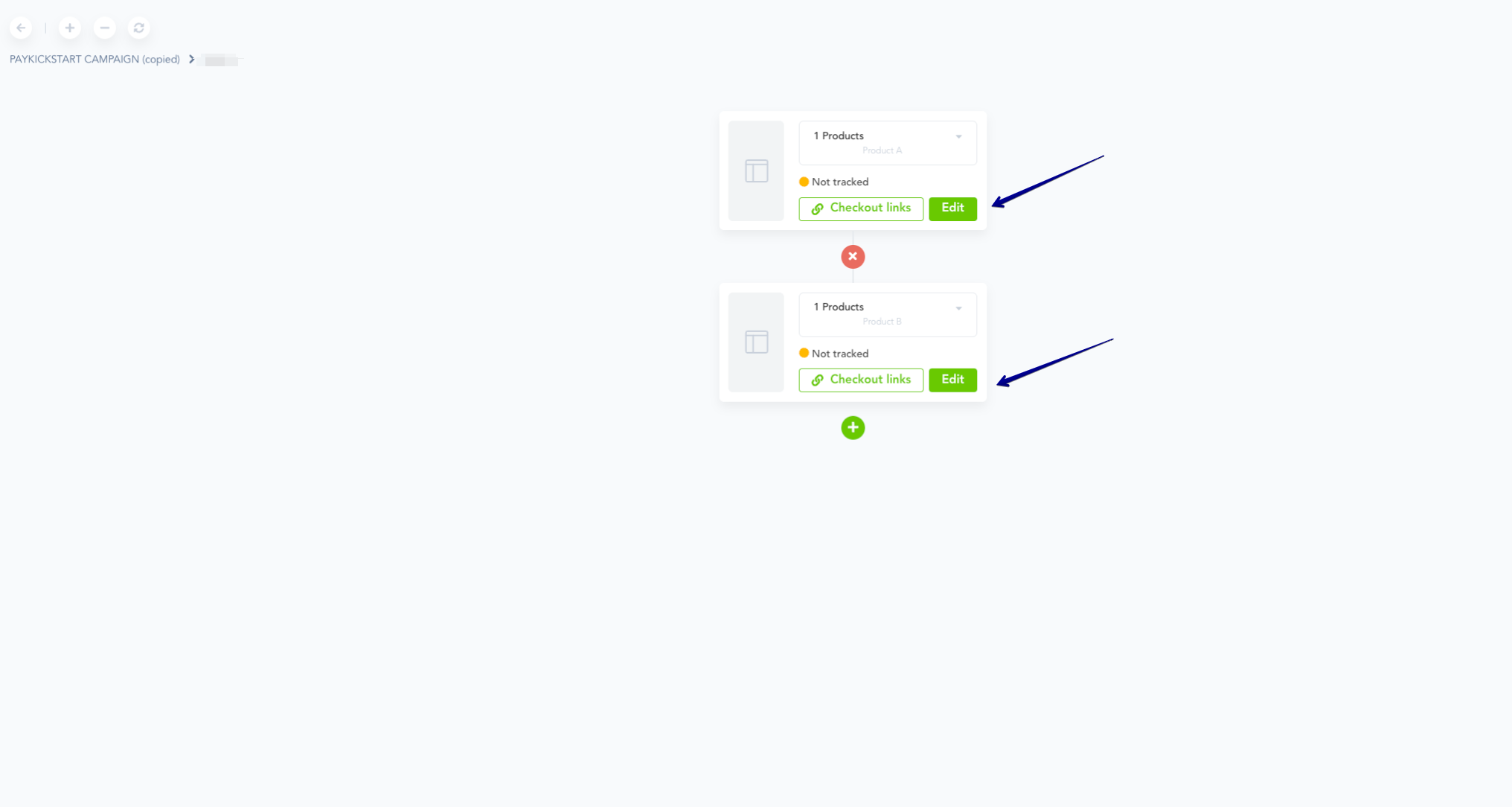
Step 2: Choose which part of the funnel to configure
Then, select the step in your funnel you would like to override settings for by clicking on the Edit button.
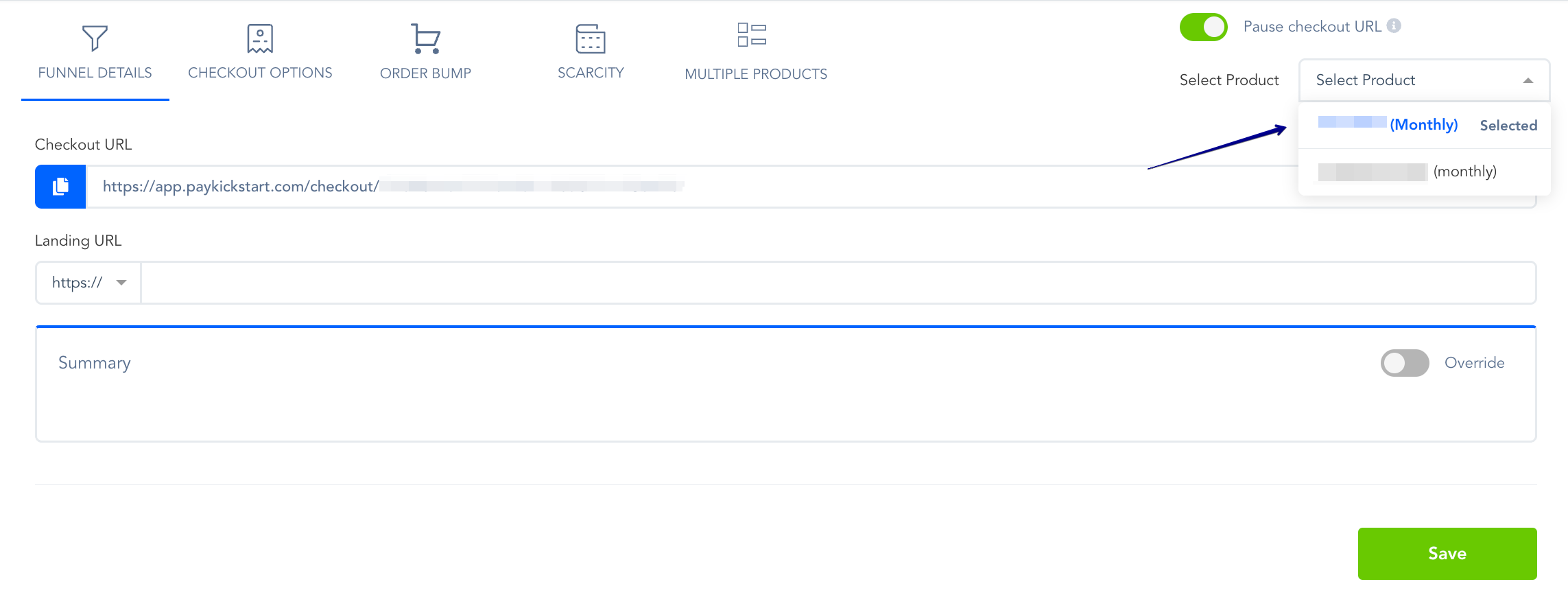
If the funnel step you selected includes multiple products, choose the specific product you want to configure by using the drop-down menu in the top-right corner of the page.
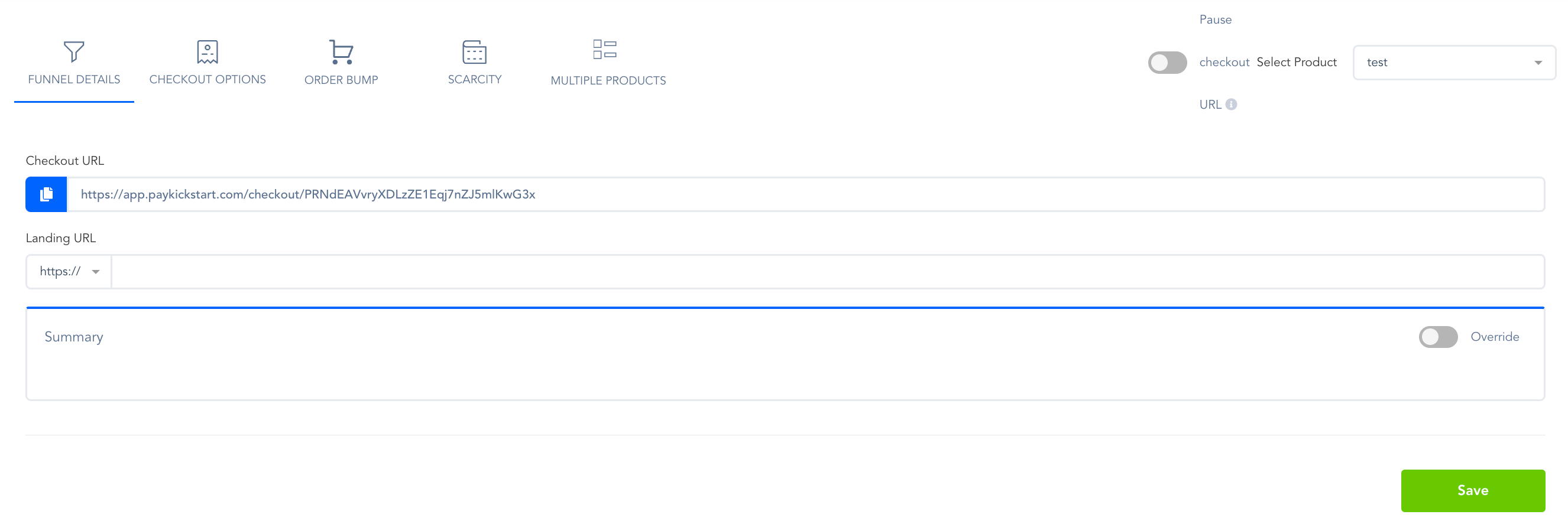
After selecting the product in your funnel, you would like to override the settings for, you will then see the following modal appear:
Step 3: (Optional) Funnel Details configuration
Step 3: (Optional) Funnel Details configuration
All instructions in this step are optional. You may skip them if no updates are necessary.
1. Insert a custom landing page URL for each product in your funnel, which will override the existing default Landing Page URL that you entered on the Product Settings page.
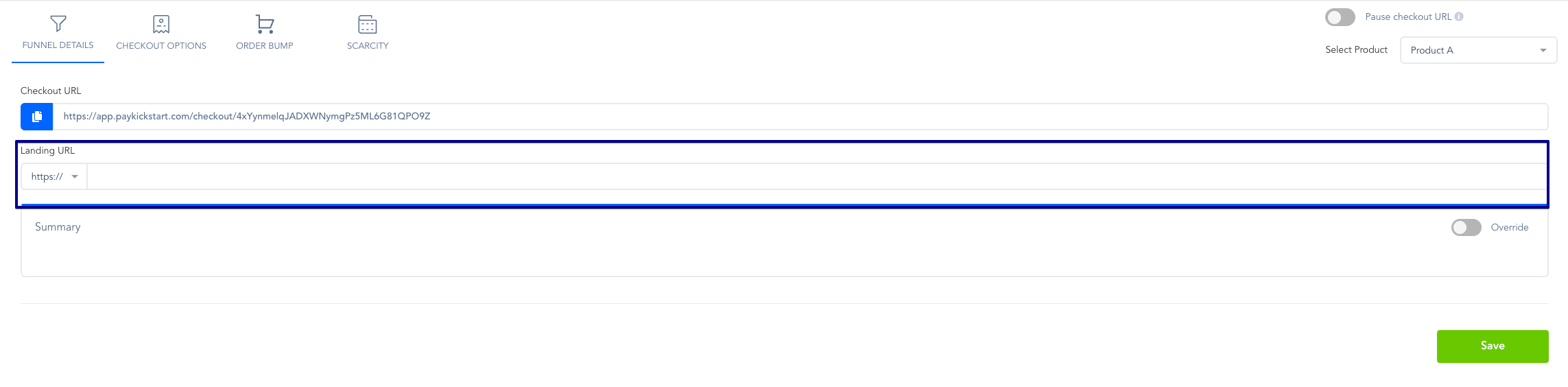
2. Vendors also have the ability to pass purchase data to upsell/downsell landing pages if needed.
You have the ability to send the last transaction’s data to the next landing page in the funnel via POST or GET method. You will receive that data in the same structure as the IPN, which can be found in our API documentation here.
NOTE: You must have support for POST or GET requests on the landing page to which you’re sending the data, or this will cause the page to break. If you cannot support POST or GET request parameters, then do not enable this option.
NOTE: This option does NOT pass order bump purchase data. Only the main product and up/downsell purchase data.
3. If you need to override the price set in the main product settings, enable this toggle switch. Enter a custom price for each product in your funnel, which will override the existing default price that you entered on the Product Settings page.
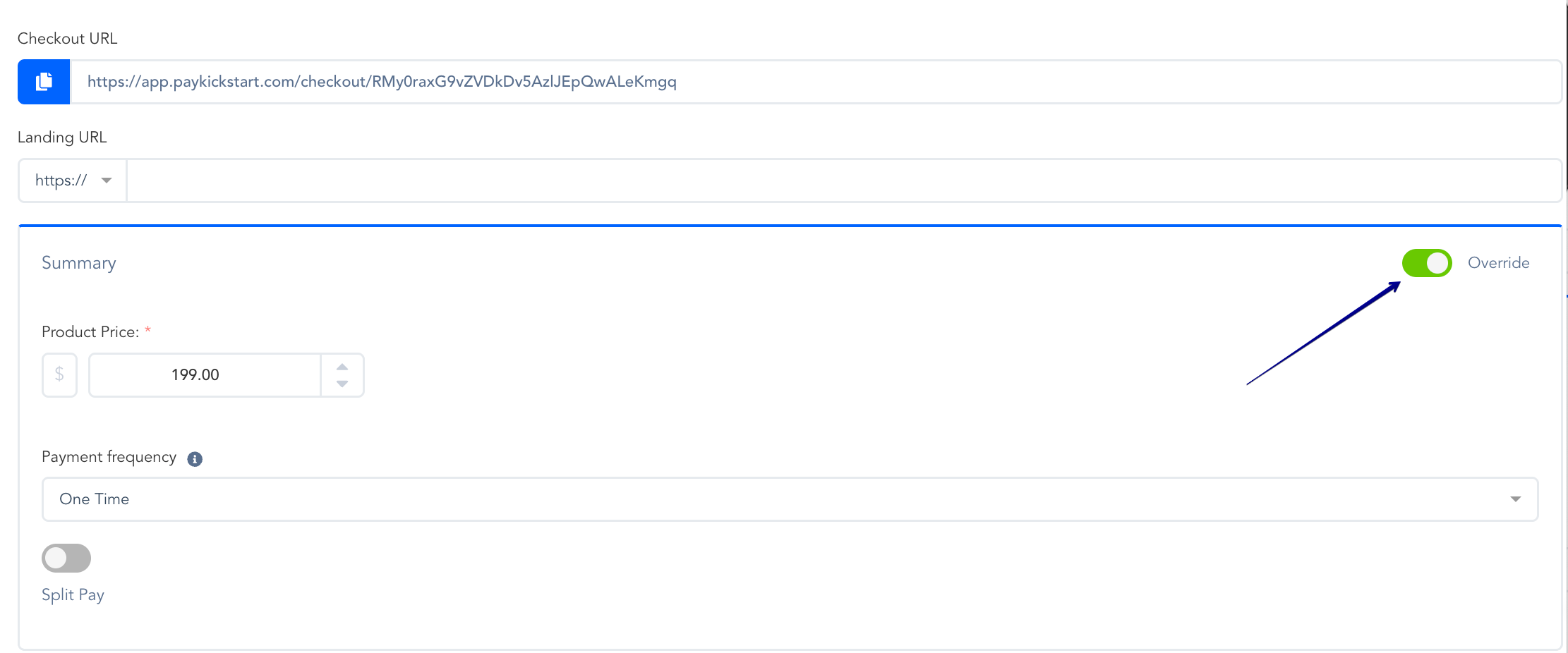
For more details about the product price configuration, please check this article.
Step 4: Saving the Funnel Override
Step 4: Saving the Funnel Override
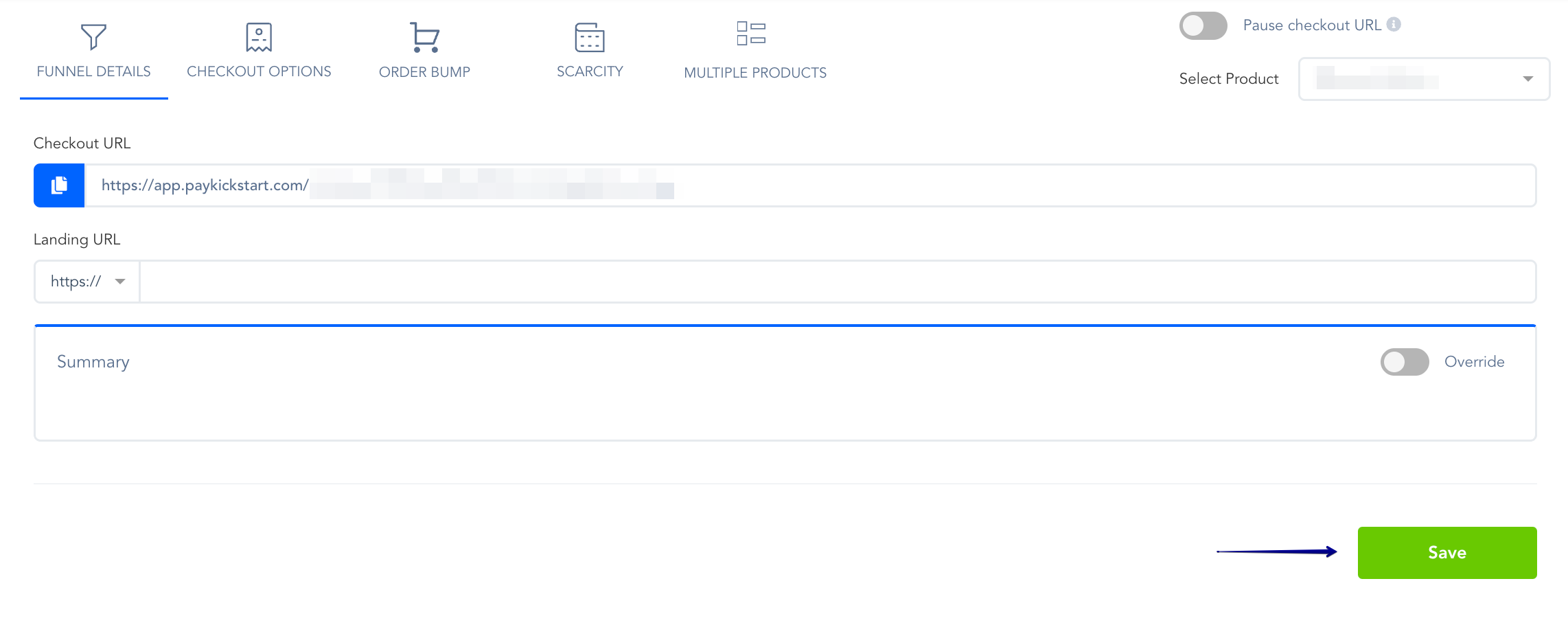
When you’re done, you can now save the changes you made by clicking on the Save button.
Was this helpful?
Still need help? Ask the team