Add a Credit to a Subscription
Written By Stefan S.
Last updated 9 months ago
Vendors have the ability to add a credit amount to existing subscriptions if needed.
This is useful when vendors want to offer some type of discount/credit, but don’t want to change the customer billing date. Simply add a credit to the customer’s subscription to be used on future billing till the credit is depleted.
Step 1: Go to the Subscription section
Step 1: Go to the Subscription section
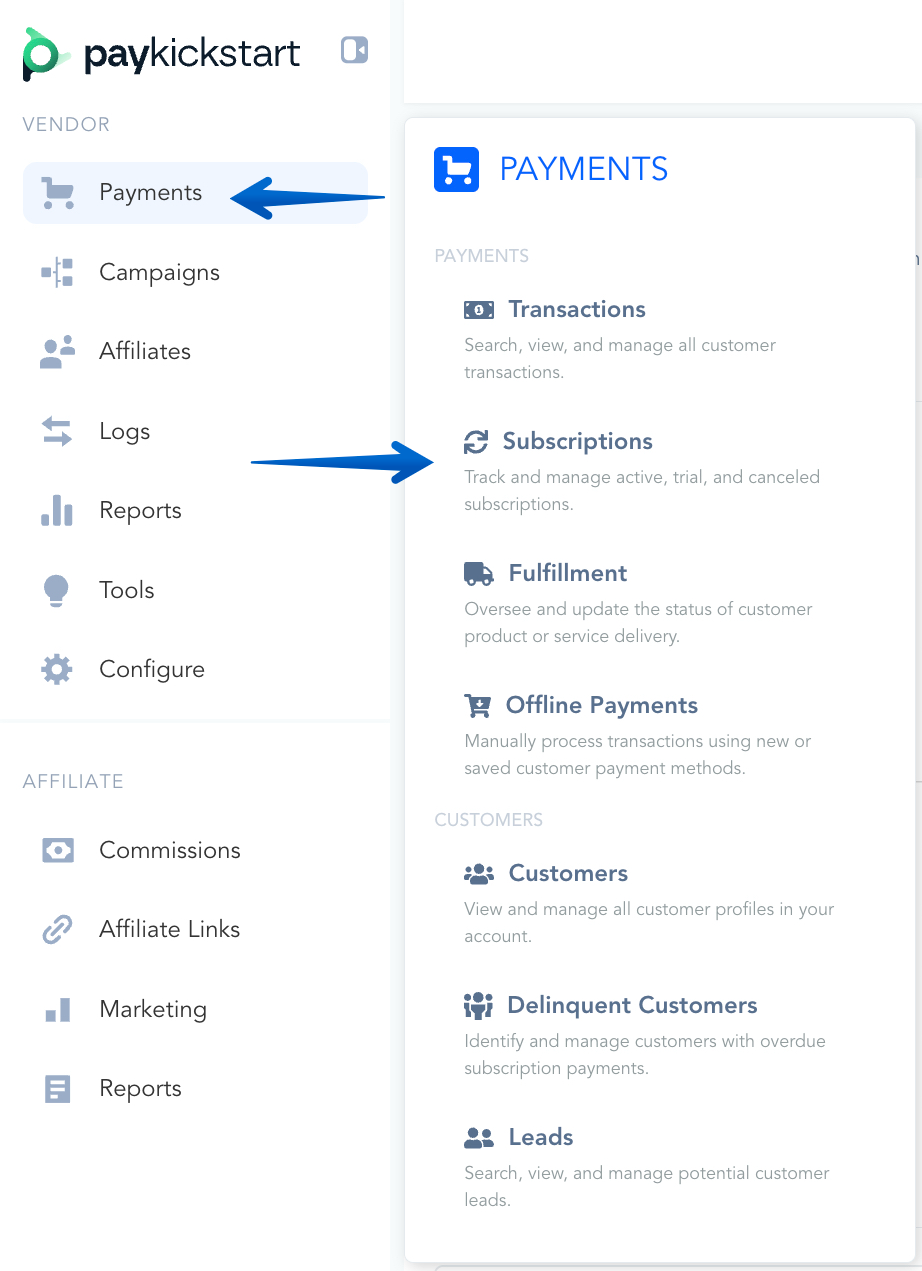
Go to Payments > Subscriptions.
Step 2: Locate the related subscription
Step 2: Locate the related subscription
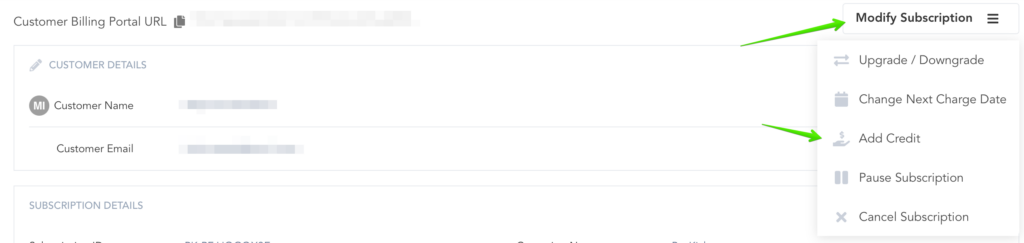
Once in the subscription section, search and locate the subscription you want to add the credit to, and click on subscription details.

Step 3: Add the credit
Step 3: Add the credit
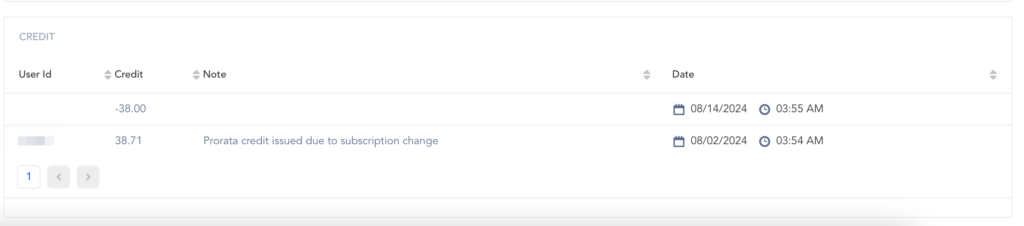
Inside the Subscription details, you will see a Credits section if there is one.
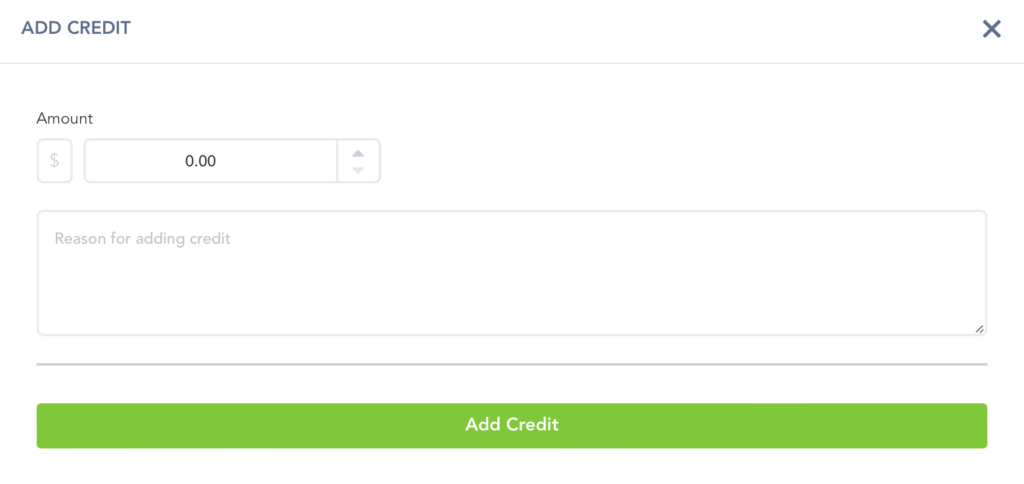
If adding a new credit, you can enter the amount and the reason for the credit.
After adding the credit, you will now see a new credit record on the subscription. If no credit is added, the field will not be displayed on the Subscription details.
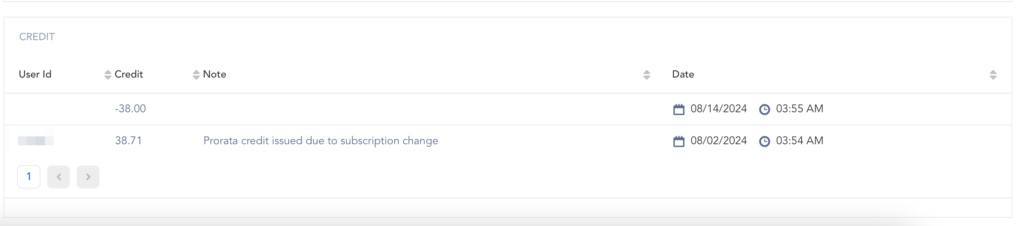
You will also see credit remaining on the main subscription details.
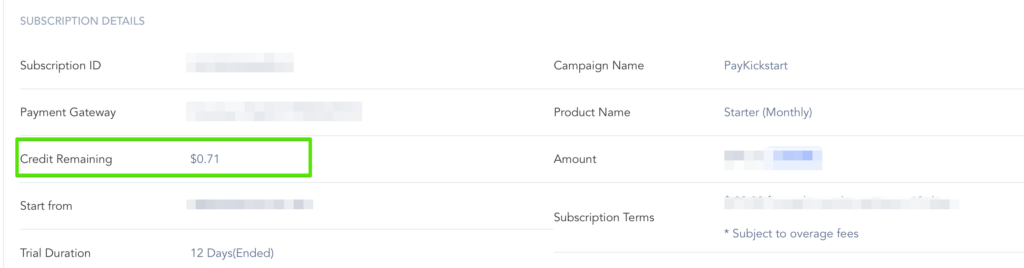
All credits added to the subscription will be used on future subscription rebill transactions until the credit amount is depleted.
IMPORTANT:
If the customer has any credit on the subscription and you perform a subscription up or downgrade, manually overriding the first charge field will remove the credit from the customer. If you do not want to remove the credit, DO NOT manually alter the first charge field.
NOTE: If needed, you can add a negative credit (-50) to accommodate for any credit added by mistake.
Was this helpful?
Still need help? Ask the team