Creating a Checkout Form Embed Code
Written By Carlos
Last updated 9 months ago
If you would like to set up a Checkout form on your own domain, you can get the Checkout Form Embed Code from PayKickstart by following these steps:
IMPORTANT:
Your Funnel should be set up with at least one product prior to creating a Checkout Form Embed.
PLEASE NOTE:
Embed forms are disabled for upsell products by default, as upsells use 1-click purchase features.
If you want to use embed forms for upsell products, you must disable the 1-click upsell feature for the campaign: https://support.paykickstart.com/articles/0405495-setting-up-1-click-upsells
Step 1:
Step 1:
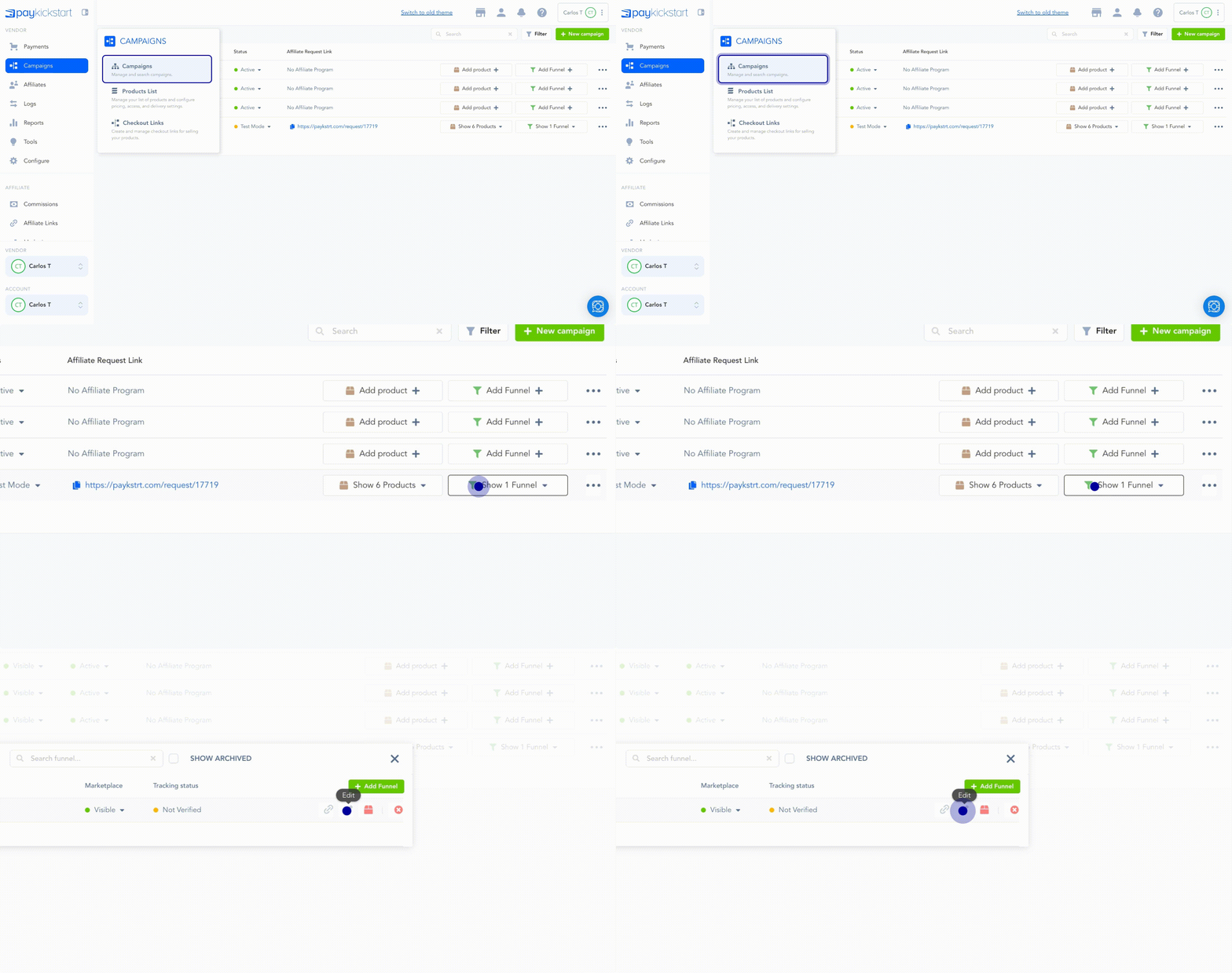
Click on the Campaigns at the left navigation menu.
Click on the Edit icon of the funnel you want to use the embed form with.
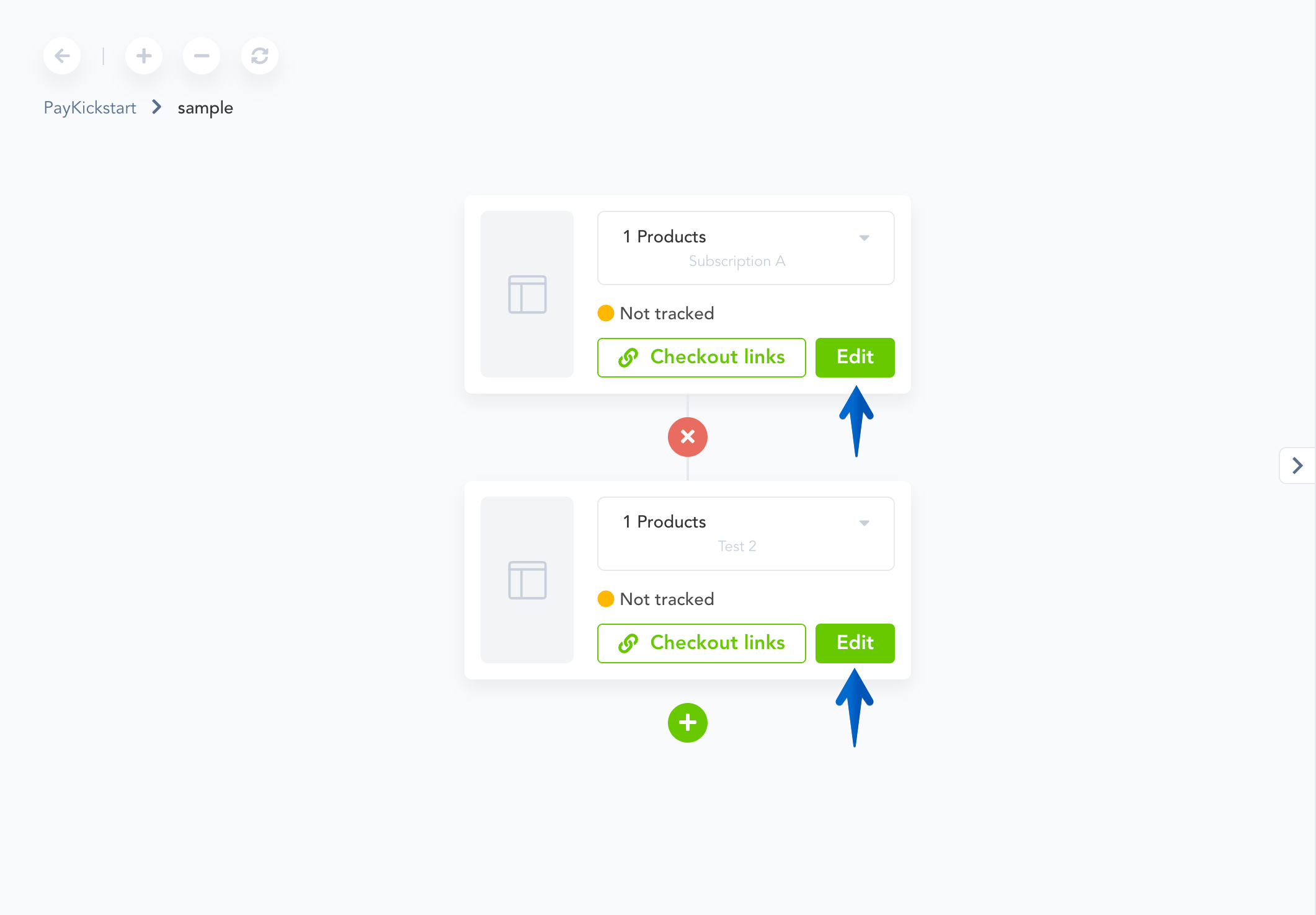
Locate the product you want to use the embed form with and click on Edit.
Step 2:
Step 2:
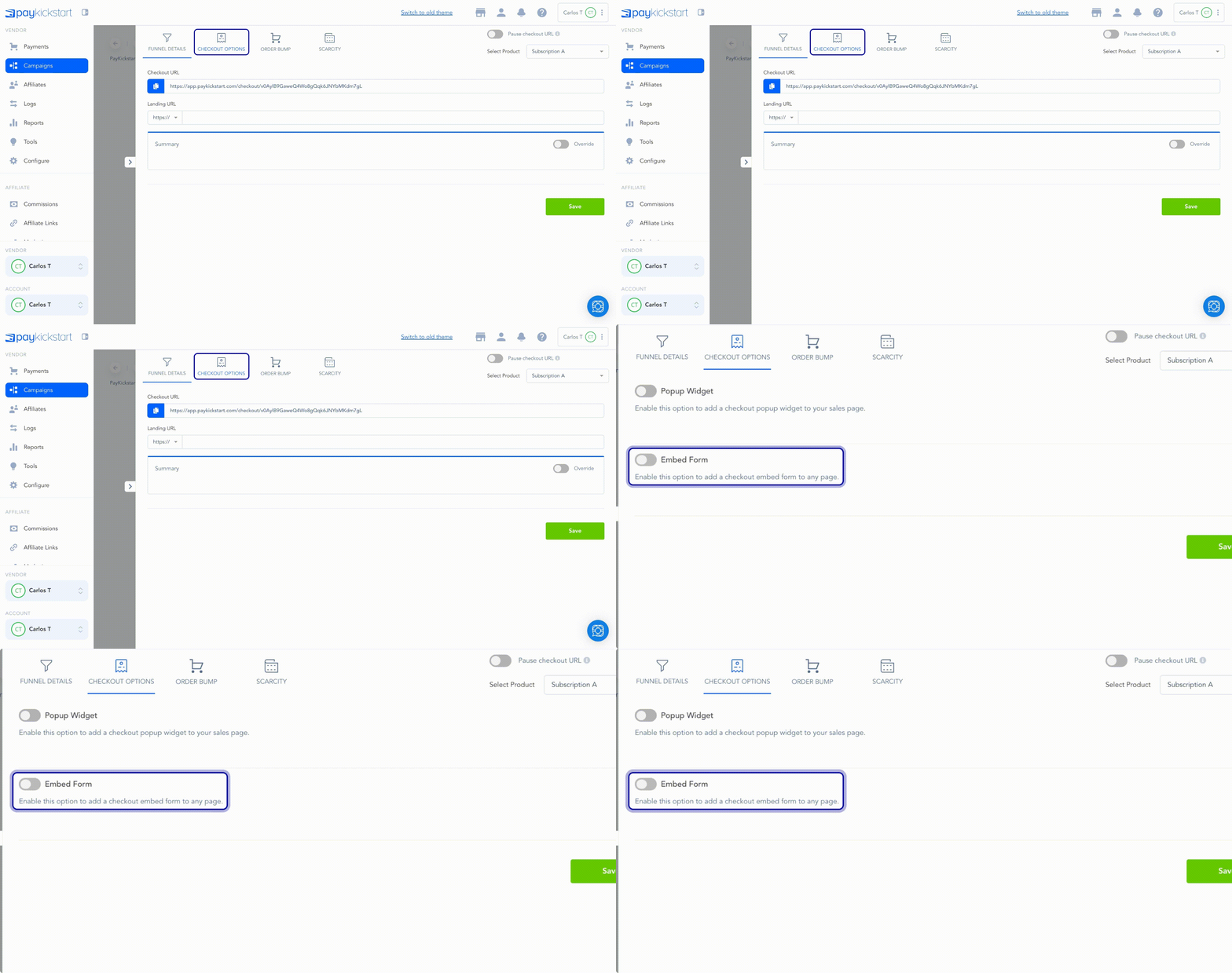
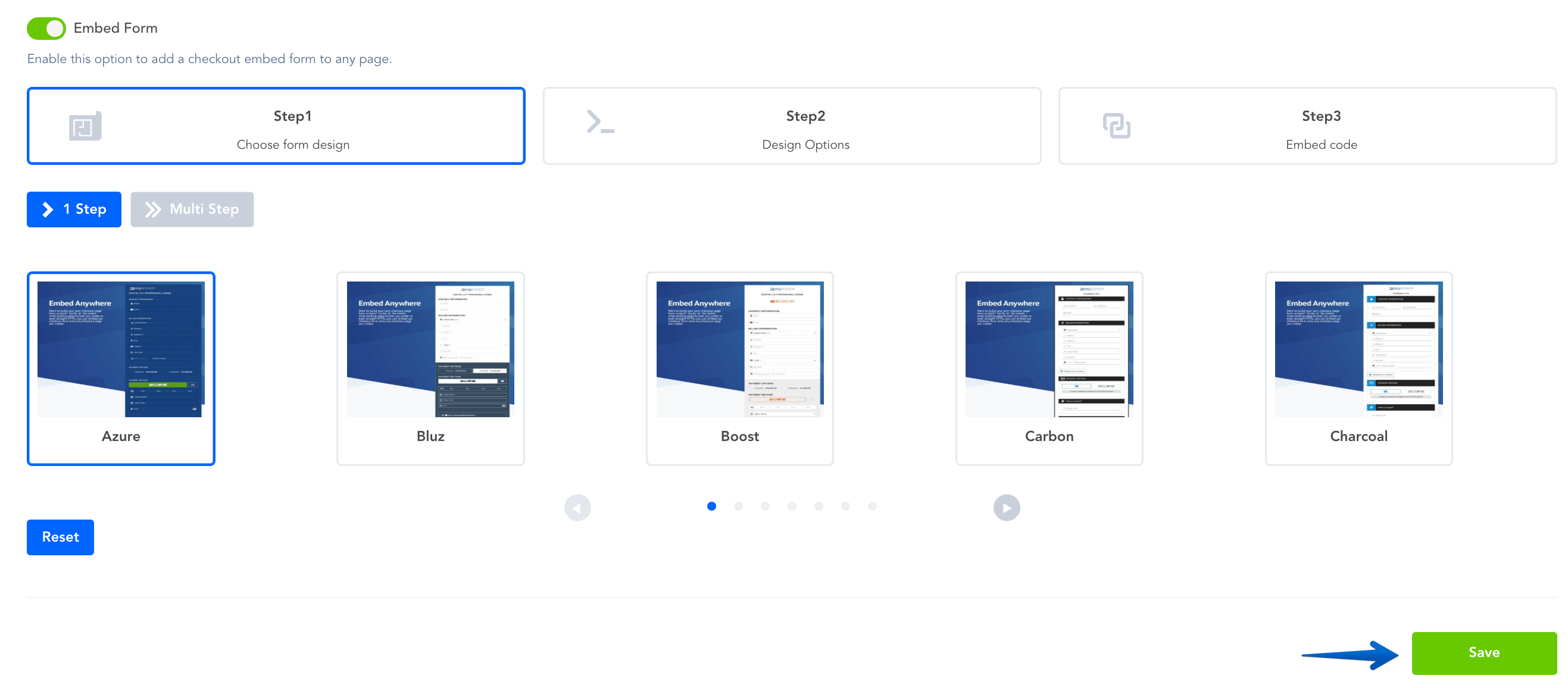
Now, click on Checkout Options and enable Embed form.
Step 3:
Step 3:
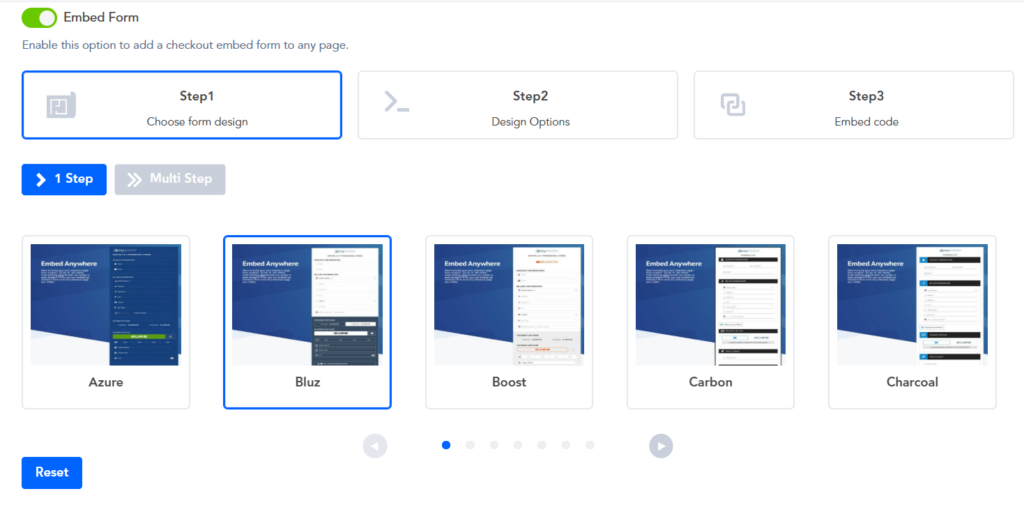
Choose your embed design template (Embed from Step 1)
Step 4:
Step 4:
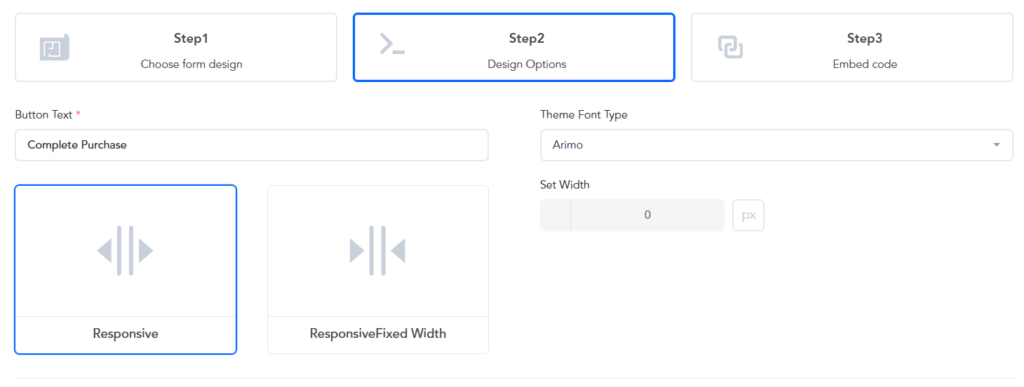
Choose your embed form design options (Embed for step 2)
Note: Design options will vary depending on the selected template
Step 5:
Step 5:
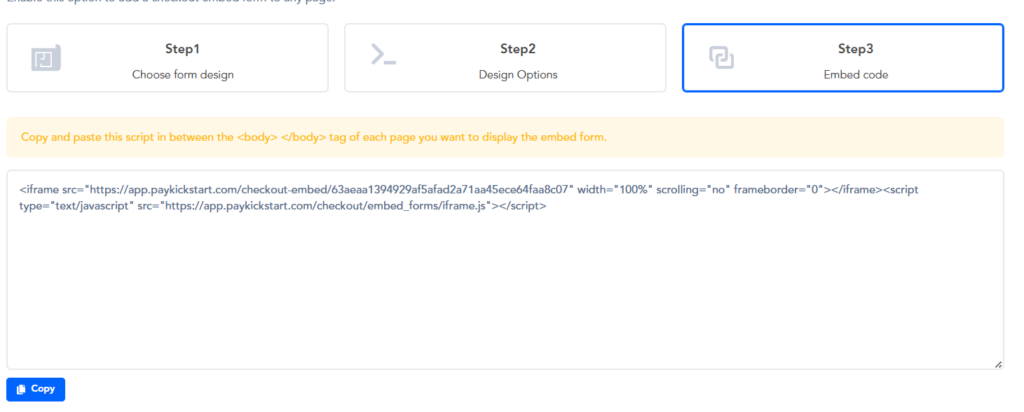
Finally, copy that Embed Code and place it on your own domain’s checkout page. (Embed from step 3)
Step 6:
Step 6:
Save the main funnel settings and exit the funnel.
Was this helpful?
Still need help? Ask the team