Creating a Unique Tracking Link
Written By Carlos
Last updated About 1 year ago
Affiliates can create custom links to use with their affiliate account if they want the customer to visit a different landing page before purchasing.
This is handy if the affiliate is sending traffic from multiple channels or wants to send the customer to another landing page other than what their default links use.
To create a Unique Tracking Link, follow the steps in this demo:
Or follow our step-by-step guide below:
Step 1: Choosing the Affiliate Link in a Funnel
Step 1: Choosing the Affiliate Link in a Funnel
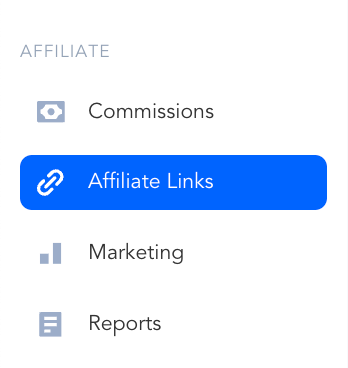
In your PayKickstart account, go to Affiliate > Affiliate Links.
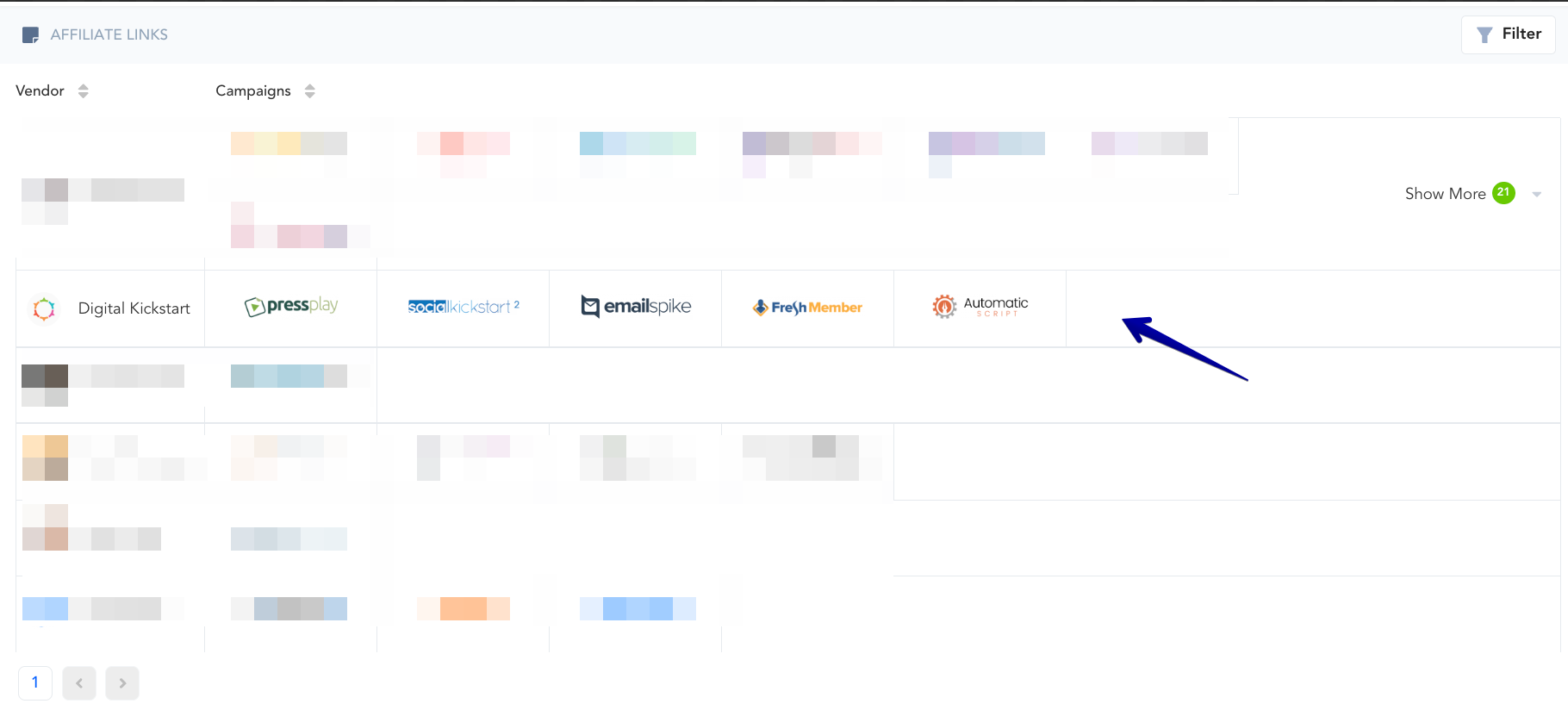
Then, select the campaign you'd like to view.
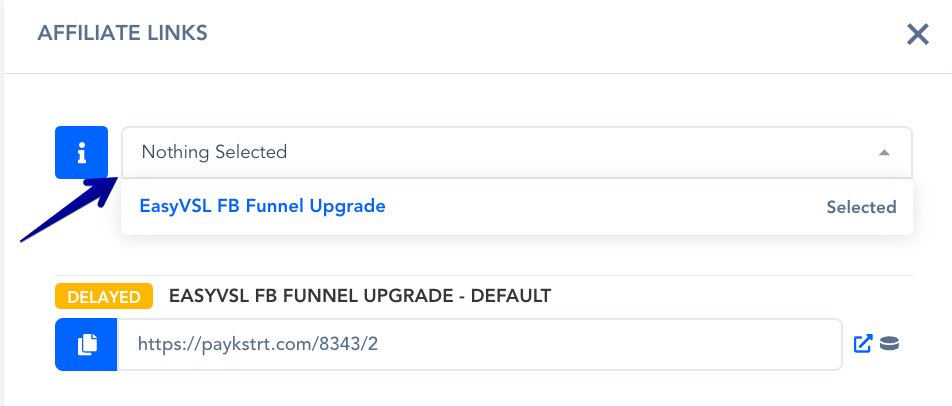
A modal will pop up. Select the correct funnel from the dropdown (if there is more than one funnel provided by the vendor).
Step 2: Creating the Unique Tracking Link
Step 2: Creating the Unique Tracking Link
Then, select +Add Links.
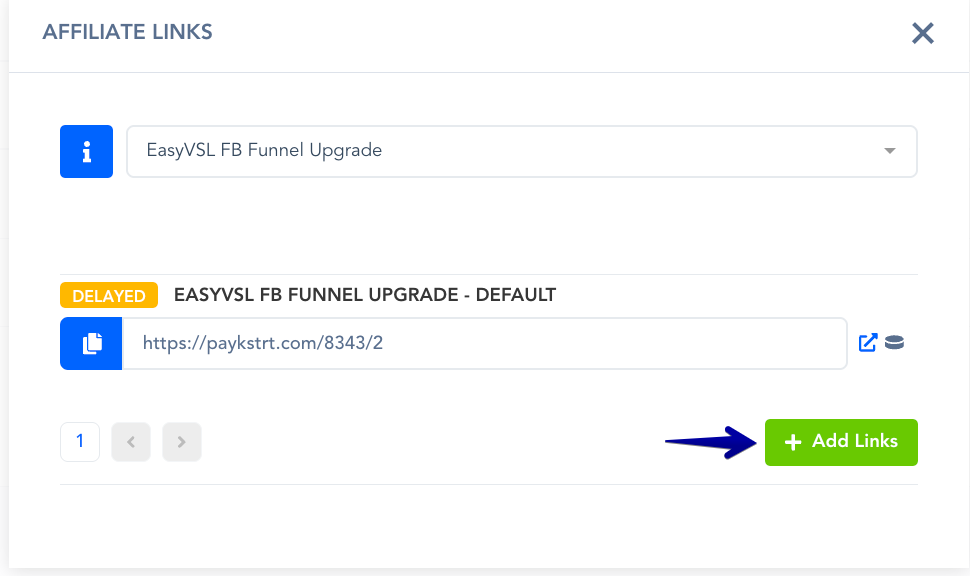
Enter a Link Title so you know where exactly the traffic that you are sending is coming from.
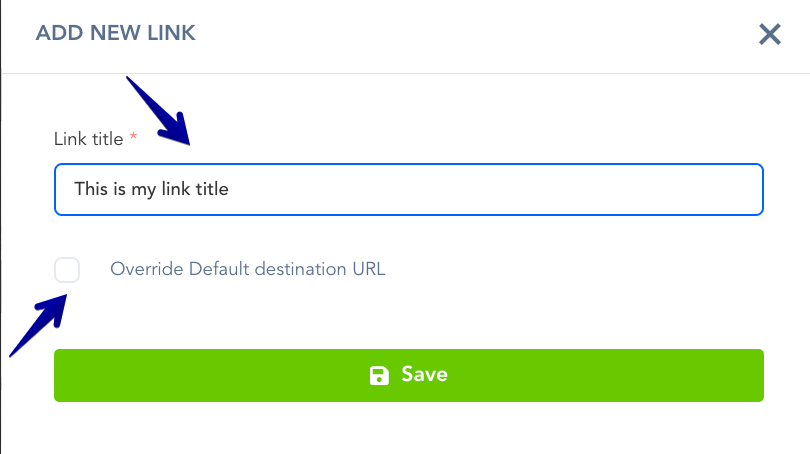
You have the option to override the Destination URL (original landing page URL) and enter the URL you want. And hit Save.
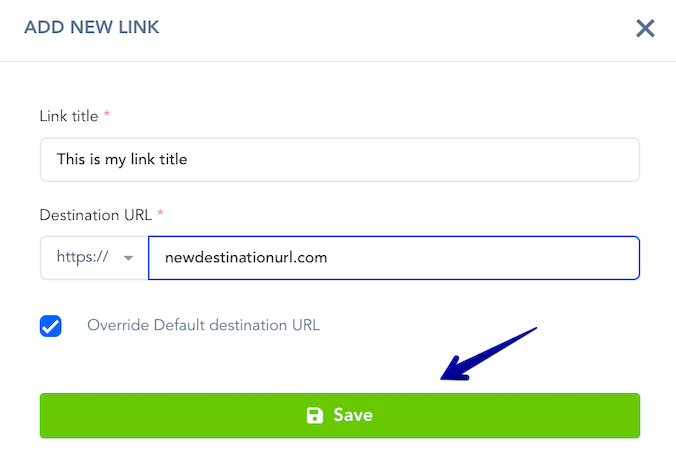
Note: This lets your affiliate link track the visitor for the Vendor’s Campaign/Product you’re promoting, while sending them to a URL you choose. If they click your link and make a purchase from that campaign, you’ll get credit for the sale.
Was this helpful?
Still need help? Ask the team