Setting up a Sales Funnel
Written By Angela L
Last updated 9 months ago
PayKickstart Sales Funnels work in a downward flow of the customer purchasing the main product, then being offered up/downsell products based on their purchase or denial of the previous upsell product.
Sales funnels can be as simple as one main product or have multiple upsells and downsells.
Customers will purchase the main product from your site and then be directed to the product landing page (a website page) for the next upsell product in the funnel.
The customer can then purchase the upsell and be directed to the next upsell, or they can decline the purchase and be directed to a downsell.
If you do not want to offer an upsell or downsell on a specific level of the funnel, leave that section blank. If the customer reaches that particular section without a set product, they will be sent to the thank-you page and complete the sales funnel.
After the customer completes their path in the sales funnel, they will reach the Thank You page.
Below is a video and additional tips to help you set up your sales funnels.
Helpful Tips:
Understanding How a Landing Page URL Works
Understanding How a Landing Page URL Works
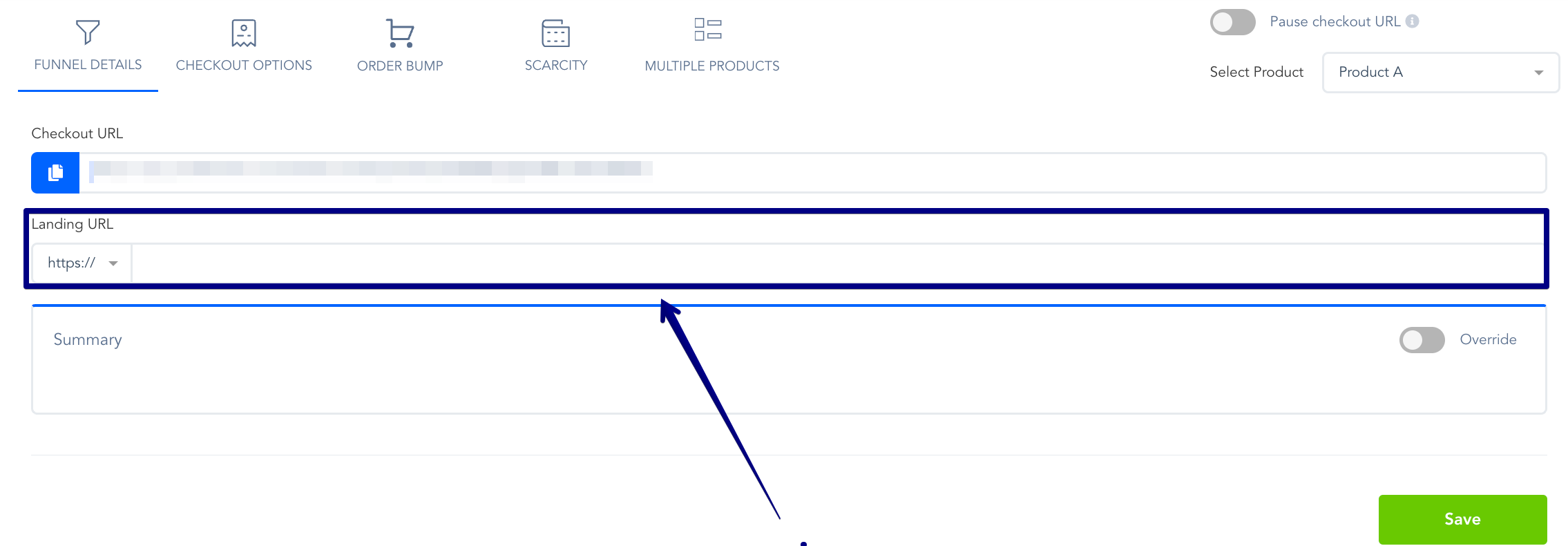
After purchasing the main product in the funnel, the customer will be sent to the landing page URL used for the next product in the funnel.
The URL used to redirect the customer will be the Landing Page URL in the product settings for the upsell product.

Alternatively, we have an advanced override feature that will allow you to change the sales page URL for that step for that particular funnel (so you don’t have to duplicate products if you create lots of different variations of your funnel): https://support.paykickstart.com/en/help/articles/7525960-funnel-override-settings
Using the Same Upsell/Downsell Product Multiple Times in the Funnel
Using the Same Upsell/Downsell Product Multiple Times in the Funnel
Note:
If you happen to use the same upsell/downsell product multiple times in your funnel, you need to clone that upsell page and use the new page as the override landing page URL: https://support.paykickstart.com/en/help/articles/7525960-funnel-override-settings
This will allow you to offer the same product on different parts of your funnel while using a unique landing page URL for that specific product offering to keep sales funnels contained.
Note:
A funnel is linked to a campaign, which means the main/front-end product MUST be part of that Campaign. However, you can use/select other products from other campaigns as upsells/downsells.
Obtaining the Funnel’s Tracking Script
Obtaining the Funnel’s Tracking Script
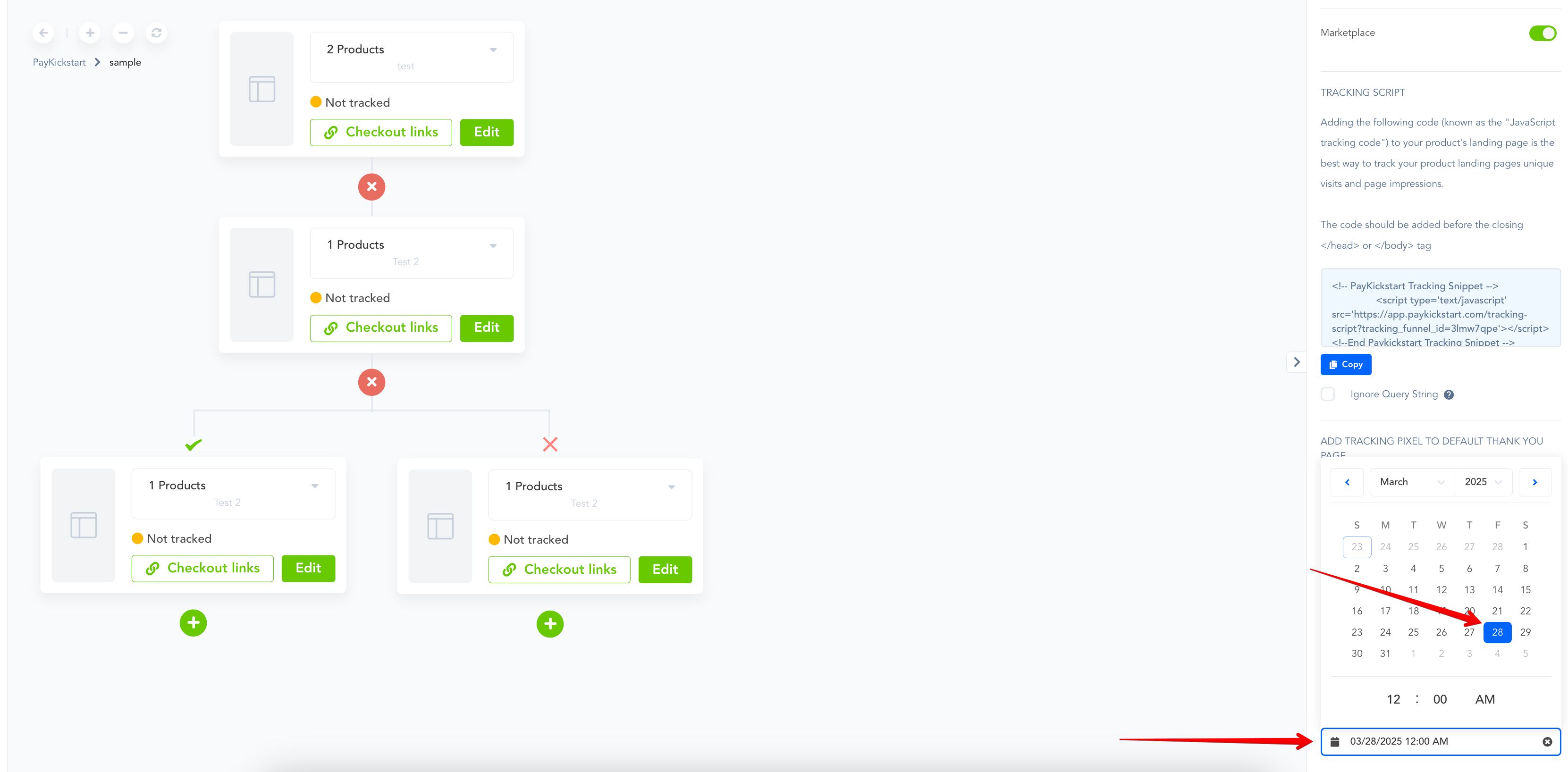
Each sales funnel offers a unique funnel tracking script to properly record unique visits and other reporting metrics.
The tracking script code should be added before the closing </head> or </body> tag on any landing page (web page) you have added a PK checkout link or embed form to.
Note:
Checkout links, or checkout forms, would need to be added to the Landing Page URL you have defined in your Product’s settings or Funnel Override settings for the Funnel to complete the verification process.
When verifying the funnel, the tracking script is looking for the matching Landing Page URLs. The tracking script is added to those Landing Page URLs of selected products in your funnels, and the checkout link or form located on the Landing Page.
If your funnel has been properly verified and you are not seeing traffic stats related to your landing pages appear in your Reporting sections, make sure the Campaign is not in Test Mode.
Setting a Launch Date
Setting a Launch Date
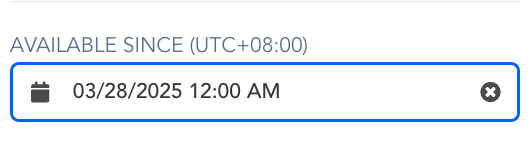
You are now able to set a launch date for your funnel! If you are launching a new product and want to launch a new funnel on a future date, you may now do so in your funnel settings.
Was this helpful?
Still need help? Ask the team