Connecting PayKickstart To Integrately
Written By Stefan S.
Last updated About 1 year ago

Integrately is a low-cost no-code option to create custom integrations that PayKickstart may not offer yet.
Below are the instructions on how to integrate Integrately with PayKickstart.
Step 1: Create a New Automation
Step 1: Create a New Automation
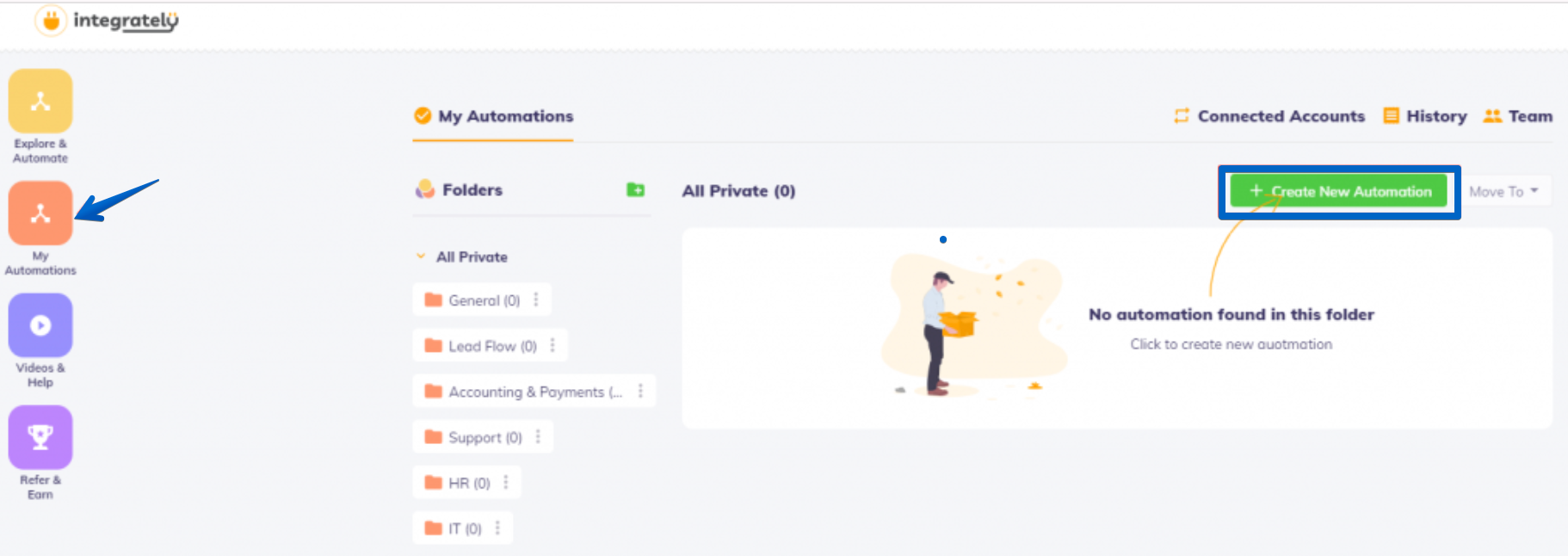
Log in to your Integrately account and go to the My Automations section
Then, choose the Create New Automation button.
Step 2: Choosing Applications for Your Automation
Step 2: Choosing Applications for Your Automation
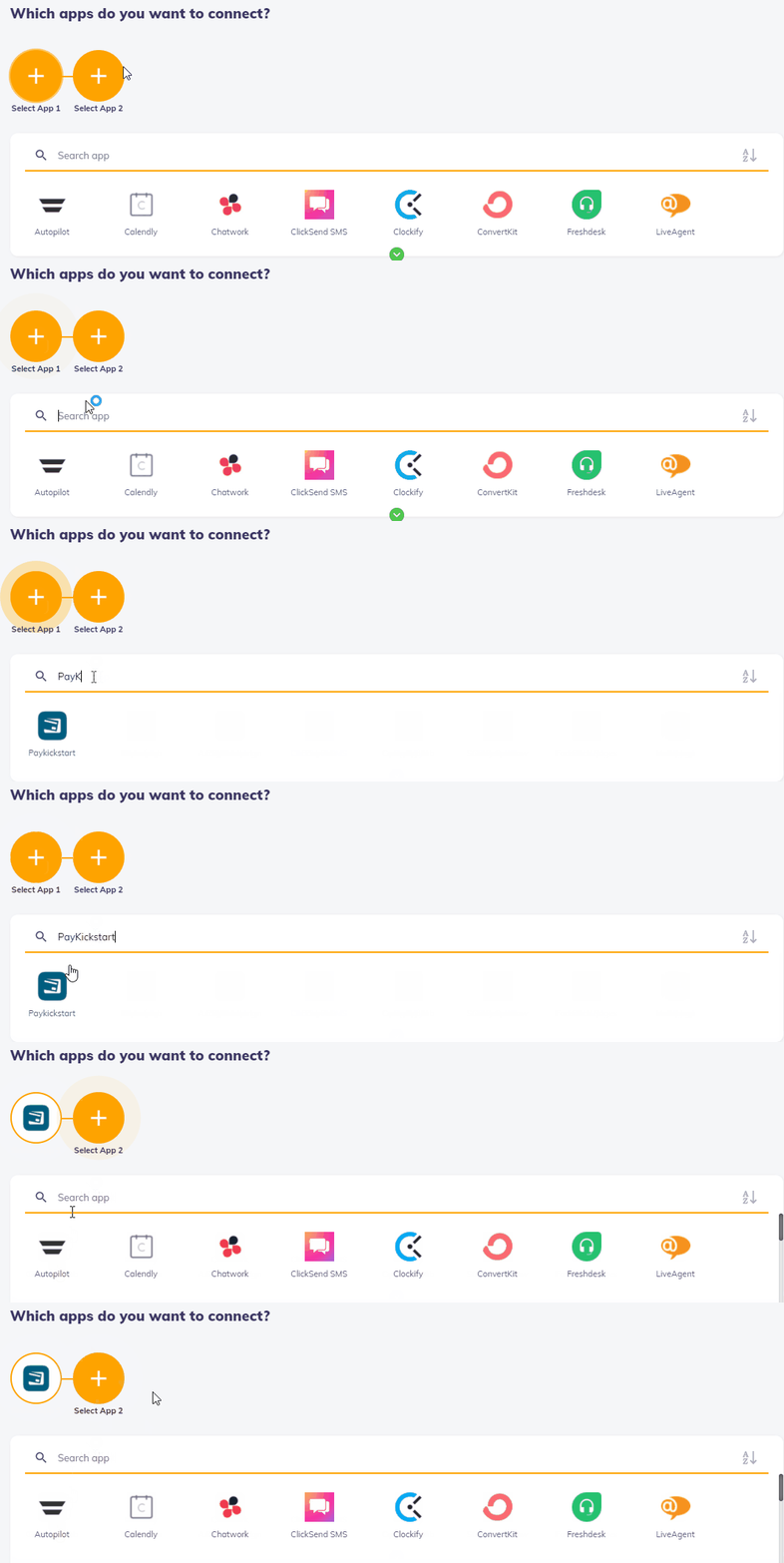
For the first app, choose PayKickstart.
Then choose any app that you wish to integrate with via Integrately as your App 2.
Step 3: Select the Corresponding Events
Step 3: Select the Corresponding Events
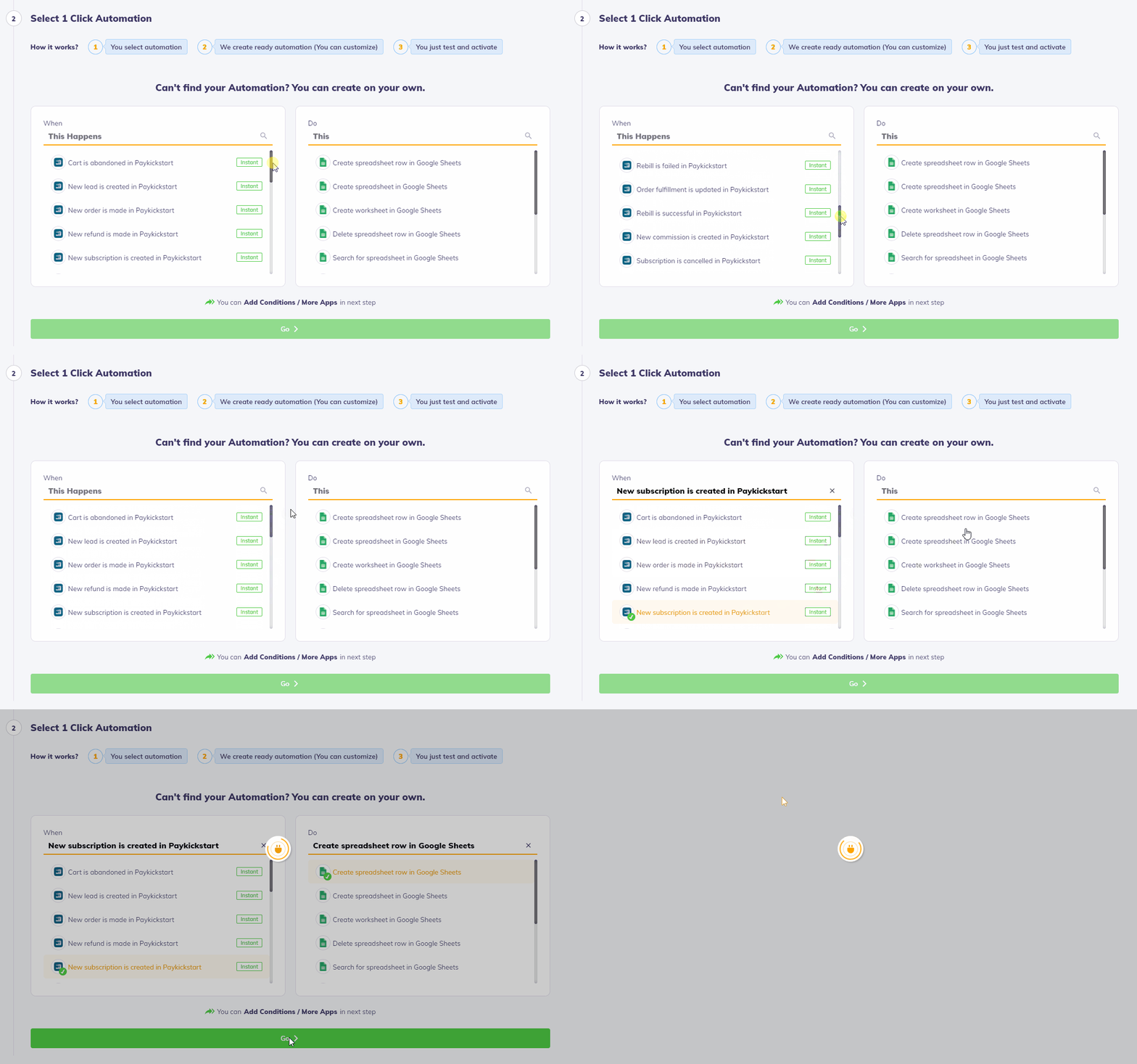
Create an Automation using one of the available trigger events for each app.
Once the events are chosen, click on Go, then select “Yes – Go to Automation Builder” button.
Step 4: Obtain your IPN URL and add it to your Product’s Settings
Step 4: Obtain your IPN URL and add it to your Product’s Settings
Click on the Add Connection button to receive your IPN URL.

Copy the URL provided by Integrately, then go to your Campaigns section in
PayKickstart: https://app.paykickstart.com/vendor/campaigns
Choose to edit the specific product the integration is related to, then go to Step 3 – Integrations.
Select the corresponding Event and paste the URL provided by Integrately.
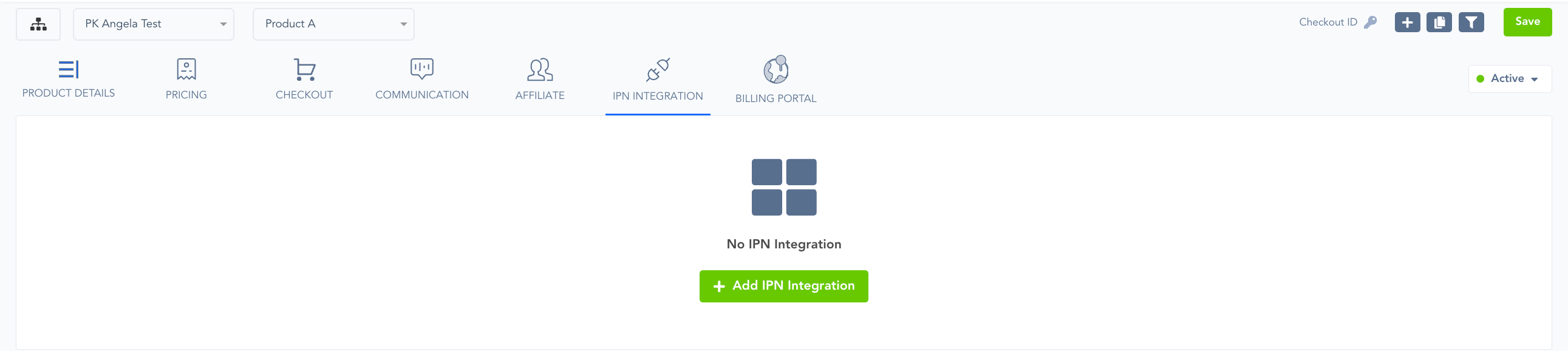
Once the URL is entered and the event is selected, make sure to Save your Product’s settings.
More information about IPN POSTs can be found at:
https://support.paykickstart.com/en/help/articles/5892063-using-the-product-ipn-url-field
Step 5: Setting up your 3rd party integration3rd-party
Step 5: Setting up your 3rd party integration3rd-party
You’ve successfully set up the integration on PayKickstart.
You can continue setting up your 3rd party integration on Integrately.
In case you would like to set up a test purchase and ensure the data is being passed properly, you can do so in Test Mode. Please see this article for further information about how you can test your sales funnels:
Was this helpful?
Still need help? Ask the team