Transferring Subscriptions from PayKickstart to Checkout.com
Written By Angela L
Last updated 7 months ago
While there are many reasons and benefits to managing subscriptions through PayKickstart rather than directly through the payment gateway, we understand that vendors want the assurance that, if they ever decide to leave PayKickstart, they will be able to continue their customers’ subscriptions and rebills.
So, to answer the question, “Can I transfer my subscription from PayKickstart to Checkout.com?”
The short answer is yes.
Each payment profile and secure token is stored within your Checkout.com account.
Additionally, you will need a developer to map the subscription information from PayKickstart to Checkout.com using their API.
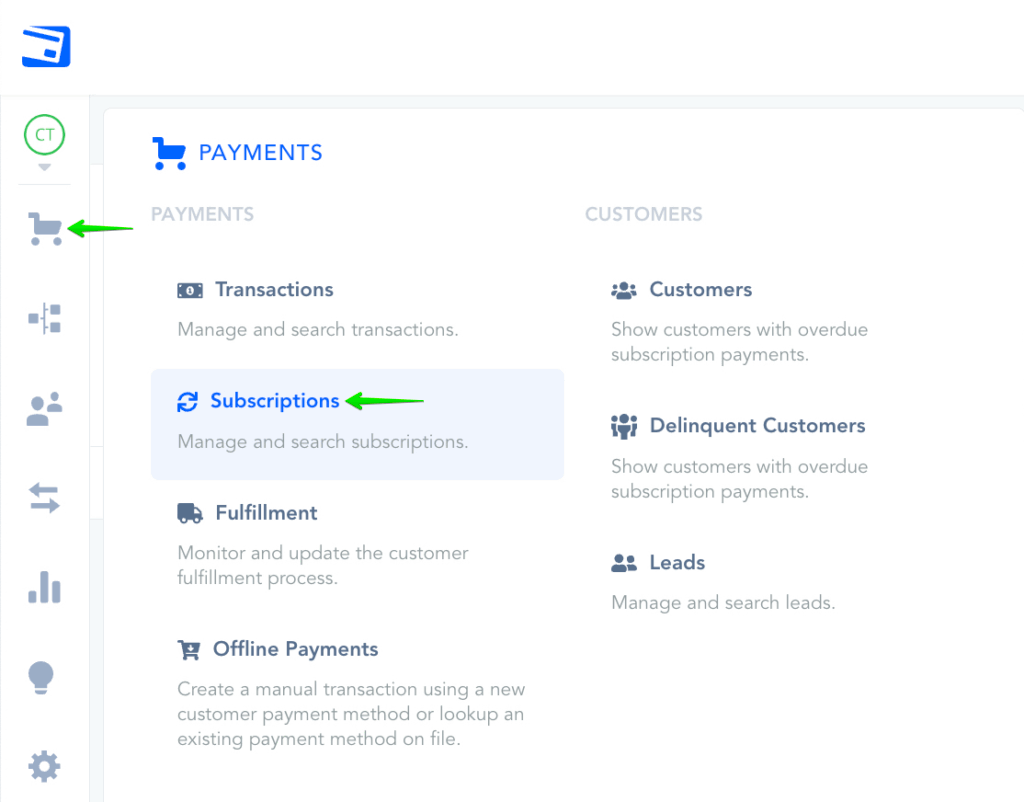
Step 1: Access the Payments → Subscriptions section
Step 1: Access the Payments → Subscriptions section
Go to Payments → Subscriptions in your PayKickstart dashboard.
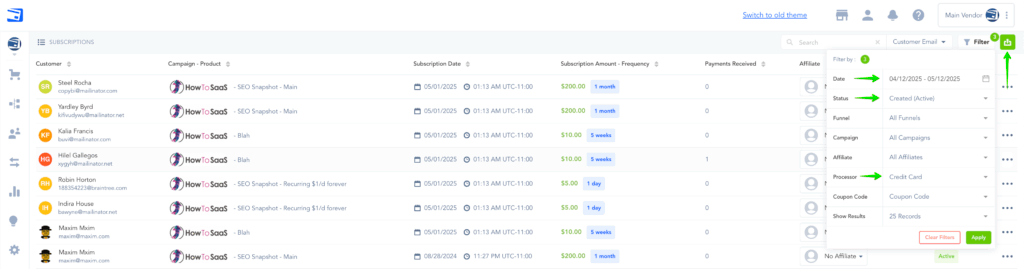
Please follow these steps to export your active subscriptions:
Filter your list by selecting Created (Active) to display only active subscriptions.
Set the custom filter date to a date before you began selling the product.
Export the filtered list to a CSV file.
In the exported CSV, you will find customer details, subscription information, and the token ID.
Step 2: Access Checkout.com API Documentation
Step 2: Access Checkout.com API Documentation
Go to the Checkout.com API Docs → Integration Portal
You need to create a “subscription/plan” entity inside Checkout.com system via API.
Then, you enroll the customer (via a tokenized payment method) in that subscription, so that their card/account is charged periodically.
Please Note:
You may need to use the prorate argument to ensure the next charge date is correct, depending on the number of unused days remaining in their current subscription period (day, week/month/year).
Step 3: Cancelling Subscriptions in PayKickstart
Step 3: Cancelling Subscriptions in PayKickstart
Cancelling Subscriptions in PayKickstart is necessary to avoid double-billing customers in case rebills occur in the near future, or if your plan remains active.
Once you have successfully migrated and created the new subscription profiles in Checkout.com, you will want to ensure that PayKickstart stops charging the customer, since you are now using Checkout.com to charge the rebills.
To do this, cancel the subscriptions via our API (https://docs.paykickstart.com/#subscription-cancel-subscription-cancel-subscription) and make sure you do not fire events.
Not firing the events will ensure any 3rd party integrations don’t fire and accidentally cancel access.

That’s it!
Now, your subscriptions will be fully managed within your Checkout.com account.
Was this helpful?
Still need help? Ask the team