Adding a Bonus
Written By Angela L
Last updated About 1 year ago
PayKickstart has the ability to automatically deliver a bonus to a customer as an incentive to purchase through your affiliate link, so you earn a commission.
Important Note: Affiliate bonuses are products created by affiliates outside of the PayKickstart platform. The bonus link will be provided by the affiliate.
To add a bonus, follow the steps in this demo:
Or follow our step-by-step guide below:
Step 1: Access the Affiliates → Marketing section
Step 1: Access the Affiliates → Marketing section
In your PayKickstart account, go to Affiliate > Marketing.
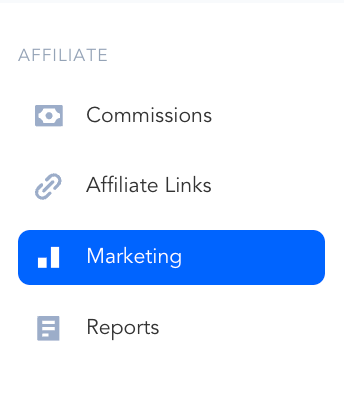
Note: Marketing materials are available exclusively for campaigns in which vendors have included them.
Step 2: Create a Bonus
Step 2: Create a Bonus
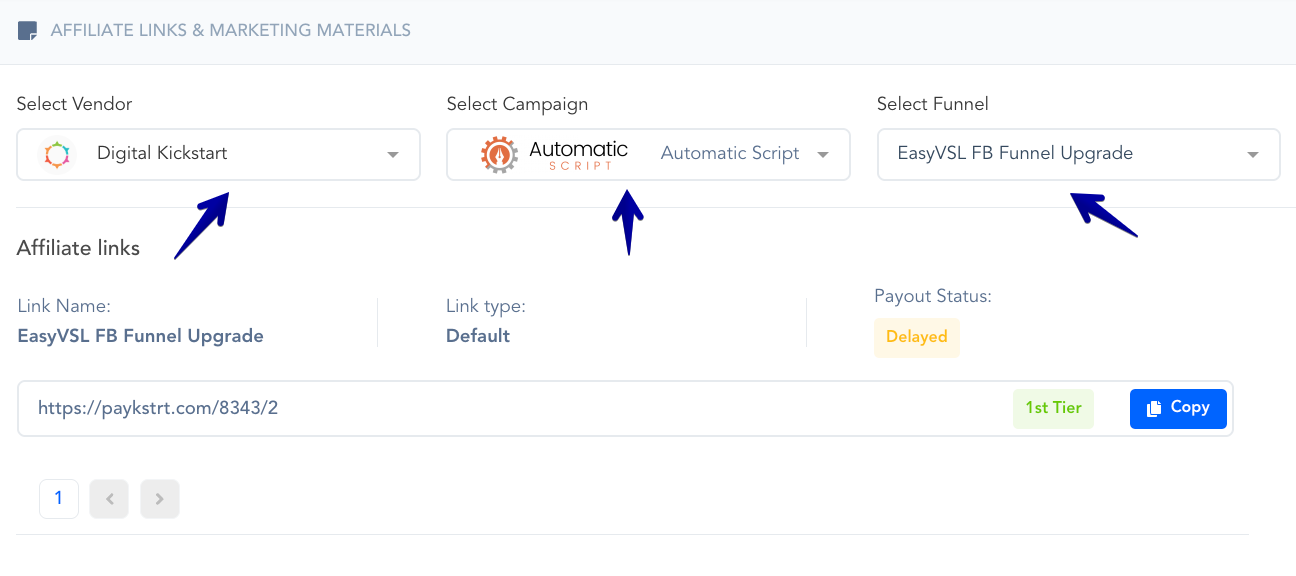
Select a vendor, your desired campaign, and funnel.
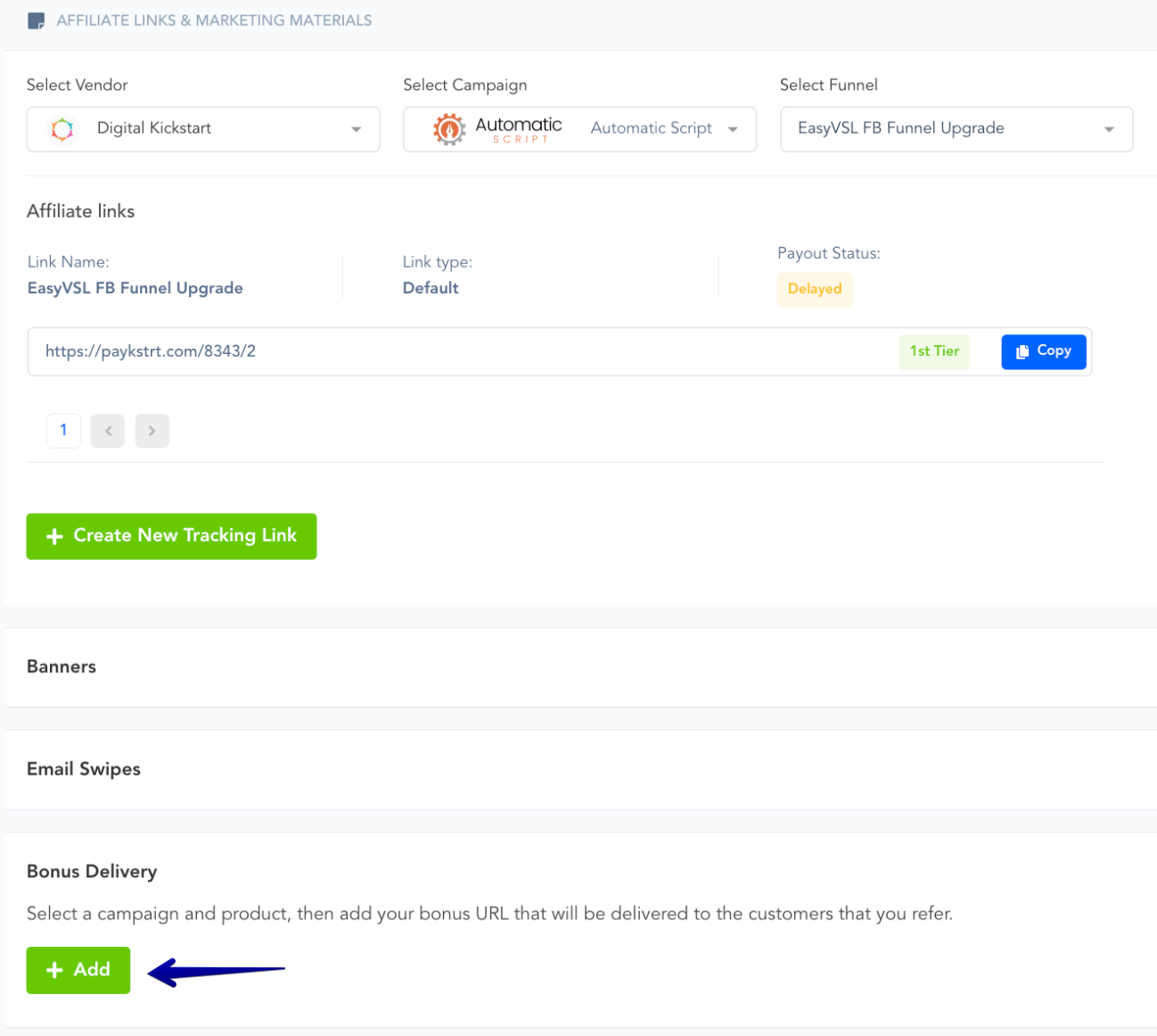
Next, click on "Bonus Delivery” and hit the "Add" button to proceed with adding a bonus.
Step 3: Configure the Bonus You Created
Step 3: Configure the Bonus You Created
Choose a product where you'd like to add your Bonus and enter your Bonus URL.
Select the tracking link that you want to use to promote.
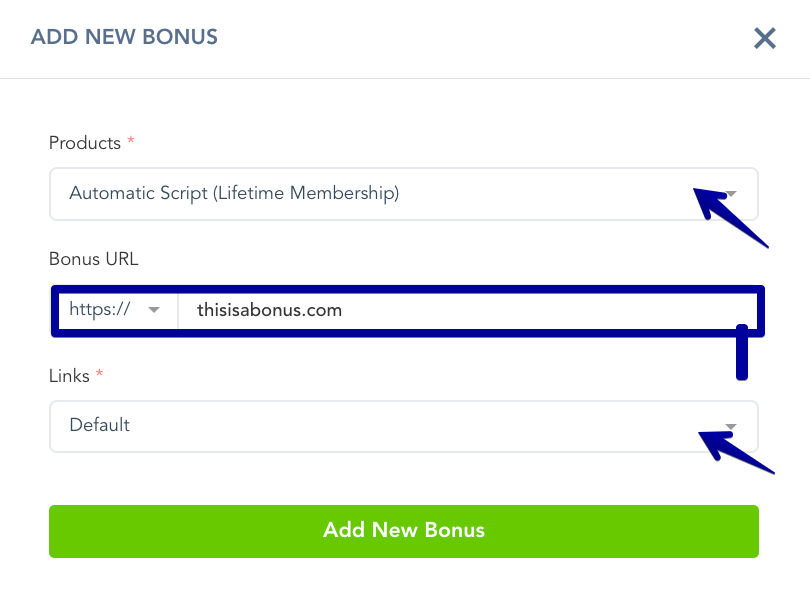
Lastly, click on the "Add New Bonus" button.
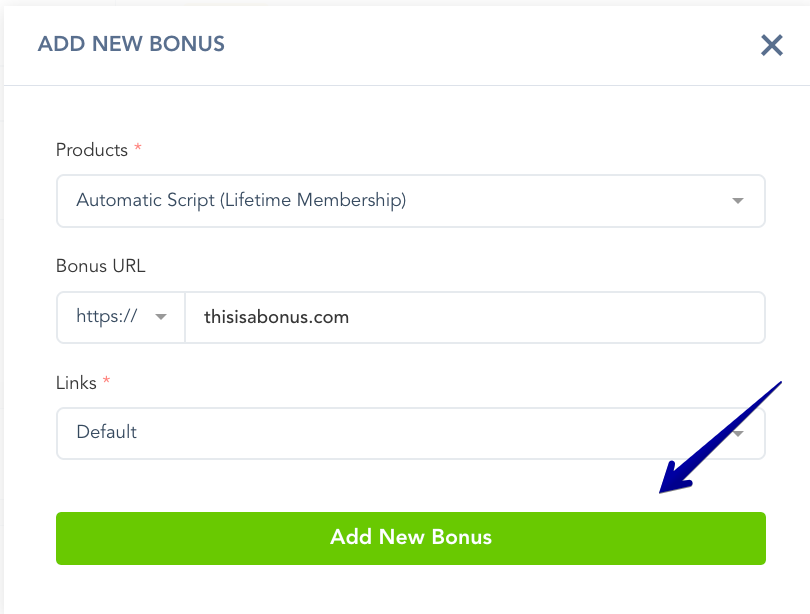
And there you have it, you've just added a Bonus!
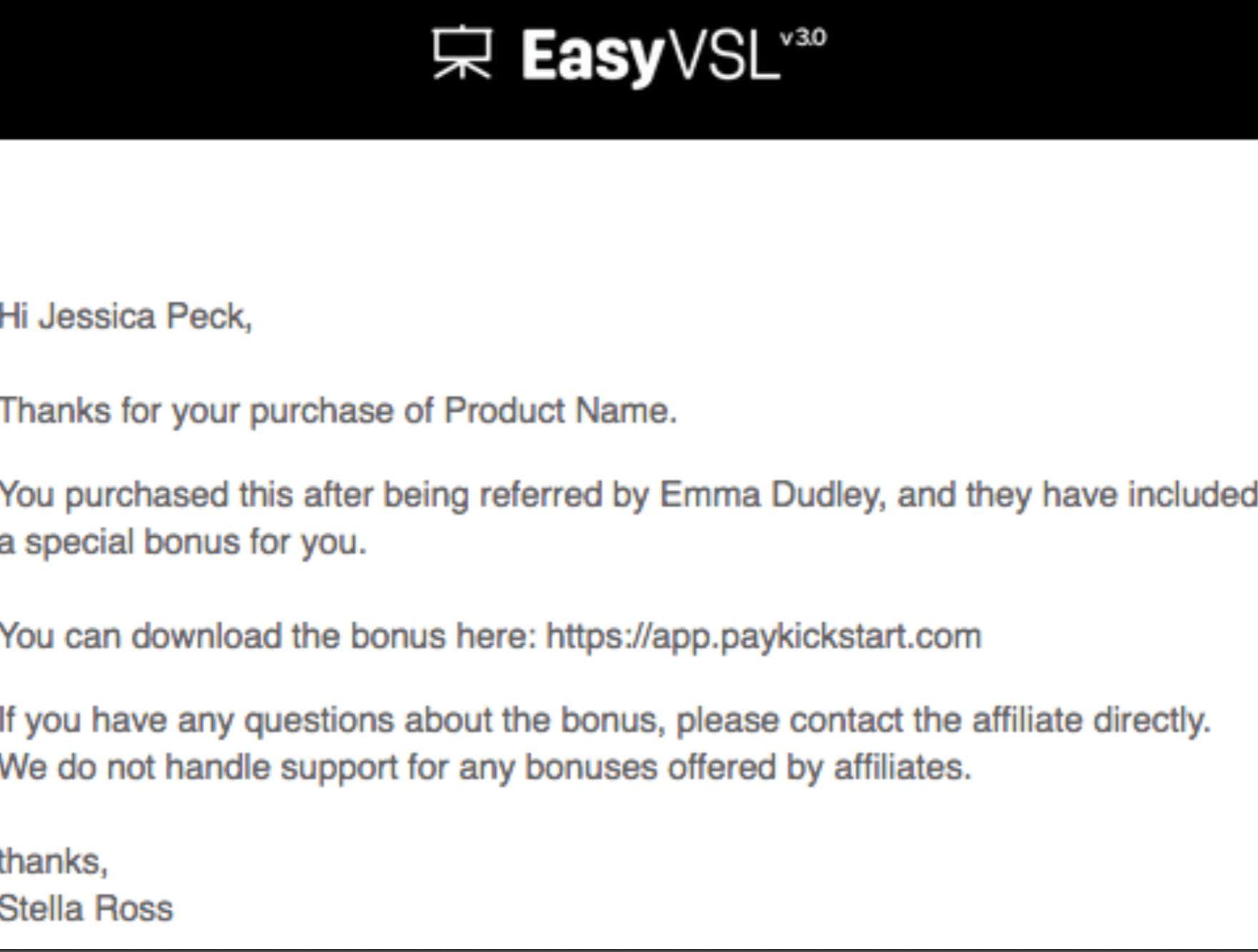
Bonuses are sent by email automatically and immediately upon the customer’s purchase. It will look something like this to the customer. (Your bonus link will show in the email).
Was this helpful?
Still need help? Ask the team