Fraud Mitigation
Written By Carlos
Last updated About 1 year ago
We take security very seriously at PayKickstart, and allow you as a Vendor to manage aspects of your checkout that would add additional security checks if it is ever needed.
We have multiple tools that can help you manage your account, permissions, and security both within your organization and customer-facing via your checkout pages.
Checkout Page Fraud Prevention
Checkout Page Fraud Prevention
It is good to know that the fraud mitigation logic added to checkout forms helps mitigate any potential fraud that may occur on your checkout pages.
If a customer or a lead attempts multiple purchases of any sales funnel’s main offer, a captcha will be enabled on additional checkout page loads and will be required for that customer/lead’s future purchase attempts within 24 hours.
This applies to both successful and failed attempts.
In case the customer continues to make purchase attempts thereafter, and the number of purchase attempts made exceeds a certain threshold that the system deems suspicious, the customer/lead will be blocked from further purchase attempts for 24 hours. This rule has been added to all checkout pages.
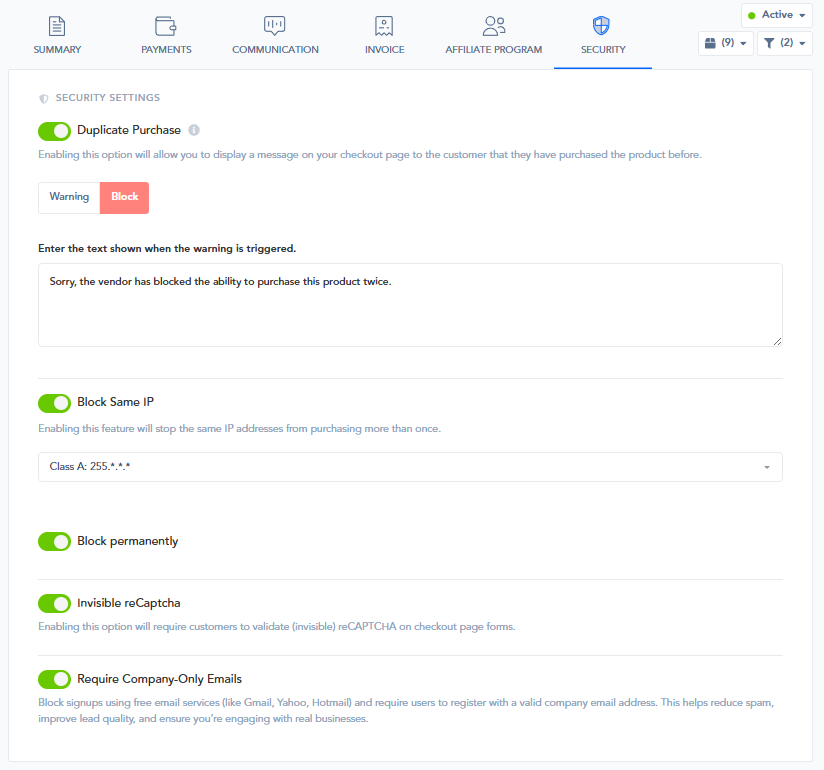
We also have additional security options you have control over, and we will go over those step by step below. These settings are found in under each of your Campaign’s settings - under the Security menu.
Additionally, in the product settings, you can enable the feature that will
Auto-Cancel a Subscription on Dispute:
When enabled, this feature will automatically cancel a customer's subscription if a payment dispute (chargeback) is detected. This helps prevent further billing attempts and limits potential revenue loss or fraud while the dispute is being resolved.
It's a proactive safeguard to ensure that disputed accounts do not continue receiving services or products. You can choose whether this feature gets applied immediately or at the end of the billing cycle.

Platform Settings - Global Security Settings
Platform Settings - Global Security Settings
These settings are applied account-wide, affecting all of your campaigns and checkouts.
Block Sales:
This global setting gives you the ability to block purchases from entire countries. You can select one or more countries from a list. If a customer whose IP address originates from a blocked country attempts to load one of your checkout pages, they will be automatically redirected to a URL of your choice.
This is an effective way to manage sales territories, comply with regulations, and restrict access from regions you do not service.Auto-Cancel a Subscription on Dispute:
When enabled, this feature will automatically cancel a customer's subscription if a payment dispute (chargeback) is detected. This helps prevent further billing attempts and limits potential revenue loss or fraud while the dispute is being resolved.
It's a proactive safeguard to ensure that disputed accounts do not continue receiving services or products. You can choose whether this feature gets applied immediately or at the end of the billing cycle.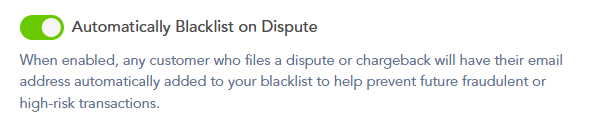
Affiliate Auto-Approval:
By default, this setting is set to Manual, and for maximum security, we recommend manually approving affiliates when possible. However, the platform gives you the flexibility to automate this process. It is critical to monitor your applications if using auto-approval. If you experience a wave of suspicious or fraudulent applications, you can immediately disable your auto-approval rules.
This forces all new affiliate requests to be reviewed by you, preventing potentially malicious affiliates from being automatically granted promotional links for your campaigns. You can also set tiered rules, such as only auto-approving affiliates with a proven sales record.For a more detailed guide on managing affiliate settings, please see our article: https://support.paykickstart.com/articles/6676596-handling-affiliate-requests
Managing API Key Security:
We never recommend resetting your API key as this can and will affect all integrations you are using with the PayKickstart platform, including your payment gateway integrations.
If you believe your API key has been compromised, we recommend reaching out to our support team immediately, as well as disabling your current campaigns and products to prevent any further damage temporarily until the issue is resolved.
Campaign-Specific Security Settings
Campaign-Specific Security Settings
In addition to the global settings, you can configure specific security rules for each individual campaign. This allows for more granular control over your sales funnels.
Duplicate Purchase:
When enabled, this feature checks if a customer (based on their email or IP address) has previously purchased the main product in the campaign. You can choose how to handle a duplicate attempt:Warning: This option will display a custom message on the checkout page informing the customer that they have purchased the product before, but will still allow them to complete the purchase. This is useful for products that customers might intentionally buy more than once.
Block: This option will display a custom message and completely prevent the customer from purchasing the product again. This is ideal for one-time purchase products like lifetime licenses or digital courses, helping to reduce customer confusion and support requests.
You can customize the specific text that is shown to the customer for either action.
Block Same IP Transactions:
Enabling this feature will prevent more than one purchase of the campaign's main product from the same IP address or IP range. This setting has two parts: defining the scope of the block and defining its duration.1. Define the Scope of the Block
First, you choose how broad of a net you want to cast after an initial purchase is made from an IP address.
2. Define the Duration of the Block
Next, you decide how long the block will last by using the Block Permanently toggle.Block Permanently - ON: If this option is enabled, the IP address or range will be blocked from purchasing this product again forever.
Block Permanently - OFF: If this option is disabled, the block is temporary. You can enter a specific duration in minutes.
NOTE: There is a special rule for temporary blocks. If the duration value is left empty or set to
0, the block remains active until the original purchase is reversed (meaning, the one-time transaction is refunded or the related subscription is cancelled).
Invisible reCAPTCHA:
Enabling this option adds Google's Invisible reCAPTCHA to your campaign's checkout page forms. This is a powerful security tool that helps distinguish between real customers and automated bots. It operates silently in the background, analyzing user behavior.
For most legitimate customers, the experience is seamless and they will not be required to solve a puzzle. If suspicious or bot-like activity is detected, the system will then present a validation challenge that must be completed before the purchase can be made.
This is an excellent way to prevent automated fraud and spam submissions without negatively impacting the user experience for your real customers.Require Company-Only Emails:
This setting is a powerful lead-filtering tool for B2B (Business-to-Business) vendors. When enabled, it blocks signups using free email services (like Gmail, Yahoo, Hotmail) and requires users to register with a valid company email address that uses a custom domain.
This helps to significantly reduce spam, improve the quality of your leads, and ensure you're engaging with representatives from real businesses.
Additional Fraud Mitigation Settings
Additional Fraud Mitigation Settings
Pre-Authorizing the Customer’s Payment Method:
If you are looking into having the option to check if the customer’s card is valid by creating an authorization transaction record, you can find out more about this option in this article: https://support.paykickstart.com/en/help/articles/8107647-how-to-pre-authorize-a-customers-card-to-validate-funds
Enable/Disable the Commission Fraud Feature:
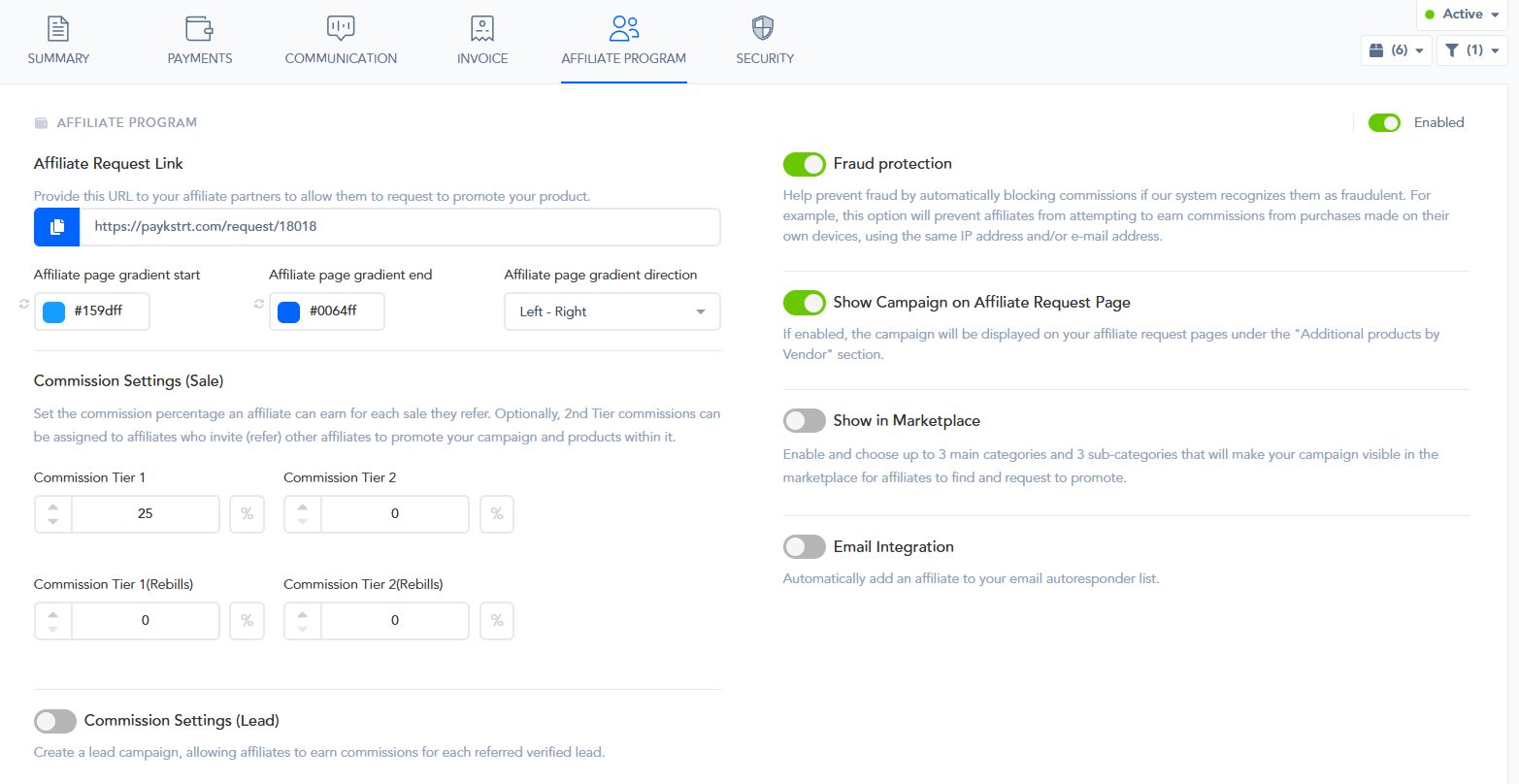
PayKickstart includes a built-in feature designed to help reduce affiliate commission fraud, which is automatically enabled by default to protect vendors and ensure fair commission payouts.
How the Fraud Prevention Works
By default, if a customer makes a purchase using their own affiliate link—or if the system detects that the customer's or affiliate's IP address and/or email match the purchase details—the platform automatically denies the affiliate commission. This mechanism prevents individuals from earning commissions on their own purchases, safeguarding the integrity of your affiliate program.
Disabling the Feature:
While this automatic fraud prevention is beneficial in most cases, there may be scenarios where a vendor wishes to disable this feature, for example, in special promotions or specific affiliate arrangements.
To do so:
1. Navigate to your Campaign Settings within PayKickstart.
2. Locate the Affiliate Program section.
3. Click on the Disable option to turn off the automatic fraud prevention feature.
This setup helps maintain a fair and transparent affiliate program, reducing the risk of commission abuse. However, vendors have the flexibility to disable the feature when necessary, ensuring it aligns with their specific promotional strategies.
Ability to Add Required Custom Fields and Collect Billing Details, Company Name, or Tax ID for Enhanced Fraud Mitigation:
PayKickstart allows you to add required custom fields during checkout, including billing details, company name, and Tax ID.
Requiring customers to provide detailed billing information helps verify their identity and prevents fraudulent transactions. Collecting company names and Tax IDs is especially valuable for B2B transactions, ensuring that the purchase is legitimate and aligned with business records.
Vendors can easily set up these required fields in their product settings within PayKickstart. Enforcing mandatory collection of billing and company information adds an extra layer of security, making it harder for malicious actors to commit fraud.
More information can be found at: Adding Custom Fields to your Checkout Page
Payment Gateway Additional Security Measures:Stripe Radar
Stripe Radar is an intelligent fraud detection system that leverages machine learning, custom rules, and a vast array of data to identify suspicious activity in real-time. It helps merchants automatically block or review transactions that exhibit signs of potential fraud.
1. Automated Fraud Detection: Radar's machine learning models analyze transaction patterns to flag high-risk transactions, reducing manual review time.
2. Custom Rules Creation: Users can set specific rules tailored to their business needs, such as blocking transactions from certain countries or high-value orders from new customers.
3. Adaptive Learning: Radar continually learns from new fraud trends, ensuring your defenses evolve with emerging threats.
More information can be found at: Stripe Radar for Fraud Prevention
Landing Page Builder Tools and Plugins for Effective Fraud Mitigation
Landing page builders are invaluable for creating visually appealing and effective marketing pages. However, website security should never be overlooked. Relying solely on these tools won't protect your site from threats such as malware, hacking, or data breaches.
Importance of Security Plugins Like WordFence
WordFence is a widely used security plugin that offers firewall protection, malware scanning, and login security features. Using WordFence alongside your landing page builder helps ensure your website remains safe from common vulnerabilities.
Additional Security Measures
In addition to WordFence, consider implementing other security best practices: regular updates, strong passwords, and regular backups. Combining these with robust security plugins creates a safer environment for your visitors and your business.
While landing page builders help craft engaging content, integrating reliable security plugins like WordFence is essential to protect your website from potential threats. A balanced approach ensures both an attractive site and a secure online presence.
Managing User Access for Enhanced Fraud Prevention
If you need to assign additional team members to help manage your PayKickstart vendor account, you can add multiple users and customize their permissions.
We recommend granting Read-Only access unless write access is necessary for specific tasks. By setting appropriate user permissions, you enable your team to view and manage sensitive areas such as customer information, subscriptions, and transactions, each from their own accounts.
This granular control helps reduce the risk of unauthorized activities, ensuring that access is restricted to only what is necessary. Implementing strict permissions is a vital component of your overall fraud mitigation strategy, helping to protect your account and customer data from potential threats.
Was this helpful?
Still need help? Ask the team