Integrating s2Member
Written By Carlos
Last updated 9 months ago

PayKickstart integrates seamlessly with the s2Member API, allowing you to add/remove customers to different membership levels in your s2Member account upon purchase.
Note:
You MUST have a s2Member PRO Account.
Step 1: Access the Configure → Integrations section
Step 1: Access the Configure → Integrations section
In your PayKickstart account, go to Configure → Integrations.
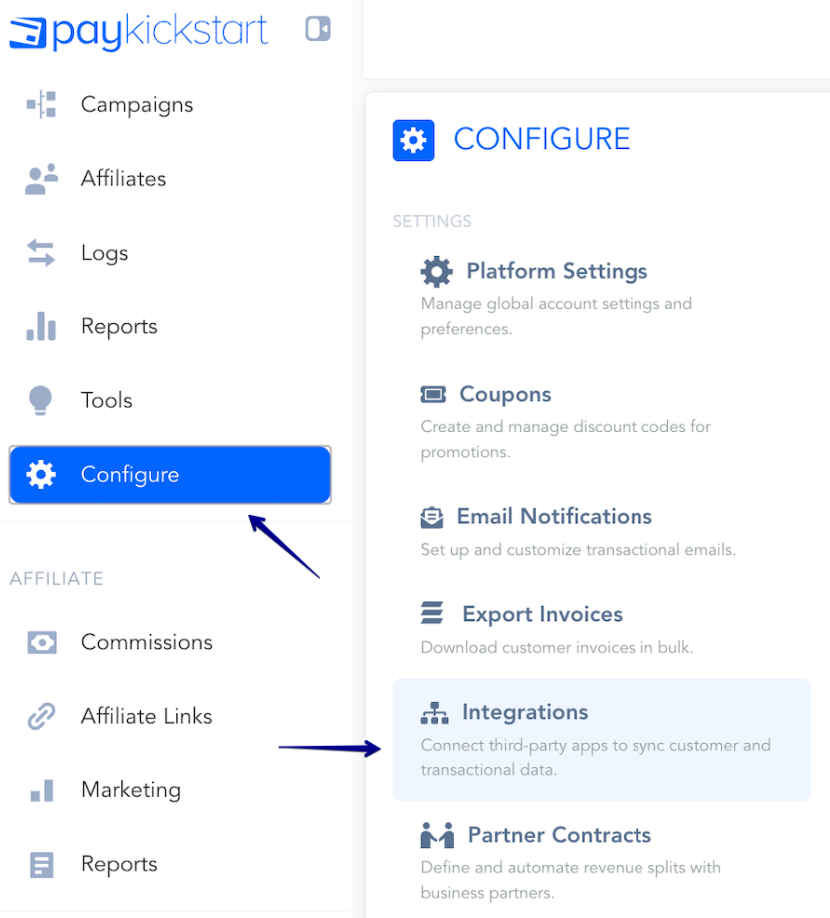
First, you’ll need to integrate on your main integration page.
Inside the Integrations menu, make sure to click on the Available tab.
Then find the Membership category in the filter, and scroll down to locate s2Member.
You can also search for s2Member directly within the Search field:
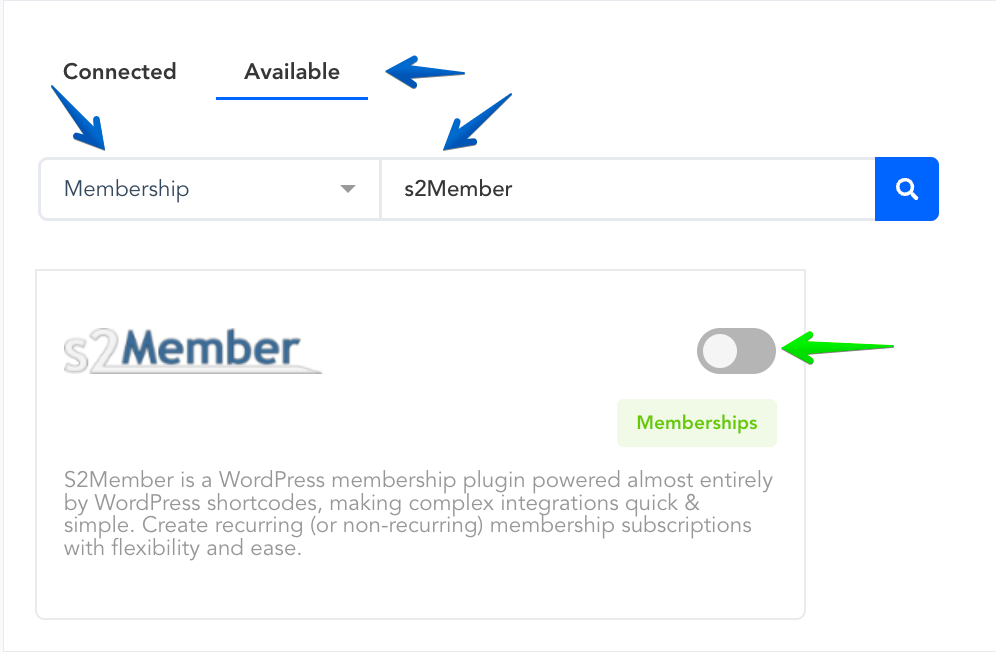
Enable s2Member by clicking the toggle switch.
Step 2: Connect s2Member integration
Step 2: Connect s2Member integration
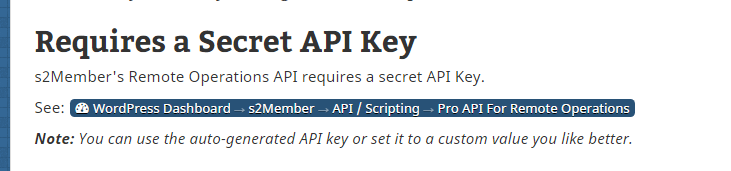
You need to grab your s2Member API key that they provide.

Here is where you can find the API key provided by s2Member.
Enter in the URL where s2Member is installed, the API Key provided by s2Member, and the Login URL of the Membership Area Login page emailed to the customer along with their credentials.
Note: You only need the base of the URL.
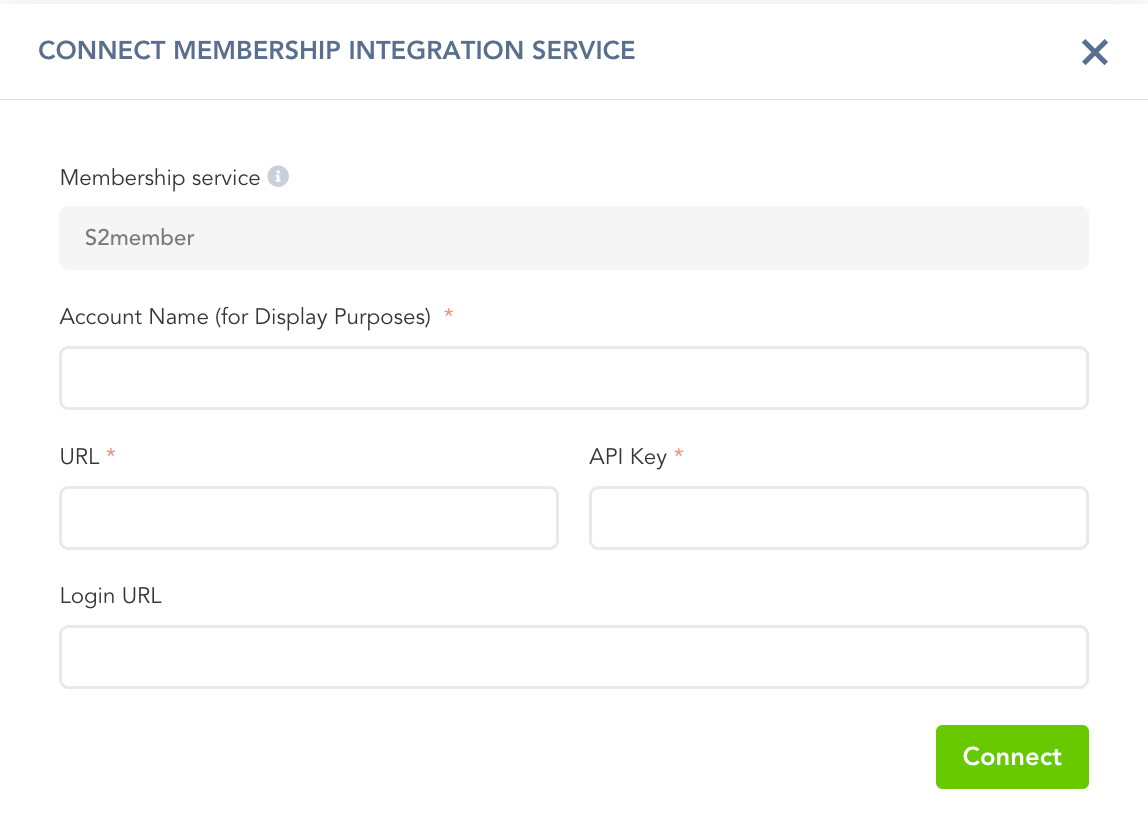
Once this information has been entered, Select Connect.
Step 3: Creating an Automation Trigger for your Product(s)
Step 3: Creating an Automation Trigger for your Product(s)
After connecting your account, you must set up a Trigger to tell PayKickstart when to send customer information to s2Member.
In the PayKickstart dashboard, go to Configure and select Triggers →
https://app.paykickstart.com/vendor/configure/triggers
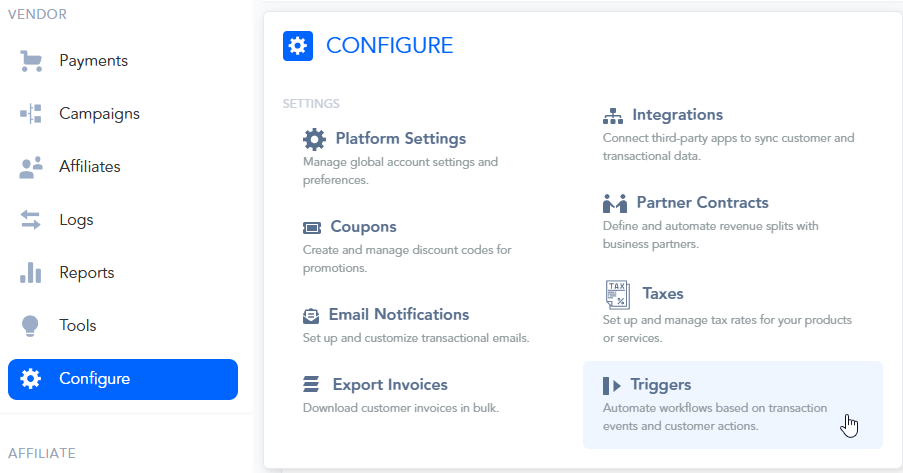
Click the + New Trigger button to create a new rule.

Configure the Trigger settings as follows:
Status:
First, toggle the switch at the top to make the trigger ACTIVE.Trigger Name:
Give your trigger a descriptive name so you can easily identify it later
(e.g., "Product 1 - New Sale to s2Member").
Select Event(s):
Choose the event that will fire this trigger.
For adding new customers, New sale is the most common choice.
Please note:
Available event options will show clearly only after saving your first trigger.
We recommend choosing the New Sale event when setting up the integration for the first time as it would trigger with any new transaction that is created for the product.
For s2Member, the currently available and supported events are:
New Sale - triggers when a new transaction is created for the product
New Trial - triggers when a new trial is started for the product
Refund - triggers when a refund is issued to the customer, for the specific product
Subscription Cancellation - triggers when a Subscription is cancelled, for the product
Pending Cancellation - triggers when choosing to cancel the subscription at the end of the billing period, instead of immediately
Cart Abandonment - triggers 15 minutes after the checkout page has been abandoned
Subscription Changed - triggers whenever the subscription’s plan has been changed to a different one
IF Condition (The Rule):
This defines the variable that must be included for the trigger to run.
Important: The IF condition must be set to a Product, for the integration to function.
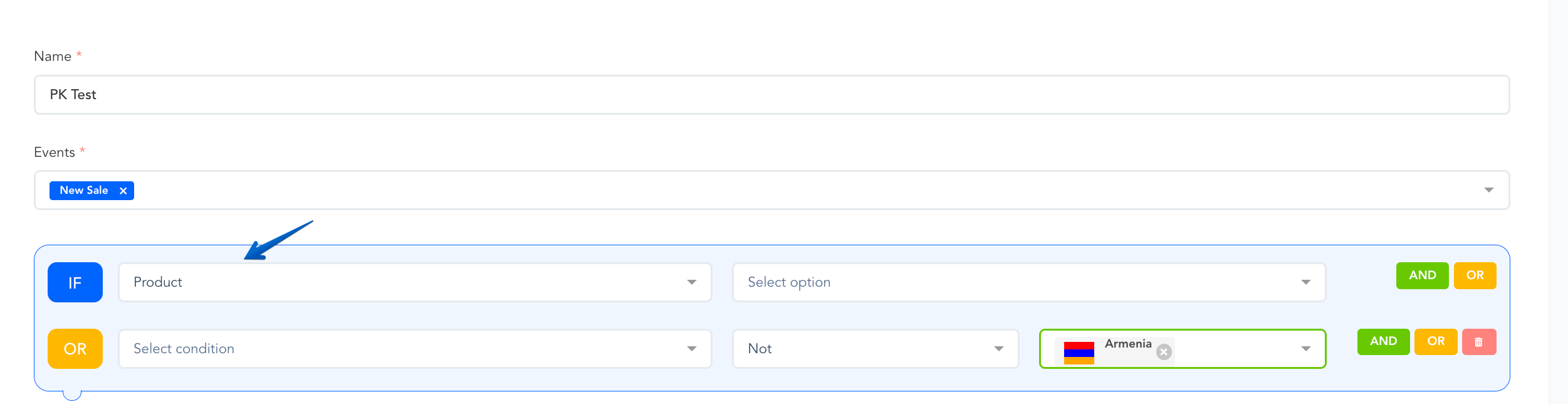
Best Practice Use Case:
We recommend creating a separate trigger for each product.
This makes it easier to manage and troubleshoot specific product integrations if needed, rather than having 1 trigger where all products are selected.
THEN Action (The Result):
This defines what will happen when the IF condition is met.

Set the THEN action to: add customer to a membership.
Service: Select s2Member from the dropdown.
Account: Choose the s2Member account you connected in your Integrations section.
Select a Level: the membership level where customers will be added to.
Once you have configured the rule, click the Update Trigger button to save your automation.
Once you save the integration settings for the product, the customer will receive login access to the membership platform after purchase.
If the purchase is related to a subscription, access to the membership would be controlled automatically by the customer’s subscription status in PayKickstart.
With s2Member Pro installed, you have access to the s2Member Pro API For Remote Operations. This is made available for developers that wish to further expand the integration’s capabilities.
Requires a Secret API Key
Supported Remote Operations
Example PHP Scripts for Each Operation
Event types:
auth_check_user (authenticate existing Users/Members)
get_user (retrieve data about existing Users/Members)
create_user (create if not exists, else update existing Users/Members)
modify_user (updates existing Users/Members)
delete_user (deletes existing Users/Members)
Was this helpful?
Still need help? Ask the team