How to Handle Affiliate Commission Payouts
Written By Carlos
Last updated About 1 year ago
Only available for Growth and Scale plan vendors
PayKickstart offers vendors easy ways to pay out affiliates automatically and manually for their related sales commissions.
Conditions:
The customer purchased via PayPal.
The vendor has approved the affiliate for instant commissions.
The affiliate has configured their PayPal account to accept commissions and has activated instant commission payouts in their My Profile settings prior to the referred sale being processed.
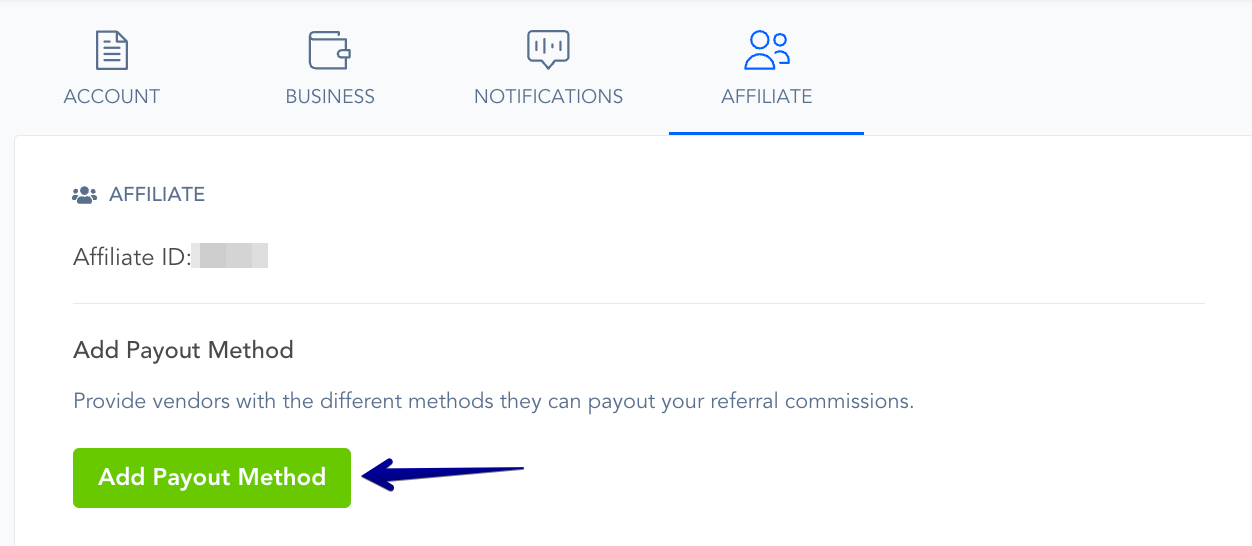
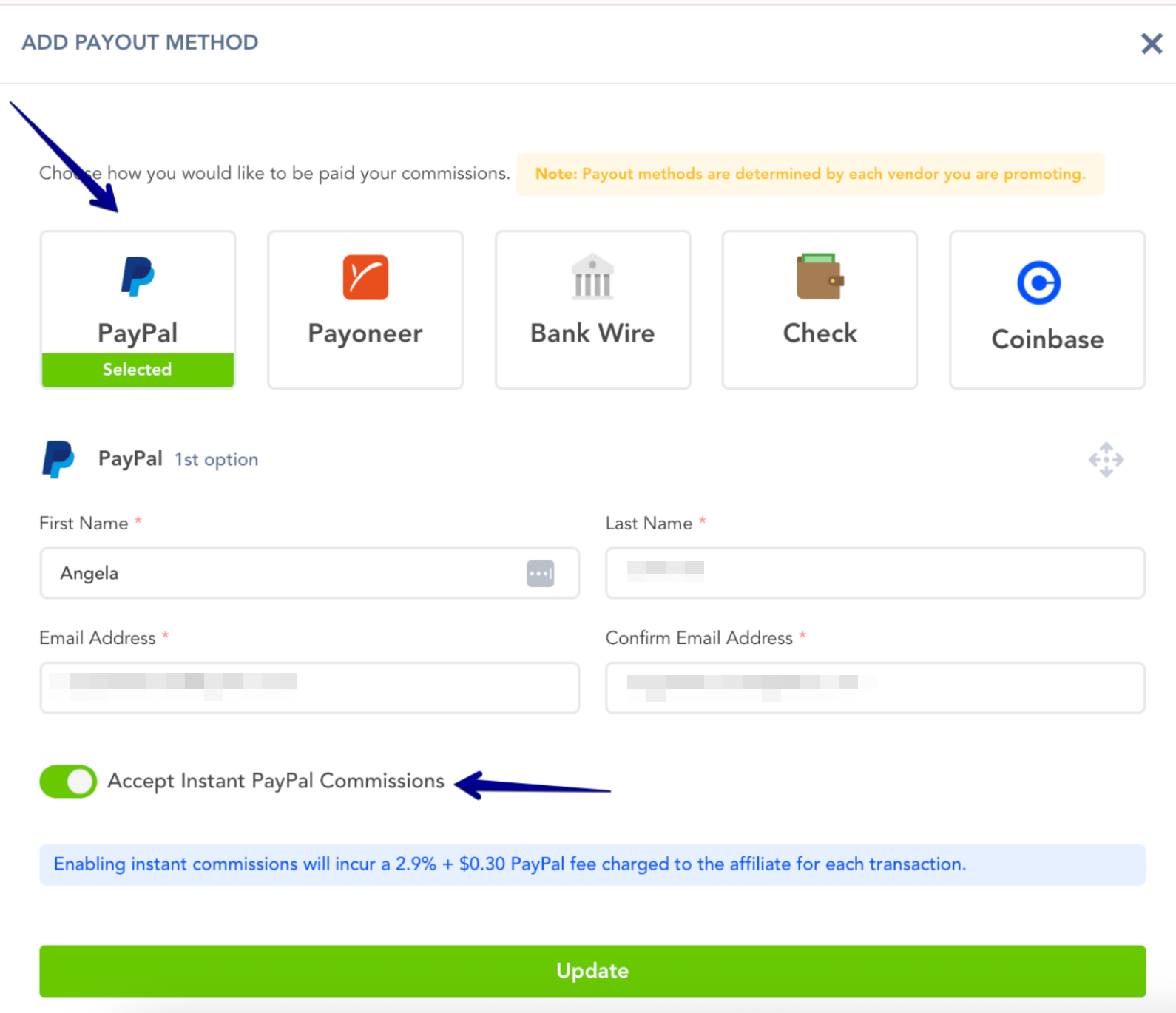
Instant commission payouts will process instantly and can be viewed in the history section: https://app.paykickstart.com/vendor/payouts/history
Conditions:
The customer purchased via PayPal.
The affiliate has PayPal enabled to receive commissions in their My Profile settings.
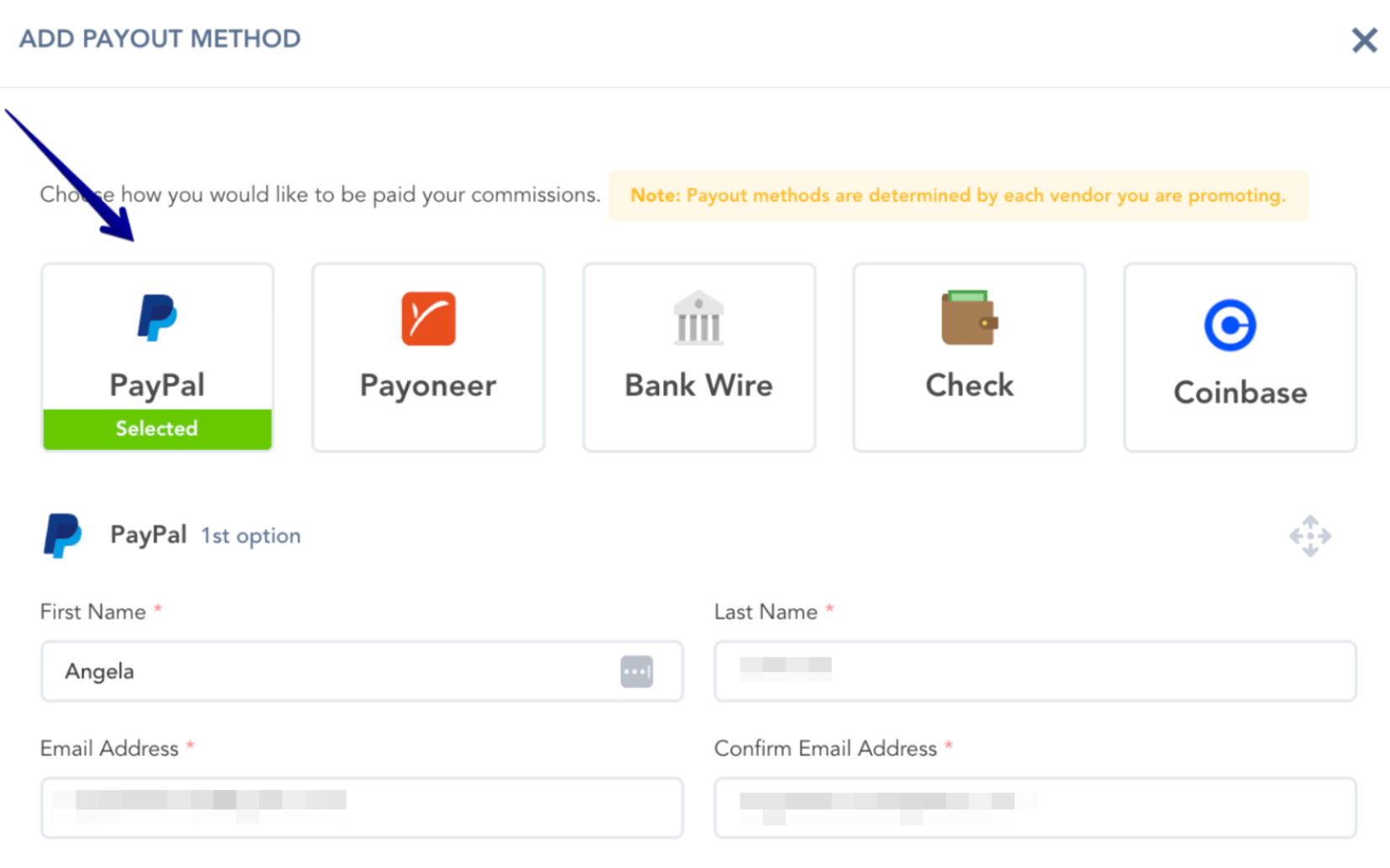
The affiliate is set to Delayed commission payments by the vendor.
Once paid, commissions can be viewed in the history section: https://app.paykickstart.com/vendor/payouts/history
Conditions:
The customer completed their purchase using a payment gateway other than PayPal (e.g., Stripe, Braintree, Authorize.net, EPD, or CONNECT).
The affiliate has selected a commission payment method other than PayPal.
The affiliate had not linked their PayPal account at the time the referred sale was processed.
Here’s how Manual Payments Work:
Step 1: Once you are on the Affiliate Payouts > Manual page, click on the Campaign List drop-down selection to select the campaign. Then, click Next Step to proceed.
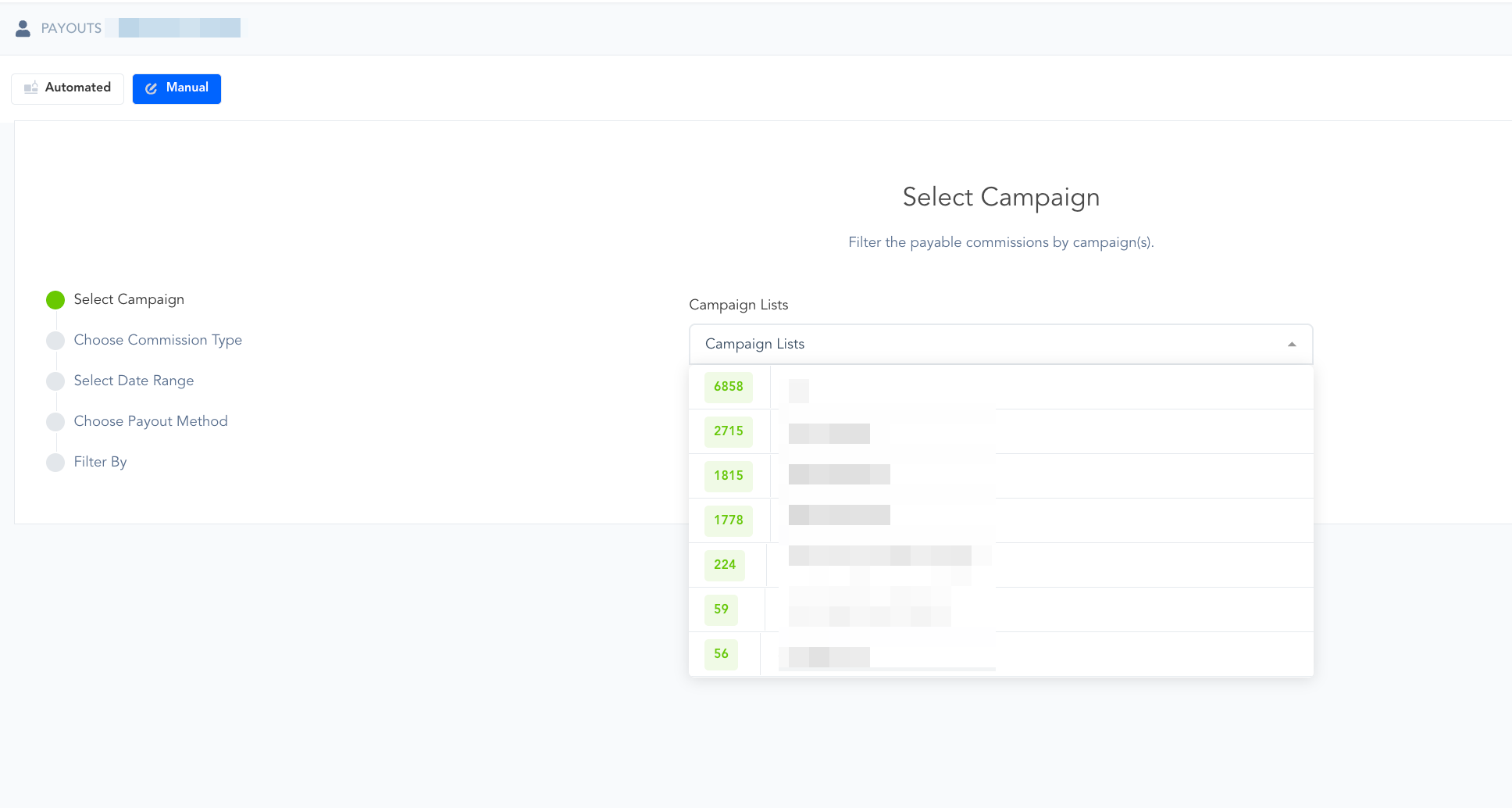
Step 2: Select the Commission Type. In this section, you should see either Transactions or Lead commission type. Then, click Next Step to proceed.
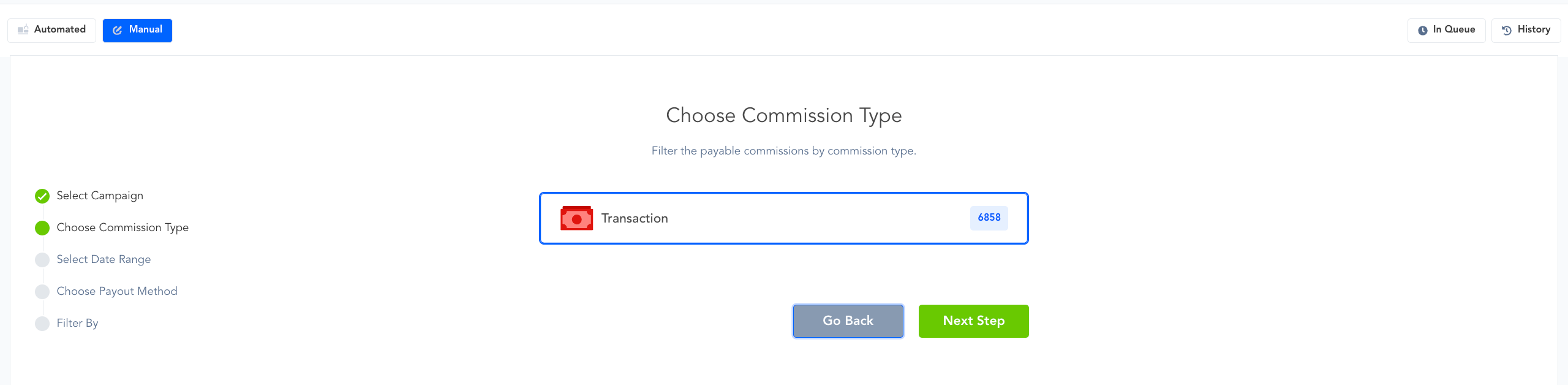
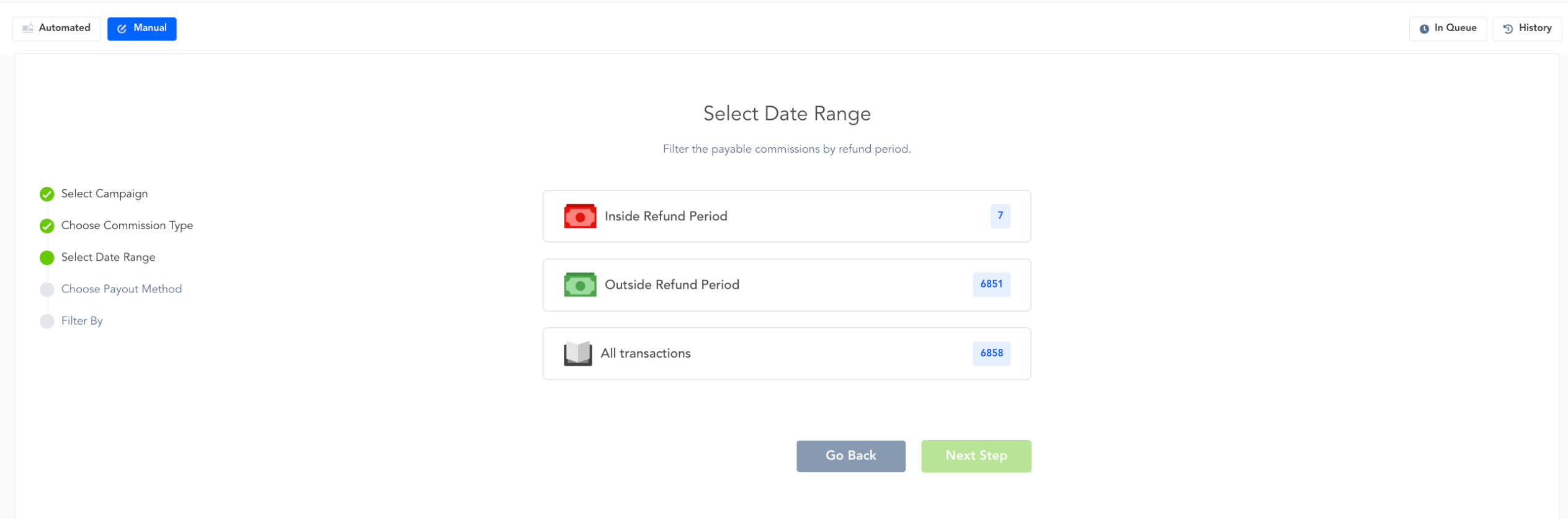
Step 3: The refund period is determined by the number of days you've configured for customer refund eligibility. For reference, this setting can be found under the Summary tab within your Campaign settings.
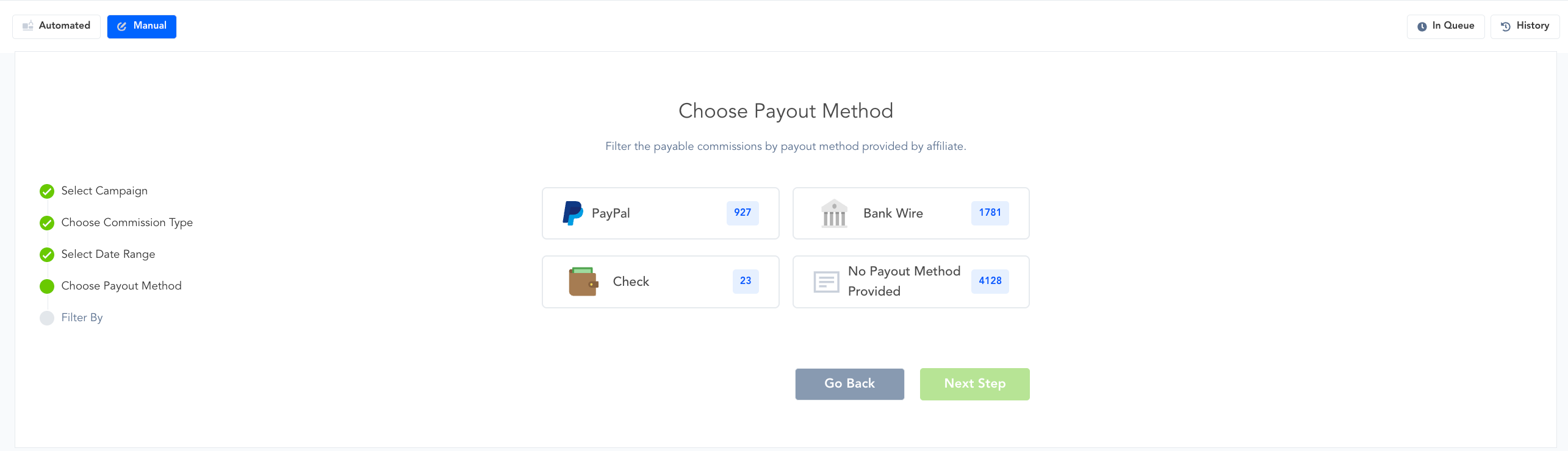
Step 4: Choose the Payout Method.
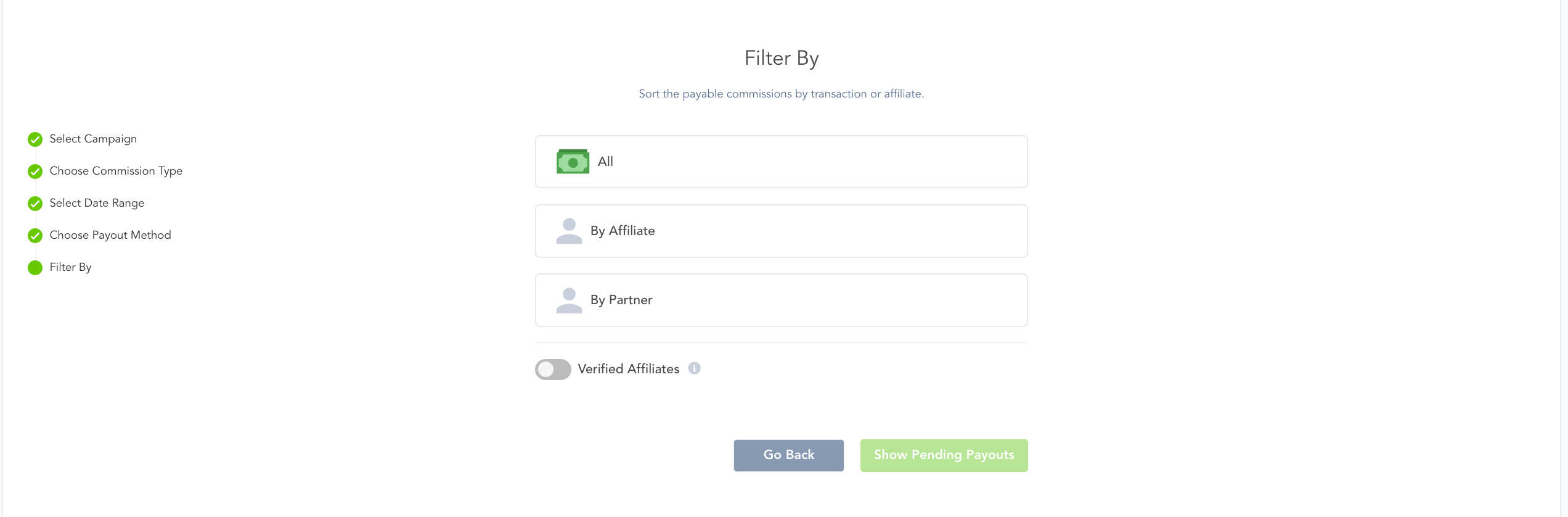
Step 5: Filter by Affiliate, Partner, or view All.
Step 6: After filtering and approving the related manual commissions, you will be required to download a CSV file.
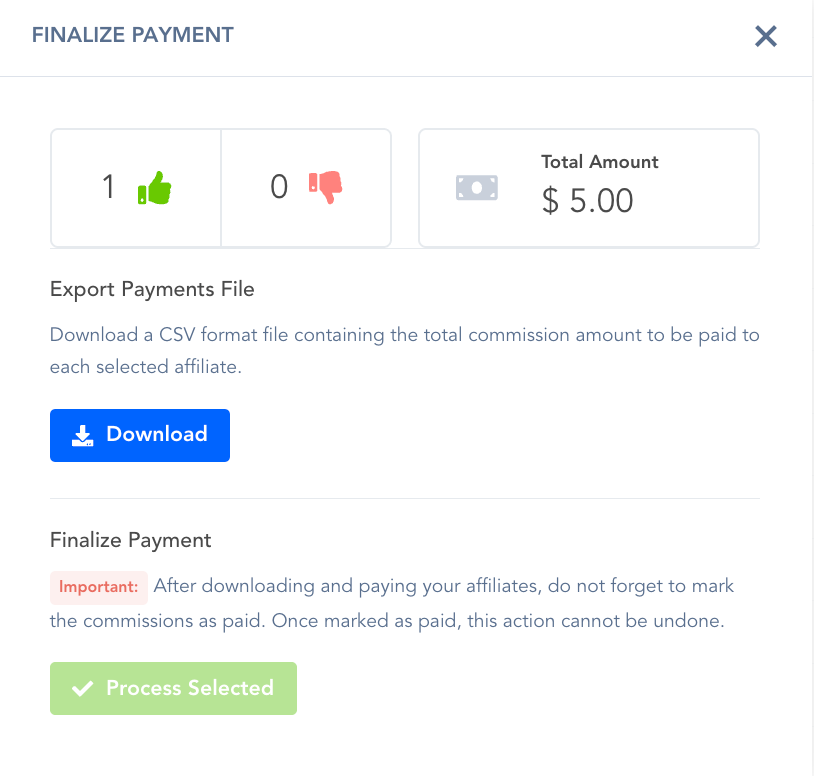
Step 7: After downloading the Manual commission payout file, you can then use the downloaded file to manually pay out these processed commission records outside PayKickstart
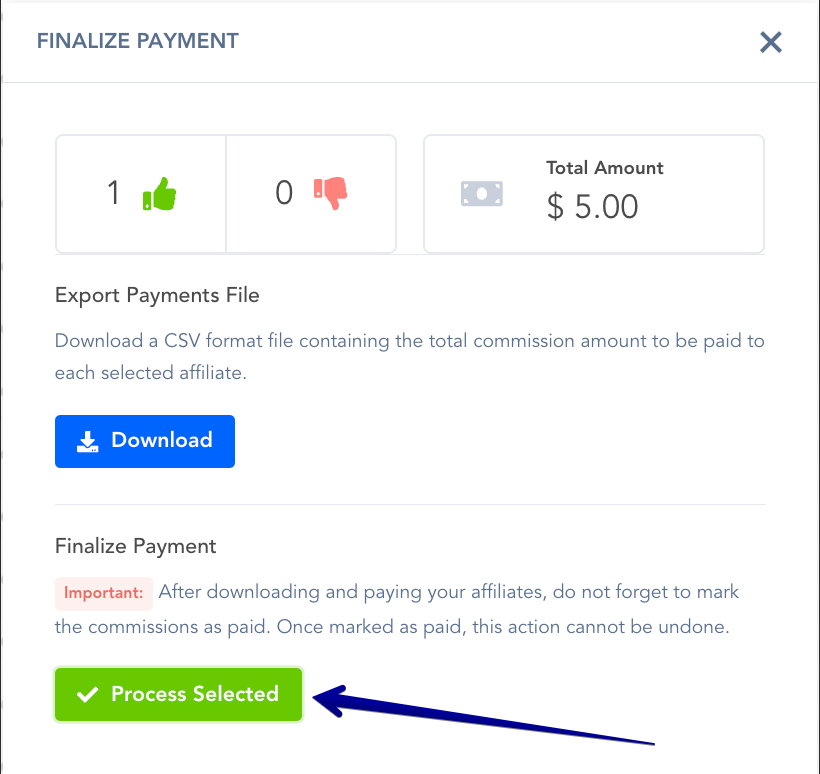
Step 8: Once you are done paying out affiliates outside PayKickstart, you can click Process Selected so the related commissions are marked as Paid in PayKickstart.
Important:
You must manually send commission payments for all manual commissions.
Manual commissions are NOT paid to affiliates automatically.
If you are sending commissions to PayPal, they offer a Mass Pay option to vendors. You can upload the CSV to PayPal to finish sending the commission payments:
If sending commissions to Coinbase, this article covers how to send payments:
Note:
Affiliate commissions DO NOT factor taxes if tax was charged for the transaction.
Commissions only factor the main transaction price (excluding tax).
PayKickstart has a number of fraud detection features built in to minimize the chances of fraudulent commissions. However, as a rule of thumb, it’s important to always be mindful of the affiliates promoting your campaigns and to monitor the commissions on a regular basis, looking for anything that seems suspicious or unusual – especially before paying out commissions.
All affiliate commissions will be in USD, even if your product is using another currency.
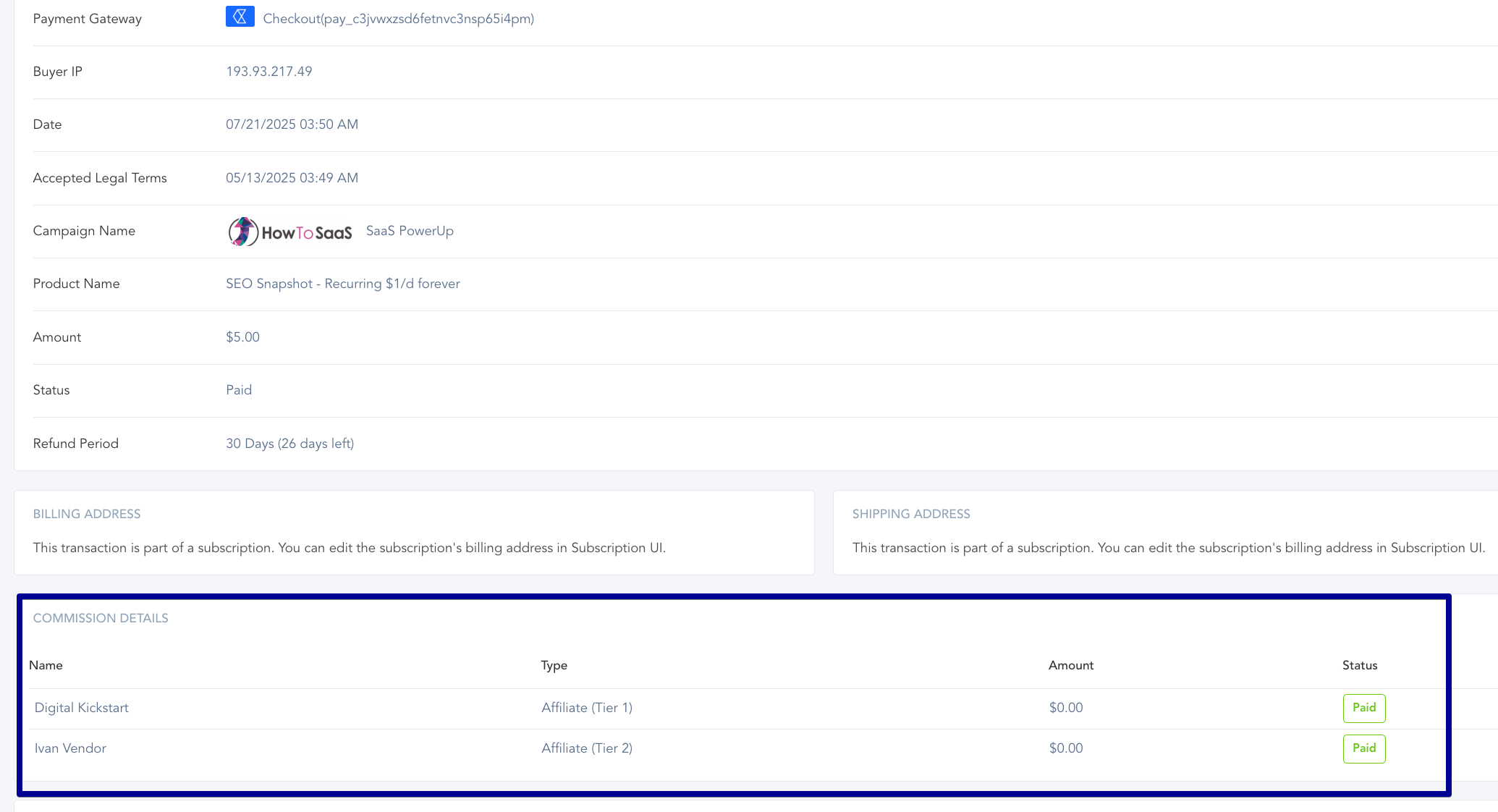
After an affiliate commission has been marked approved and processed for a transaction, vendors can view the related transaction to see the affiliate commission payout.
More Resources:
Was this helpful?
Still need help? Ask the team