Platform Settings
Written By Stefan S.
Last updated 6 months ago

The Vendor Platform Settings contain some of your settings that have a platform-wide effect.
To access this section, go to Configure and choose Platform Settings.

Domain:
This option allows you to add a domain name to your affiliate links to show your brand domain on affiliate links instead of the default paykickstart.com domain.
To learn more about using the Domain Short URL for Affiliate Links click here: https://support.paykickstart.com/articles/7539818-adding-a-cname-record-adding-a-custom-affiliate-linkshort-url

Platform Logo:
This logo will be used in the top left corner of your account dashboard and will also be used for Product Logos unless overwritten at the Campaign Settings.

Upload your Company Logo. By default, this will appear on your checkout pages and within your own User Interface, unless overwritten in the Campaign Settings.
The Image should be smaller than 2MB, 700×160 pixels in size, and in either PNG, JPG or GIF format.
Multiple Currency:
This Platform-Wide Option allows you to show the product price in the Customer’s Native Currency based on their location, but charge in the base currency via your Payment Gateways.
To learn more about the Multiple Currency option click here: https://paykickstart.featurebase.app/help/articles/3880598-how-to-allow-customers-to-purchase-using-their-native-currency

Default Language:
Configure the default language preference for checkouts. This configuration may be overridden on a per-campaign and per-product basis.
To learn more about language options in PayKickstart ,click here: https://support.paykickstart.com/articles/1238250-how-to-translate-your-checkout-pages-and-widgets

API KEY:
The API key is an optional feature used with 3rd party platforms to create integrations with some tools and platforms.
Only Growth and Scale Vendors have access to account API keys.

To change your API Key as a Vendor, please use the Reset Button.
Please note that resetting your API Key will cause your previous key to stop functioning. Any API calls and custom code that include the current API key you are using will be affected by this change. Changing your API Key creates a new encrypted value related to your account.
Warning: CHANGING YOUR API KEY IS IRREVERSIBLE.
Once changed, there will be no option to return to your previously encrypted API key.

Affiliate Settings:
Affiliate Approval: You can approve Affiliates Manually or Automatically.
Tracking settings: Learn more at –https://support.paykickstart.com/help/articles/1377115-what-is-the-difference-between-lifetime-vs-per-campaign-affiliate
Auto-pay: If the customer purchased via PayPal and the related Affiliate is receiving commissions via PayPal, you can enable to automatically send the commissions to their PayPal after the product refund period ends.

Block Sales:
Allows Vendors to block sales in specific regions or countries.
Learn more about blocking sales here: https://support.paykickstart.com/articles/4708090-how-do-i-block-sales-from-a-specific-country

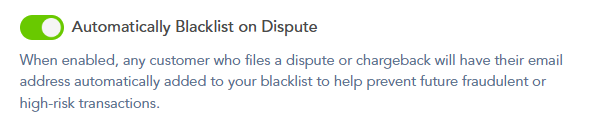
Automatically Blacklist on Dispute:
This feature provides an automated way to protect your business from high-risk customers.
When enabled, any customer who initiates a dispute or chargeback against a purchase will have their email address automatically added to your blacklist. This prevents them from using the same email address to make future purchases, reducing the risk of repeated fraudulent activity.
To review or manage the customers on this list, go to Tools > Blacklist in your account. The blacklist section allows you to view customers blocked by either their IP address or email address.
Date and Time Preferences:
This option allows Vendors to choose how the date and time will be formatted throughout the Platform as well as customer Email Notifications.
Vendors can choose between showing the date as:
– Month / Day / Year
– Day / Month / Year
– Year / Month / Day
And for the time format vendors can choose a 12-hour format, or a 24-hour format.

SCA Reminders:
This option is for Vendors operating from the EU with EU customers.
You can set how many reminders customers receive to confirm their billing in compliance with SCA.
To learn more about SCA, click here: https://support.paykickstart.com/articles/8892309-vendors-strong-customer-authenticationsca-and-3d-secure3ds

Was this helpful?
Still need help? Ask the team