Creating a Coupon
Written By Carlos
Last updated 8 months ago
Adding a coupon or discount code is easy.
IMPORTANT NOTE
– Coupons DO NOT apply to free trials. Coupons ONLY apply to actual paid transactions.
– If using the Amount option and the amount set is more than the purchase price, the coupon will not be applied.
– Coupons will not discount order bump purchases.
– Coupons will not discount products being used as 1-click upsell products in a funnel.
– Coupon codes will not discount shipping charges on products that collect and charge for shipping.
– The Time Zone in your My Profile section will be used for the Start and End Date Time.
Coupons that offer a fixed discount amount are based on the product’s main currency.
For example, if your main currency is USD and you create a coupon for a $5 discount, it will always be $5 in USD.
If a customer chooses to pay in another currency, like Euro, the $5 discount will automatically be converted to Euros based on the current exchange rate.
This way, the discount remains fair regardless of the currency the customer uses.
STEP 1:
STEP 1:
In the Configure ⚙️ Menu select Coupons.

STEP 2:
STEP 2:
Click on New Coupon.

STEP 3:
STEP 3:
Enter the needed information to create your Coupon.
Campaign: The campaign the coupon will be related to. Vendors can create a coupon for All Campaigns, or choose an individual campaign and product(s) per coupon.
Product(s): Select the product(s) from the campaign you want to associate the coupon with.
Name: Name of your coupon. For vendor reference.
Total redemption: Total number of times the coupon can be used by all customers.
Max Redemption per customer: How many times can a specific customer use the coupon.
*NOTE: Max redemption per customer is per product, not per coupon.
Customer can use the same coupon to purchase multiple products if the coupon applies to multiple products.
*NOTE: In case the coupon CODE itself is changed, the customer would be able to apply it again on a new purchase.

Coupon Settings: You can set a discount for a percentage of the product price or a specific amount off the product price.
Apply To: Set that charges the coupon can apply for. You can select multiple “apply to” options for the coupon if needed.

First Charge(Excluding split-pay): This option will discount the customer’s initial purchase, including a paid trial, but will NOT apply to the first split pay charge.
*NOTE: Coupons DO NOT count free trials. The first charge would be the first billing after the free trial.First Charge: This option will discount the customer’s initial purchase, including a paid trial and the first split-pay charge.
*NOTE: Coupons DO NOT count free trials. The first charge would be the first billing after the free trial.Rebills: This option will apply the coupon only to rebill transactions. This option does NOT include split payments.
Split-payments: This option will apply the coupon discount to all the split-pay charges.
# Rebills: Ability to set the number of rebill charges you would like the coupon to apply to.
For example, you can apply the discount to 3 future rebill charges. If left empty, the discount will apply to all future rebill charges.

Customer Discount Code: The exact coupon code customers will use to apply the discount.
Discount Price/Percentage: The price or percentage amount that will be discounted.

Start Date: The date and time you want to start allowing use of the coupon. The start date and time must be in the past in order to show the coupon field on the checkout.
End Date(Optional): Date and time you want to end the ability for customers to use the coupon. If you do not want to end the coupon, leave this field blank.

Affiliates: You can also manually assign Tier 1 and Tier 2 affiliates for the Coupon.

After setting up the coupon, click Save.

Once your coupon code is active, your checkout page will display a Have a Coupon? box.
Customers can enter their coupon code there and get the discount you set.

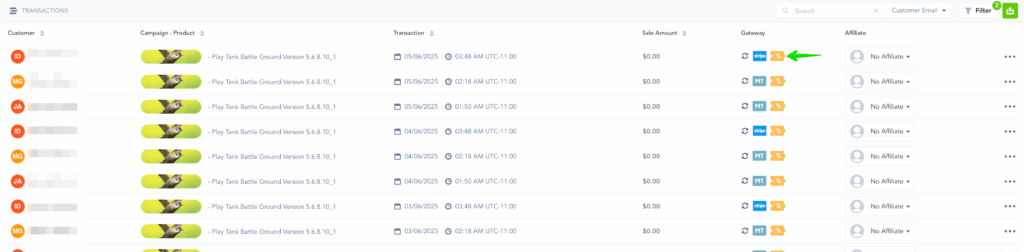
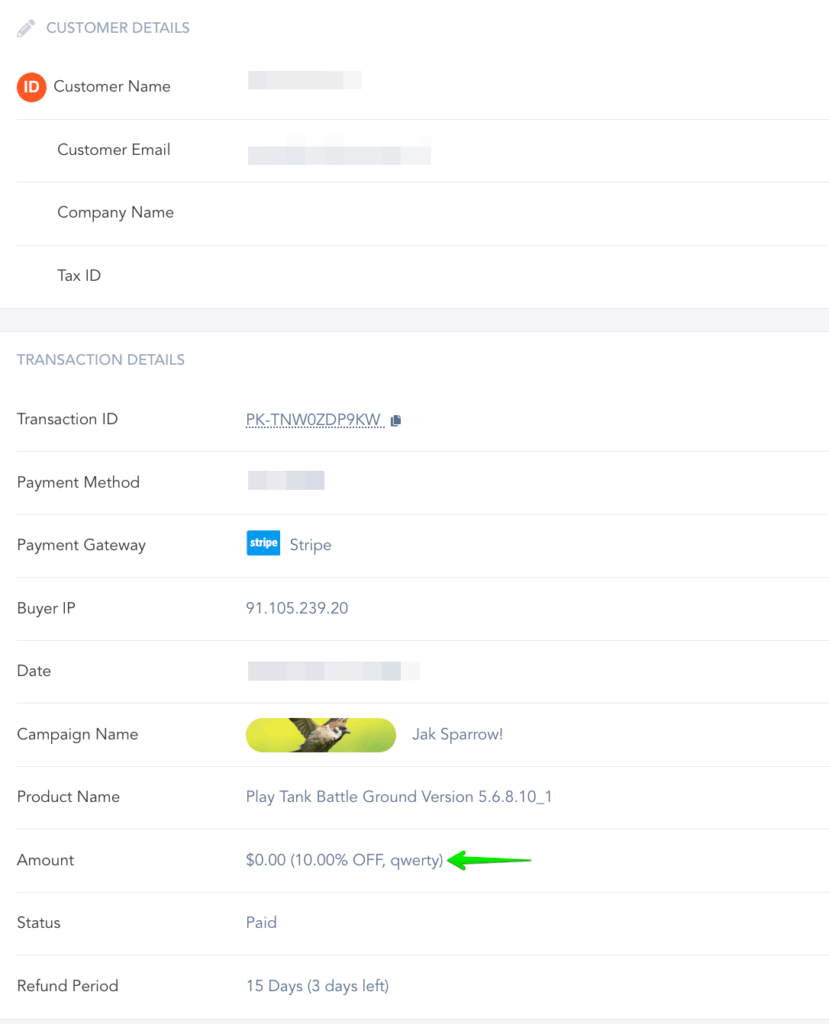
In the Transaction Section, you can view transactions that used a coupon.
Transaction exports will also contain the coupon used for the related transaction.
More Coupon Features:
– Auto-Apply Coupon on checkout
– Creating Dynamic coupons with API
Was this helpful?
Still need help? Ask the team