How to Manage Physical Products & Fulfillment
Written By Stefan S.
Last updated About 1 year ago
PayKickstart makes it easy to manage the fulfillment process from beginning to end for any physical goods you need to ship to your customers.
Here is how to enable fulfillment and shipping:
Step 1: Set your Order Fulfillment Preferences
Step 1: Set your Order Fulfillment Preferences
Option #1: Integrated 3rd Party Fulfillment Company
Are you going to be using a 3rd party to handle fulfillment? If so, we currently offer integrations with the following fulfillment companies:
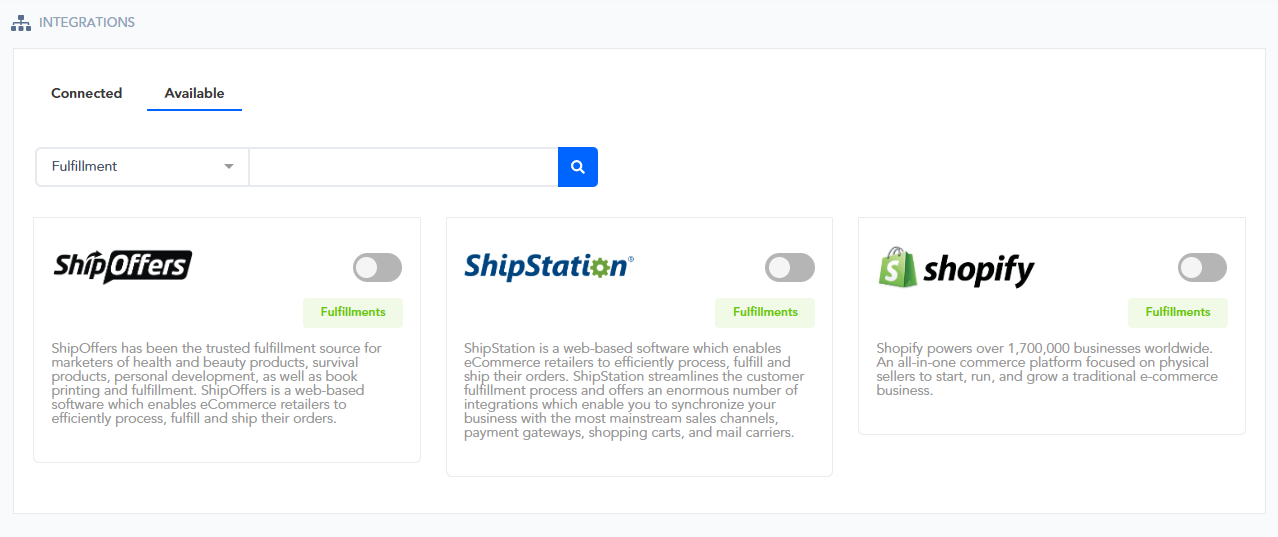
If using one of our integrated partners, the order status will update automatically for you without having to do anything. You’ll see from Order Received to Fulfilling to Shipping to Delivered (and Returned).
Option #2: Non-Integrated 3rd Party Fulfillment Company
There are many fulfillment providers available, and as a result, we’re unable to offer direct integrations with all of them. However, if you're using a third-party fulfillment company that isn't currently one of our integration partners, you can still send customer details to them through several alternative methods.
Have your developers create a bulk CSV daily/weekly/monthly (however often you want) that gets sent to your fulfillment with the customer and product details.
You’ll have to update your orders manually in the Fulfillment area of PayKickstart.
Option #3: In-House
If you plan on fulfilling the order in-house/yourself, then you’ll want to fulfill, ship, and update the order status manually from inside PayKickstart without a shipping integration connection.
Step 2: Configure Fulfillment Settings for your Product
Step 2: Configure Fulfillment Settings for your Product
Note: Use any of the Knowledgebase articles in Step 1 - Option #1 if using one of our integrated partners.
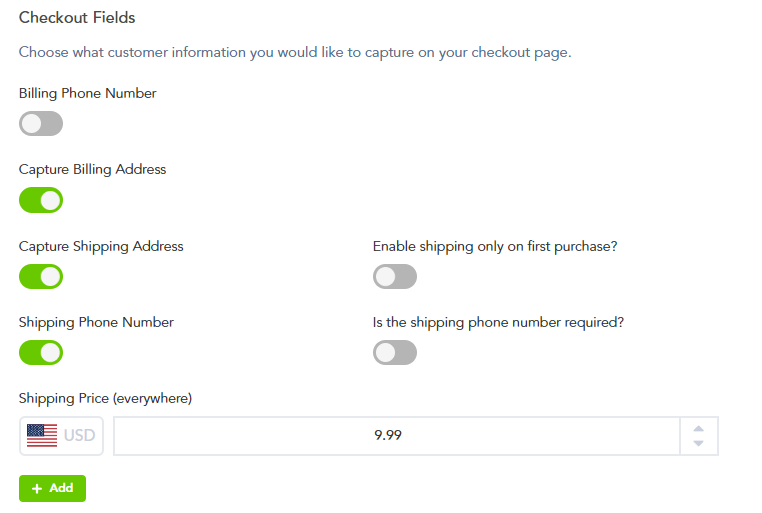
Then, on the Edit Product page, go to Product settings( section 2 – Checkout page) and make sure to Enable Shipping and set whatever shipping cost you want.
Configure your product in PayKickstart for Fulfillment

NOTE: Use the Knowledge Base articles above if using one of our integrated partners.
On that Edit Product page, go to Product settings( section 2 – Checkout page) and make sure to Enable Shipping and set whatever shipping cost you want.
NOTE: If the override shipping countries selected all share the same currency AND that currency is selected in the campaign, then it’ll be used. If the selected country currency is NOT being used for the related campaign, shipping will be charged in the campaign’s base currency.
You can also set shipping to trigger only on the first purchase if the product has a recurring charge.
You can also enable a shipping address phone number
Next, you will need to create a trigger that will pass the data about the customer’s order to your Fulfillment service integration.
To find out more about creating Triggers, please see the corresponding article for your fulfillment integrations:
NOTE: If using a custom API integration or handling fulfillment manually, you will not have an integration option for the product since this is handled differently.
Once you’ve done that, your checkout page will have the Shipping Fields visible, and you’ll see the additional shipping line item in the pricing area.
Manage your order statuses from the Fulfillment Area
Go to Payments → Fulfillment to access the orders.

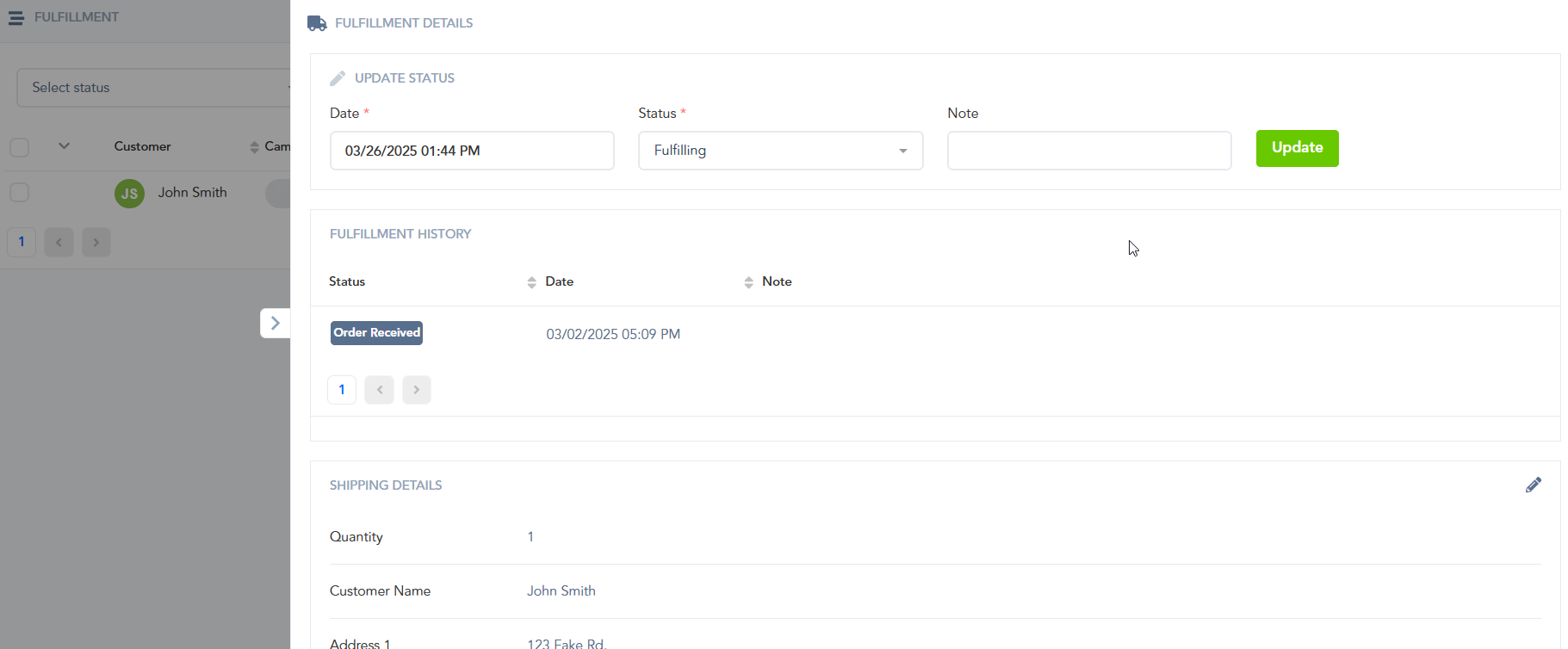
Clicking on the three-dotted menu on the right will show the fulfillment details option. Here you can monitor the fulfillment history as well as update the details such as address, tracking number, and the company used for the shipment.
Was this helpful?
Still need help? Ask the team