Integrating and using Connect™ by PayKickstart to process payments
Written By Carlos
Last updated 5 days ago

Connect is our own internal gateway solution that allows you to process customer payments via PayKickstart.
The new Connect by PayKickstart is available globally. While it was previously limited to merchants in the United States and Canada, Connect is now open to international vendors outside of the US and Canada.
Please Note:
We highly recommend using CONNECT on a new or low-volume campaign first. DO NOT switch all campaigns at once if you are an existing PK vendor switching to CONNECT.
If switching a campaign from another payment gateway to CONNECT, please review this article regarding existing customer subscriptions.
Connect by PayKickstart is an internal payment gateway that can be used in replacement of Stripe, Braintree, AuthorizeNet or Easy Pay Direct to accept customer card and bank payments.
PROCESSING FEES
PROCESSING FEES
Enjoy lower transaction fees starting as low as 2.3% + 15¢, replacing the standard industry baseline of 2.9% + 30¢.
CONNECT transaction processing fees are based on your PayKickstart vendor account plan and your company country.
US & Canadian Transaction Fees: https://support.paykickstart.com/knowledge-base/us-fee-disclosures/
PAYMENT METHOD TYPES
PAYMENT METHOD TYPES
CONNECT can use the following payment method options for customer payments.
Debit Card
Credit Card
ACH bank/wire transfer
Base currency can be CAD or USD for the related campaign.
RESTRICTED & PROHIBITED PRODUCTS
RESTRICTED & PROHIBITED PRODUCTS
You are not authorized to sell any Product, either directly or by combination with another product, or use advertisements or marketing materials that feature or utilize
pornography, racially or ethnically discriminatory, political issues, software pirating or hacking, hate-mongering, gambling, pyramid schemes, or business opportunities as regulated by the FTC Biz Op Rule, or otherwise use objectionable or illegal content.
CBD PRODUCTS: CBD products can be sold as long as they are topical. NO INGESTIBLE CBD PRODUCTS.
THC PRODUCTS: NO THC Products can be sold using CONNECT at this time.
To review the full PayKickstart Vendor agreement, click here.
HOW TO APPLY
HOW TO APPLY
In your PayKickstart vendor account, go to Configure > Integrations section: https://app.paykickstart.com/admin/integrations
Toggle the switch to add a new payment gateway and choose CONNECT

Name the account for your reference purposes. Select your Base Currency, then click Connect.

Step 2:
You will then be directed to the “Merchant Onboarding Form” page. Click on the “Add Information” button to continue.

You will be required to complete and submit your vendor application for access to the CONNECT gateway.
Business Info: Your company details.
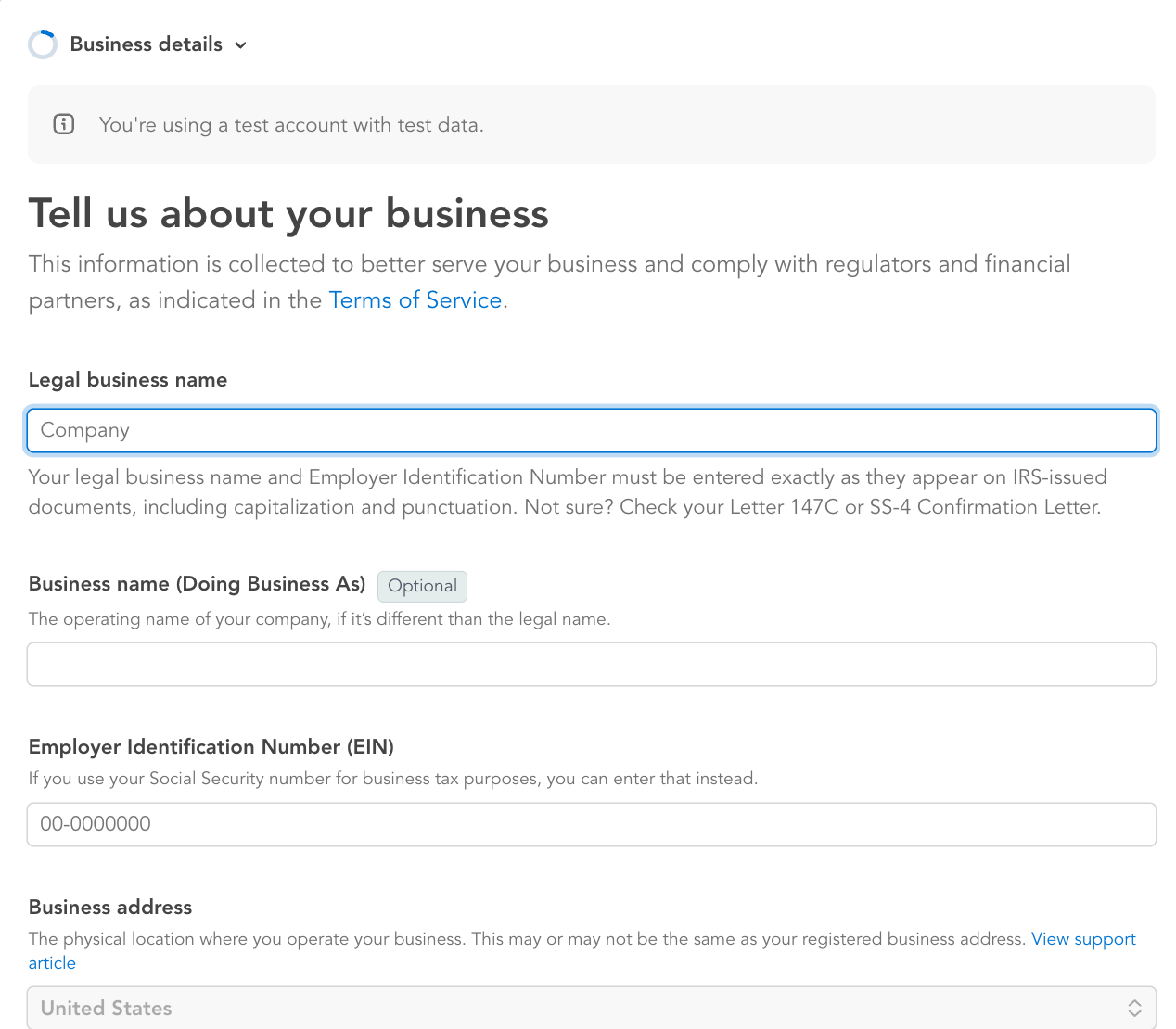
Owner Info: Information about the main company/account owner.

Business Owners(optional): Additional company owners if you share the company ownership with others.

Processing Information: This is where Connect gathers this information to gain a better understanding of your business and provide more tailored support.
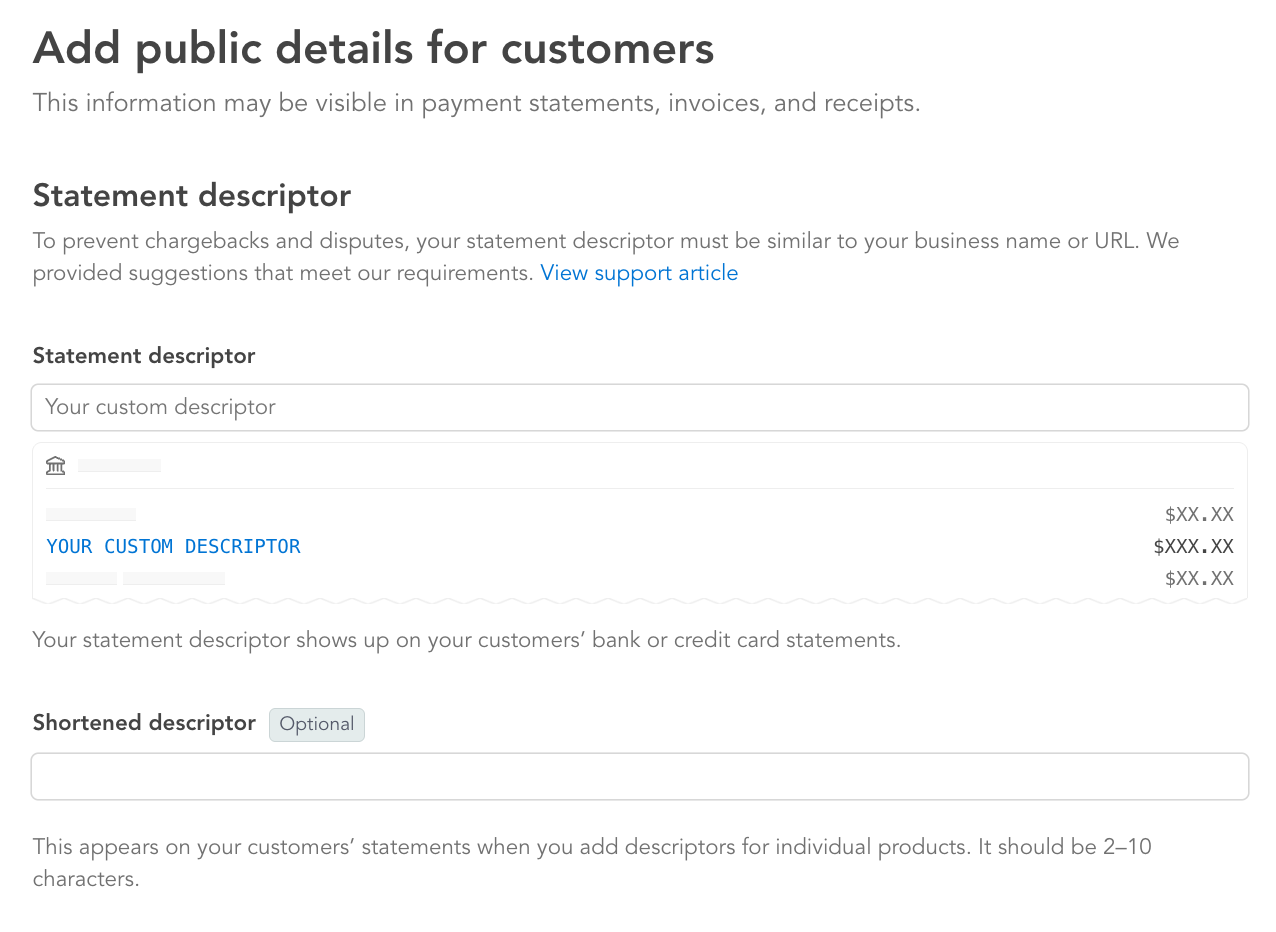
Bank Account Information: The Bank account you want to connect to receive customer payments.

Please review the provided application information, and when ready, click to submit your CONNECT by PayKickstart gateway application.


Step 3:
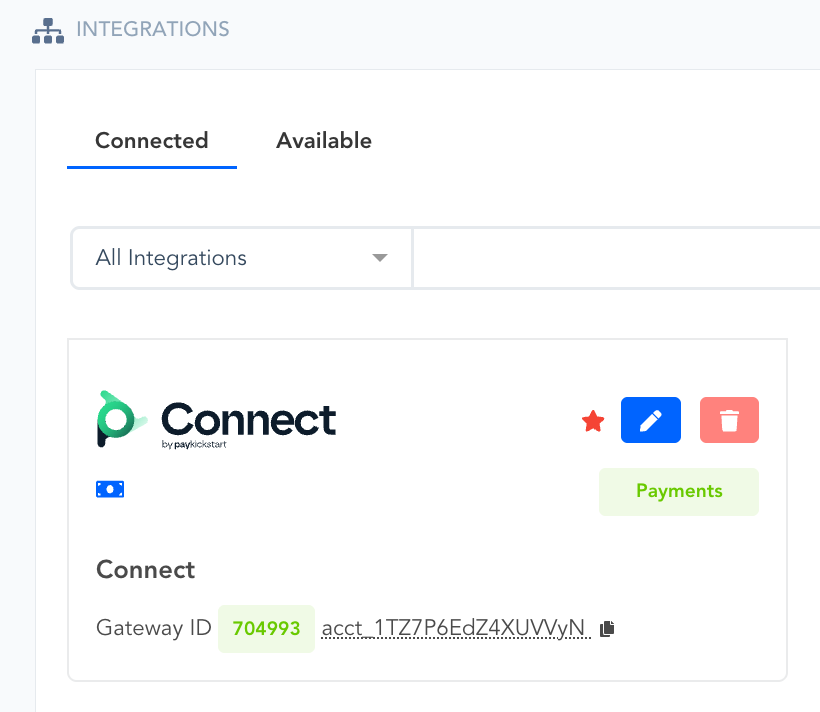
After the application is submitted, you will see this page indicating that the application is now pending approval. You can go back to the payment integration section to see the status of the CONNECT gateway.

KYC: *If Issues, we need more personal information to verify your account.
Payments: Enabled/Disabled – The ability to accept customer payments.
Payouts: Enabled/Disabled – The ability to transfer customer payments out of your Connect Account.
Most applications will be approved immediately, but if further information is required to validate your account, we will send you an email notification requesting this additional information.
If there is an issue, you can click the yellow icon to review the required information and update the application.
Once fully approved, you will see enabled or verified for each of these statuses.
CONNECTING TO CAMPAIGNS
CONNECTING TO CAMPAIGNS
Congrats on being approved for CONNECT by PayKickstart
Once approved, you will be able to add CONNECT to your campaign settings as a credit card or wire transfer payment option for the campaign.
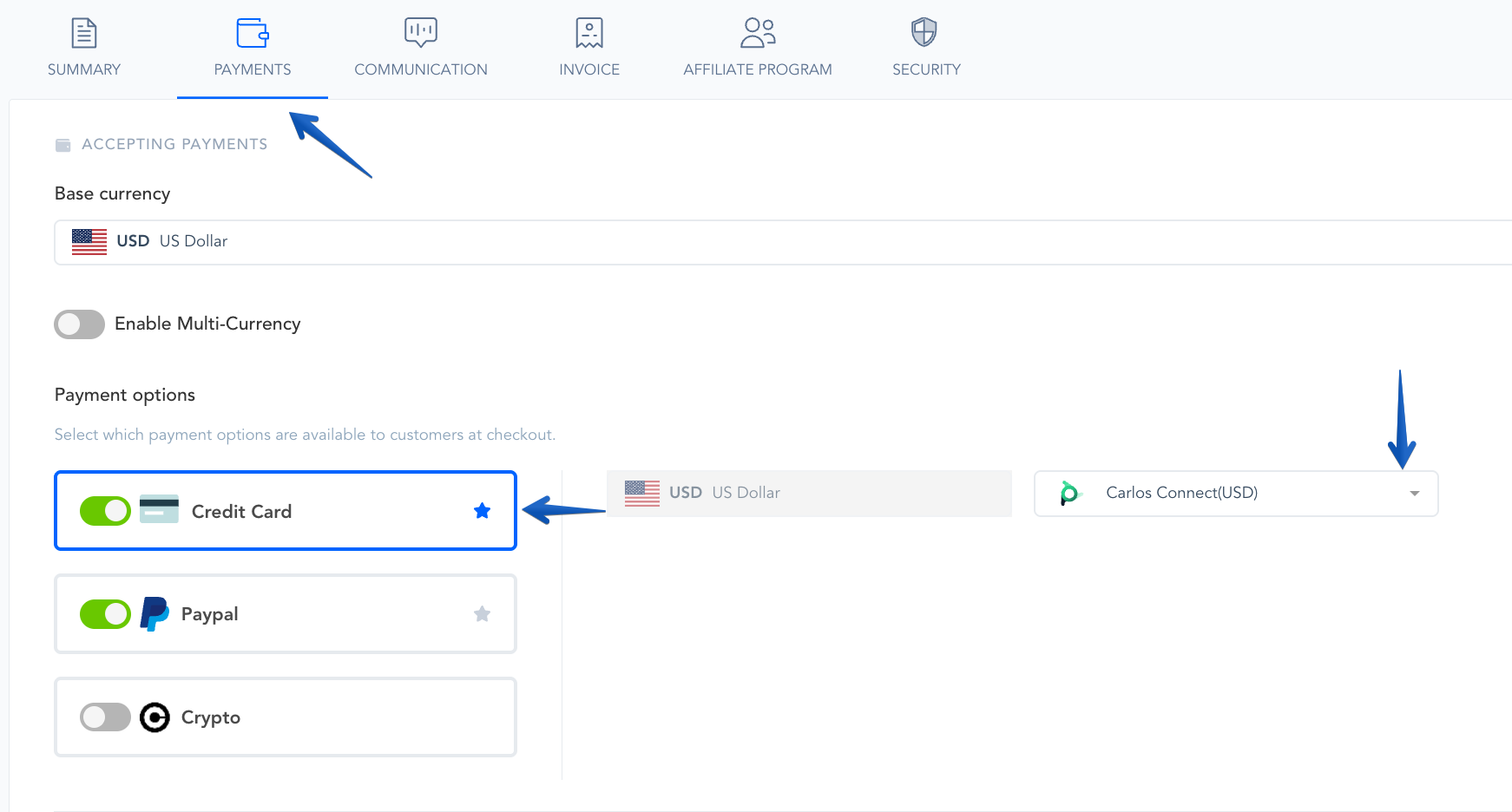
*IMPORTANT: The campaign and the CONNECT gateway must be using the same base currency of CAD or USD. If the campaign is set to another currency, you will NOT see the option to enable CONNECT.
Once connected at the campaign level, customers will be able to pay using card and/or wire transfer to purchase your products.
IMPORTANT: All products in a campaign integrated with CONNECT will require the Legal TOS checkbox to be enabled for the products.
Learn how to enable the Legal TOS checkbox on your products here.
HANDLING CUSTOMER TRANSACTIONS
HANDLING CUSTOMER TRANSACTIONS
Customer transactions via CONNECT will have a PK icon as the gateway and process just like any other card or bank payment.

PAYOUTS SECTION
PAYOUTS SECTION
NOTE: Payouts are handled on a daily basis.
Payments > Payouts: will show the related customer payment funds that are pending or ready to be transferred to your bank account. This tab will also list a history of past payouts to you.
Balance & Reserve in the top right refers to the remaining balance to be paid out to you.
Balance = Total amount waiting to be paid out.
Reserve = Any additional amount exceeding the vendor individual payout limit (e.g. $1M per same day ACH payout in the US), and larger balances are automatically split across multiple payouts. As long as the account stays in good standing, they'll be paid out in full.
Fee = The fee charged based on your plan and transaction type.

Payout Limits & Settlements
Your platform account does not have a monthly revenue cap, allowing high-volume vendors (e.g., generating $150K+ per month) to scale seamlessly without running into a monthly account limit.
Payout limits apply only to individual transfer transactions:
Individual Transfer Limits: Payouts support standard high-volume limits (e.g., up to $1,000,000 per Same-Day ACH transfer in the US).
Automatic Split Transfers: Larger balances exceeding single-transfer limits are automatically split across multiple payouts to ensure continuous processing.
Account Standing: As long as the account remains in good standing, all processed funds are paid out in full.
DISPUTES SECTION
DISPUTES SECTION
Payments > Disputes: If a customer submits a charge dispute related to your CONNECT account, you will see it in this section to review and submit chargeback evidence.
*Note: Only disputes with CONNECT will show in this section. Not disputes from other payment gateways.
Disputes will show one of the following statuses:
– Needs Response: Waiting on the vendor to submit evidence.
– Pending: In review with CONNECT team.
– Reviewing: In review with customers bank.
– Won: Dispute won by vendor. Vendor keeps payment.
– Lost: Dispute lost by vendor. Money will be returned to customer.
*If a dispute is lost, a $15 lost dispute processing fee will be applied to the CONNECT account.

Inside each dispute, you are able to review purchase and dispute details, submit dispute evidence, ban the customer, and more.

*If a dispute is lost, a $15 lost dispute processing fee will be applied to the CONNECT account.
Was this helpful?
Still need help? Ask the team