How To Add An Access Page URL Or Secure A Digital Download Using PayKickstart
Written By Angela L
Last updated About 1 year ago
Inside the Product settings (under Campaigns → Edit Product), you will see an area called Access Page URL in the product settings.
This is where you can control whether you want to send the customer straight to an Access Page URL (like a membership area login page) or if you want to have PayKickstart deliver a digital download to them.
Access Page URL:
Access Page URL:
If you select URL, PayKickstart will send this access link via email and can also be found on the default thank you page (if you use the PK thank you page).
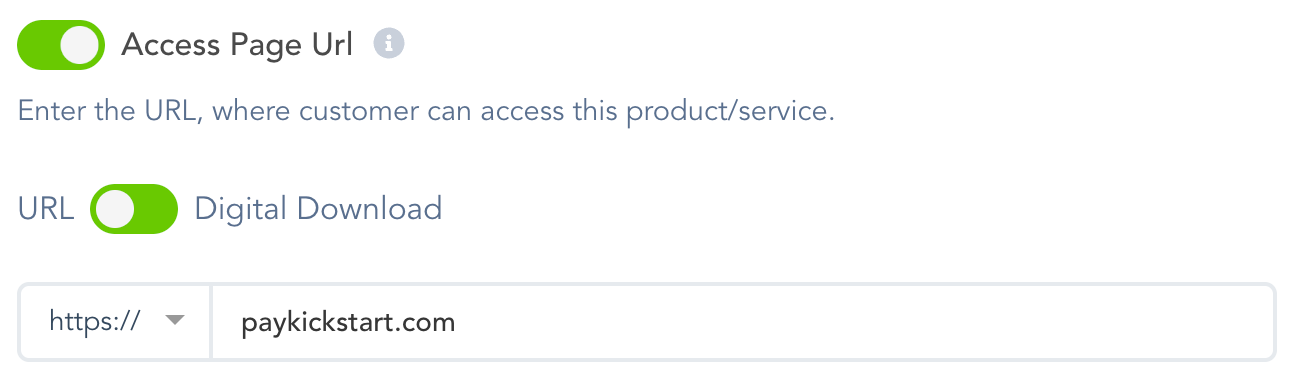
You can go to the customer’s purchase transaction to view the Thank you URL access history which is triggered when a customer clicks on the link via the default thank you page or purchase sales email.
Digital Download:
Digital Download:
If you select Digital Download, PayKickstart will send a secure, encrypted link via email, which will also be available on the Default Thank You page (if you're using the PK Thank You page).
This is ideal for preventing your download links from being shared publicly online.
There are a few options…
Option #1 - Download URL:
A URL from your file hosting provider related to the file. PayKicktart will encrypt the link (great for those who want to send large files – like video training courses)
Note: The file must be small enough for the customer to download within 60 seconds; otherwise, the link may fail to deliver the full file. If you're using large files, please compress them as much as possible.

If you are using Dropbox for your download URL, please add the following to the end of the URL: ?dl=1

Option #2 - Upload a File:
If your file is smaller than 25MB, you can upload it directly to your PK account. Customers will then be able to download it from the purchase confirmation email or the Default Thank You page.

You can choose to restrict access to the download link in one of the following ways:
Time-Based: Grant access for a defined period (e.g., minutes, hours, days, months, or years).

Number of Downloads: Limit the number of times the link can be used.

No Expiration: Allow the link to remain active indefinitely.

Once you are done, you can click the Save button in the top-right corner of the page.
And that’s it. PayKickstart will handle securing, encrypting, and delivering your file to each customer.
Note:
In the event that a customer's download link has expired, you can manually generate a new one by accessing their transaction, selecting Transaction Details on the Payments > Transactions page, and clicking the Generate URL button. This action will reset the download link for that specific customer.
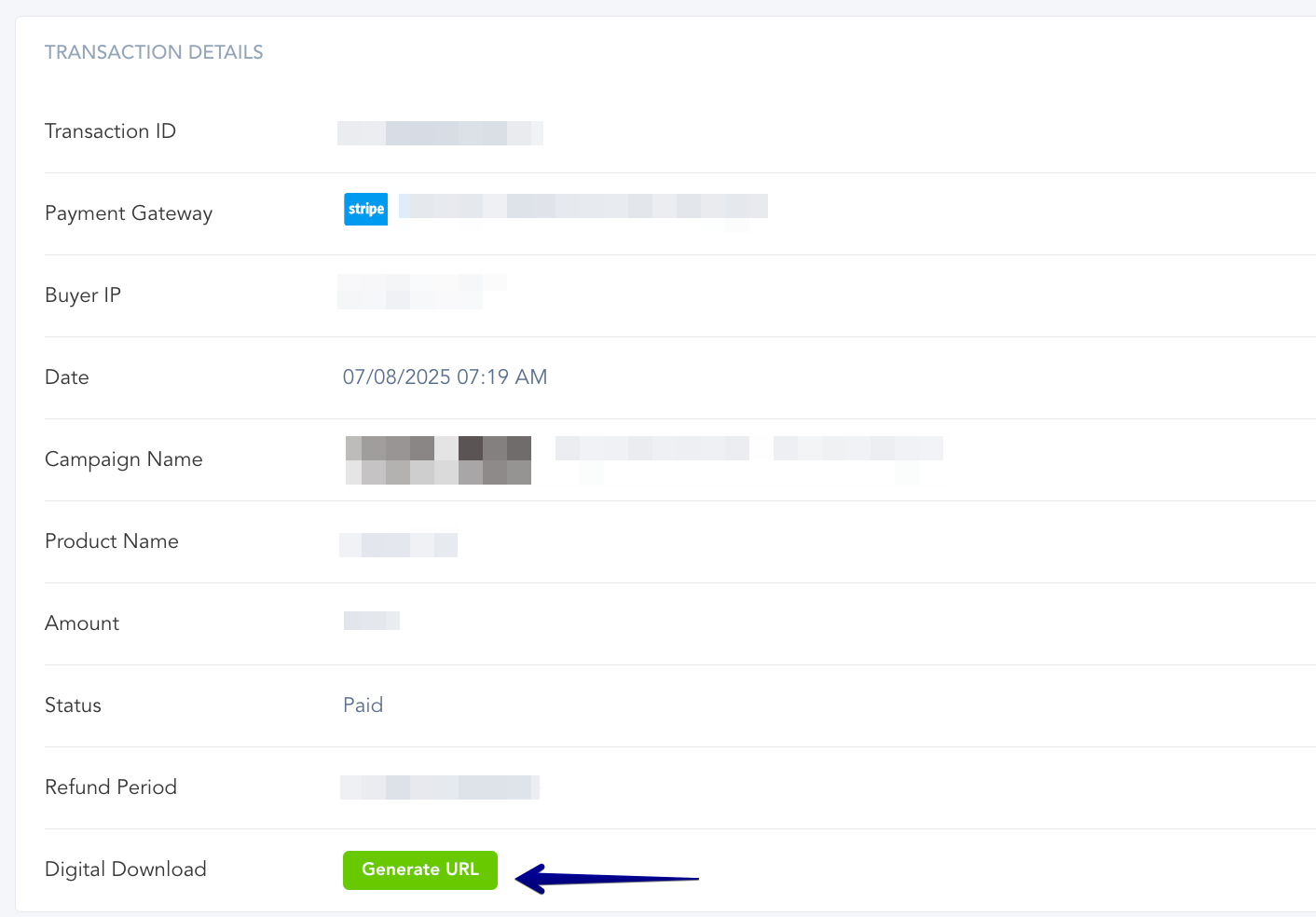
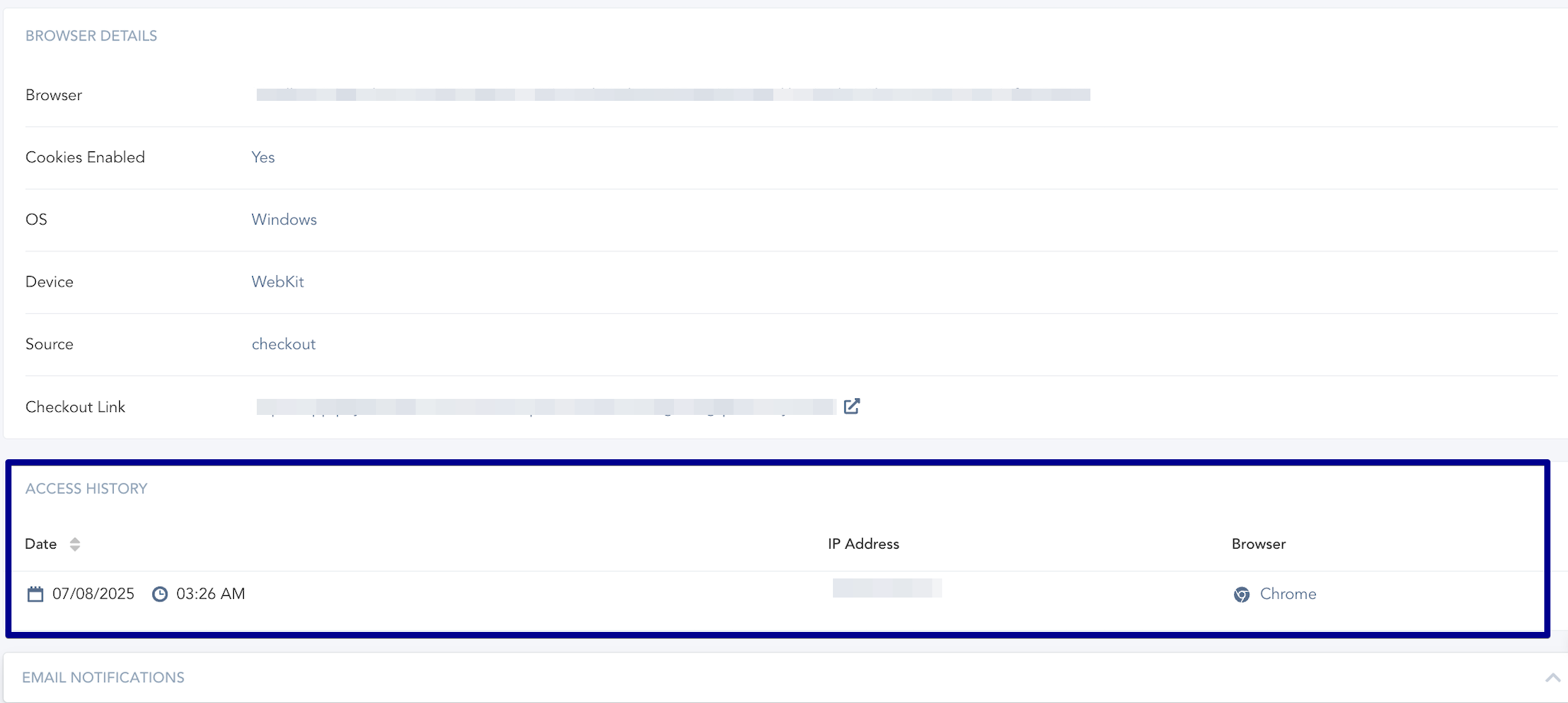
If needed, you can go to the customer’s purchase transaction to view the Digital Download access history that is triggered based on the following options:
1. When the user opens the Download link to download the file
2. When the user clicks the Access Purchase button on the Default Thank You page.
Was this helpful?
Still need help? Ask the team